

Only owners and admins see these two tabs.
Choose the list
Both lists work the same way and count toward one limit: a workspace can save up to 1,000
entries, domains and email addresses together.
These lists are different from Is work domain. That list
only feeds a workflow condition, and the workflow still runs. A blocked domain or email stops
the request before any workflow starts.
Block a domain
Under Blocked domains, enter one or more domains and select Add domains. You can paste a comma-separated or newline-separated list, including quoted CSV cells.
A dot is literal. An asterisk matches zero or more characters, including dots. Free email
providers such as
gmail.com can be blocked here like any other domain. For more pattern
examples, see Choose a domain pattern.
Block an email address
Under Blocked emails, enter one or more addresses and select Add emails. Capital letters do not matter:QA@Example.com is saved as qa@example.com and blocks that address
however the sender types it.
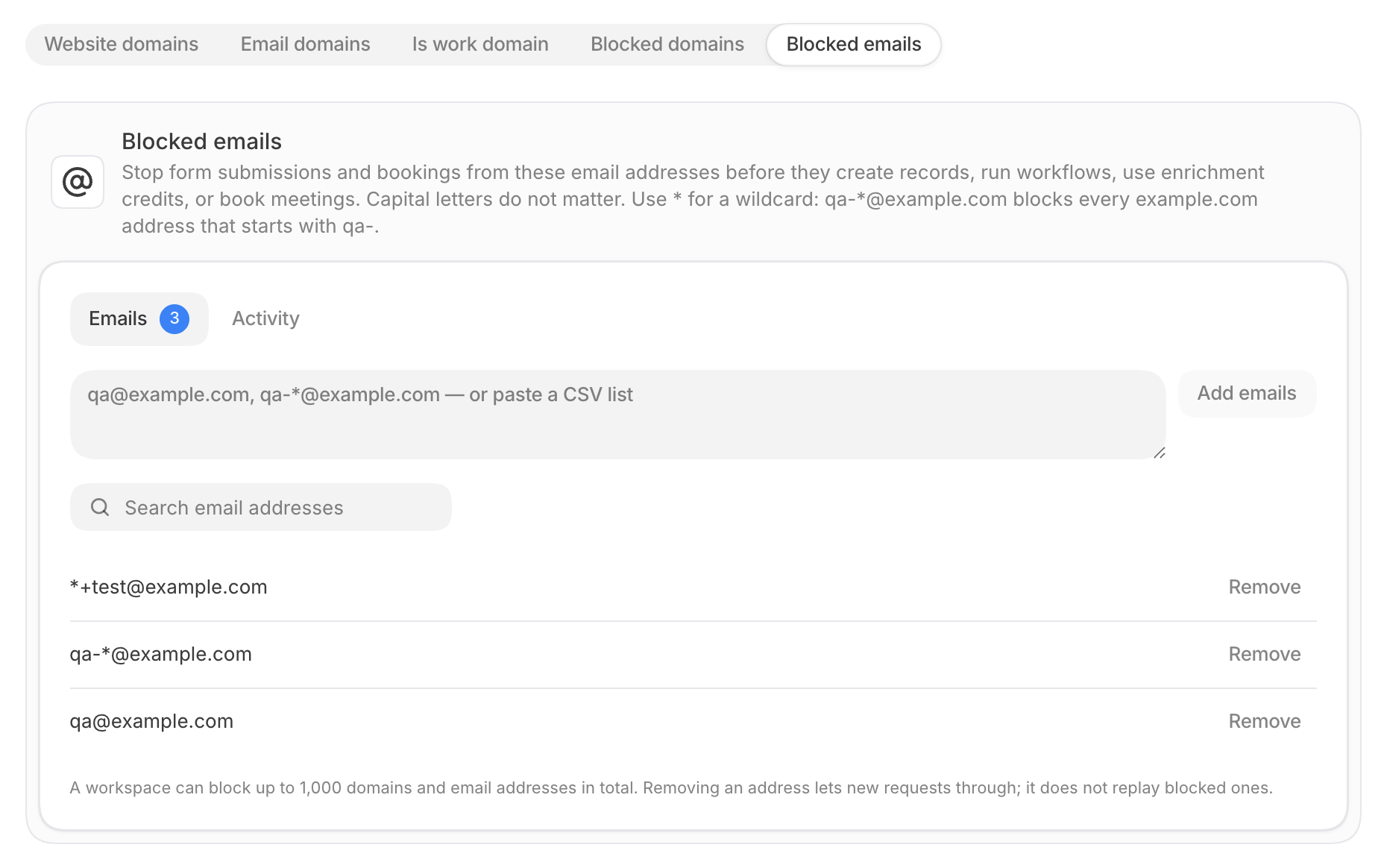
An exact address does not cover tagged versions of it. To block
qa+1@example.com as well as
qa@example.com, save qa*@example.com.
If one entry in a paste is invalid, nothing from that paste is saved. Correct the entry and add
the list again. A domain is not accepted under Blocked emails, and an email address is not
accepted under Blocked domains.
What a blocked sender sees
The sender is never told which entry stopped them.
What blocking covers
Blocking applies to form submissions and bookings: forms on your website, hosted forms, and booking pages. It does not apply to workflows that start another way, such as an incoming webhook or a CRM trigger.Review blocked attempts
Each tab has an Activity view next to its list. It shows the attempts that tab’s entries stopped, newest first, with the Time, Source, Domain, and Rule. Search, or filter by source, rule, or date, to narrow the list. Select a source to open the form or event the sender used. You can also see blocked attempts where they happened:- On a form’s page, select Blocked next to Responses.
- On an event’s page, open Blocked bookings.