

How it works
Reveal gives you 2 signals. Each one can start a workflow.
A page’s saved Reveal setting enables the Account Signal for that page. Once any pages on a domain have
it enabled, those pages also limit where Vector starts and which visits Default processes.
The Pixel skips protected pages such as login and checkout. A Vector script already loaded into
an open page is not removed. See Vector for the complete rules.
Reveal identifies visitors. It does not show a list of them on its own. To act on an
identification, add a workflow that starts with an Account Signal or People Signal
trigger. The steps are below. Without an Account Signal workflow, Reveal makes no new paid
company lookups. A company already identified for that IP can still be added from the saved answer.
Before you begin
You need:- Admin access to your Default workspace. Only admins can open Settings → Domains.
- Your website connected in Settings → Domains, with the Pixel installed on every page you want tracked.
Follow Set up the Pixel and Forms SDK if you have not done this yet.
The Forms SDK (
sdk-core.js) alone does not run the Account Signal; the page needs the Pixel. - At least 1 visit to each page you want to reveal. Default discovers a page the first time the Pixel reports a visit to it. A page that nobody has opened is not in the list yet.
Website intent providers are available at an additional cost. Lookup cost depends on which
providers are on; the confirm shows the cost before you turn Reveal on. See
Enrichment providers for the provider list.
Turn on Reveal for a page
- Go to Settings → Domains and open your website.
- Under Reveal, find the page. Each row is a page the Pixel has seen. Select Show all for the full list.
- Turn on the page’s switch. The confirm shows what a lookup costs with your providers. Select Enable Reveal.
Start a workflow when a visitor is identified
This is where Reveal becomes useful. The example below alerts sales when a company opens the pricing page.1
Create a workflow
Open Workflows and select Create new. Give the workflow a name, for example
“Alert sales when a target account visits pricing”.
2
Open the trigger picker
On the canvas, select the Add Node button (the plus icon in the toolbar on the left). Then
select Triggers at the top of the panel. Type “Signal” in the search box to find both
Reveal triggers.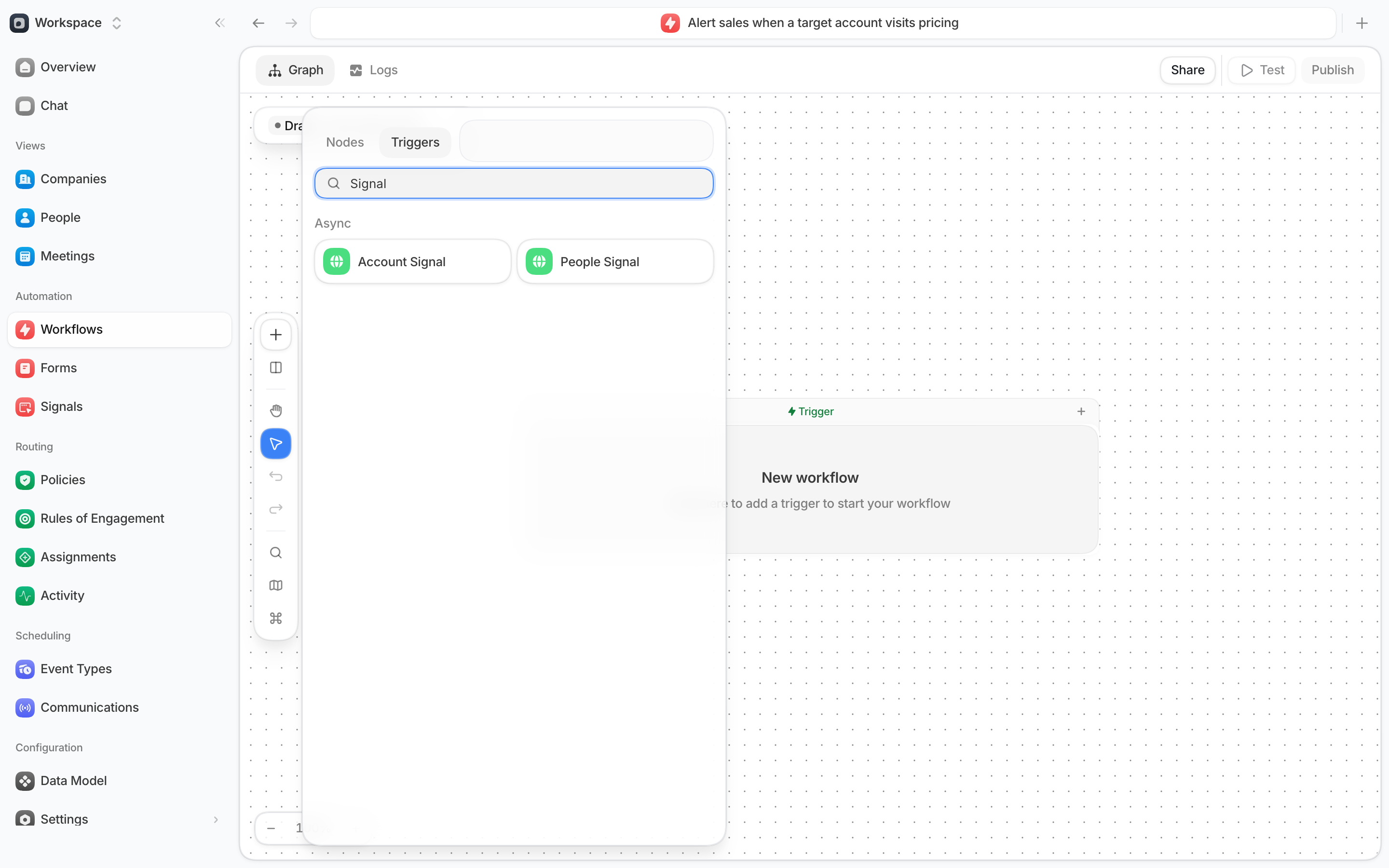
3
Choose Account Signal or People Signal
- Select Account Signal to start the workflow as soon as a company is identified on a page with Reveal on.
- Select People Signal to start the workflow when a person is identified. Results arrive in batches, about every 30 minutes.
4
Limit the trigger to the right visits
Both fields are optional. Leave them empty to fire for every identified visit.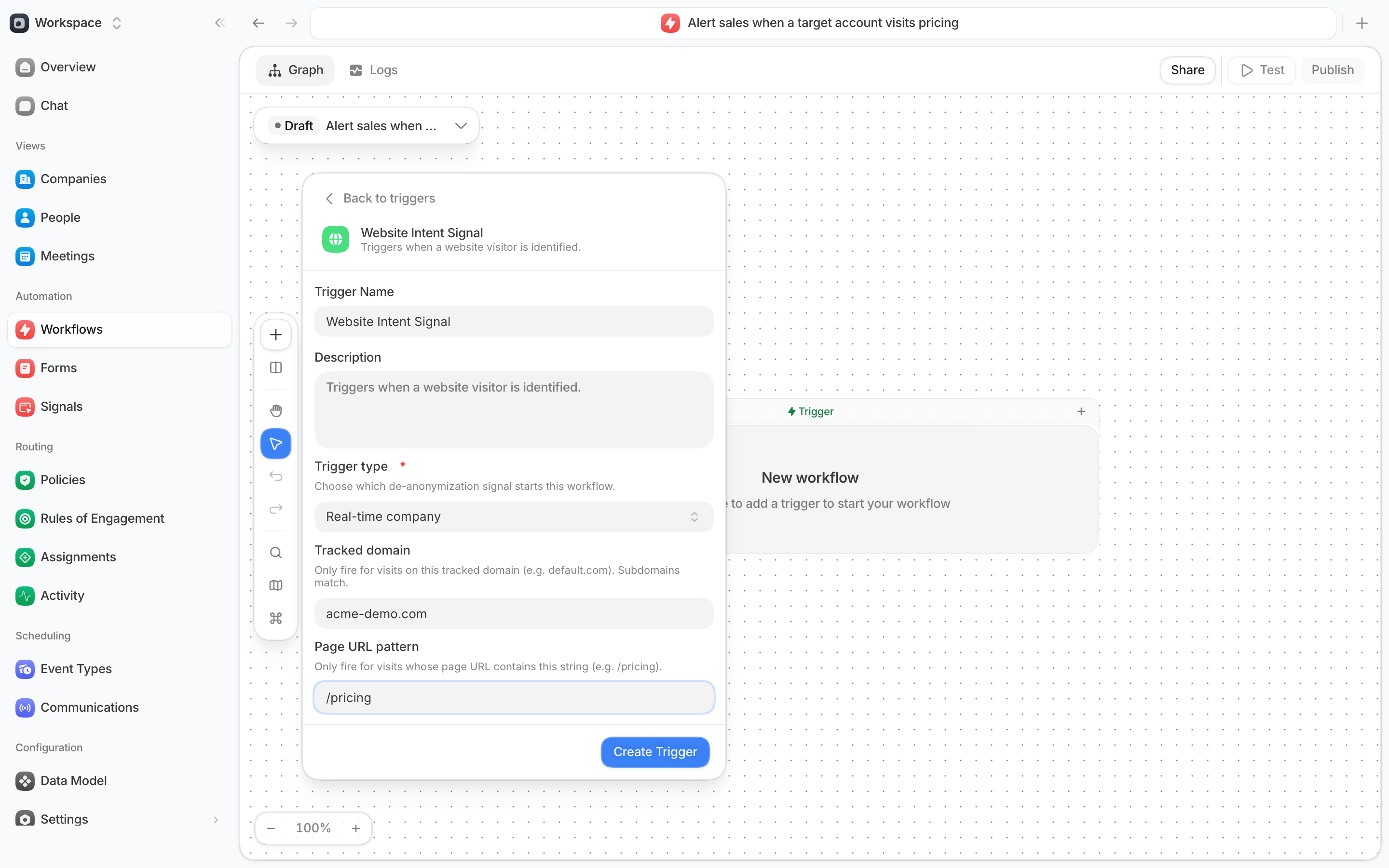
5
Add your steps and publish
The trigger appears at the top of the canvas. Select the plus below it to add the next step,
for example a Slack message to the account owner, an enrichment step, or a routing step. The
trigger gives later steps the company’s domain, and for People Signal also the person’s
name, title, and email.Select Publish when the workflow is ready. Reveal only starts published workflows.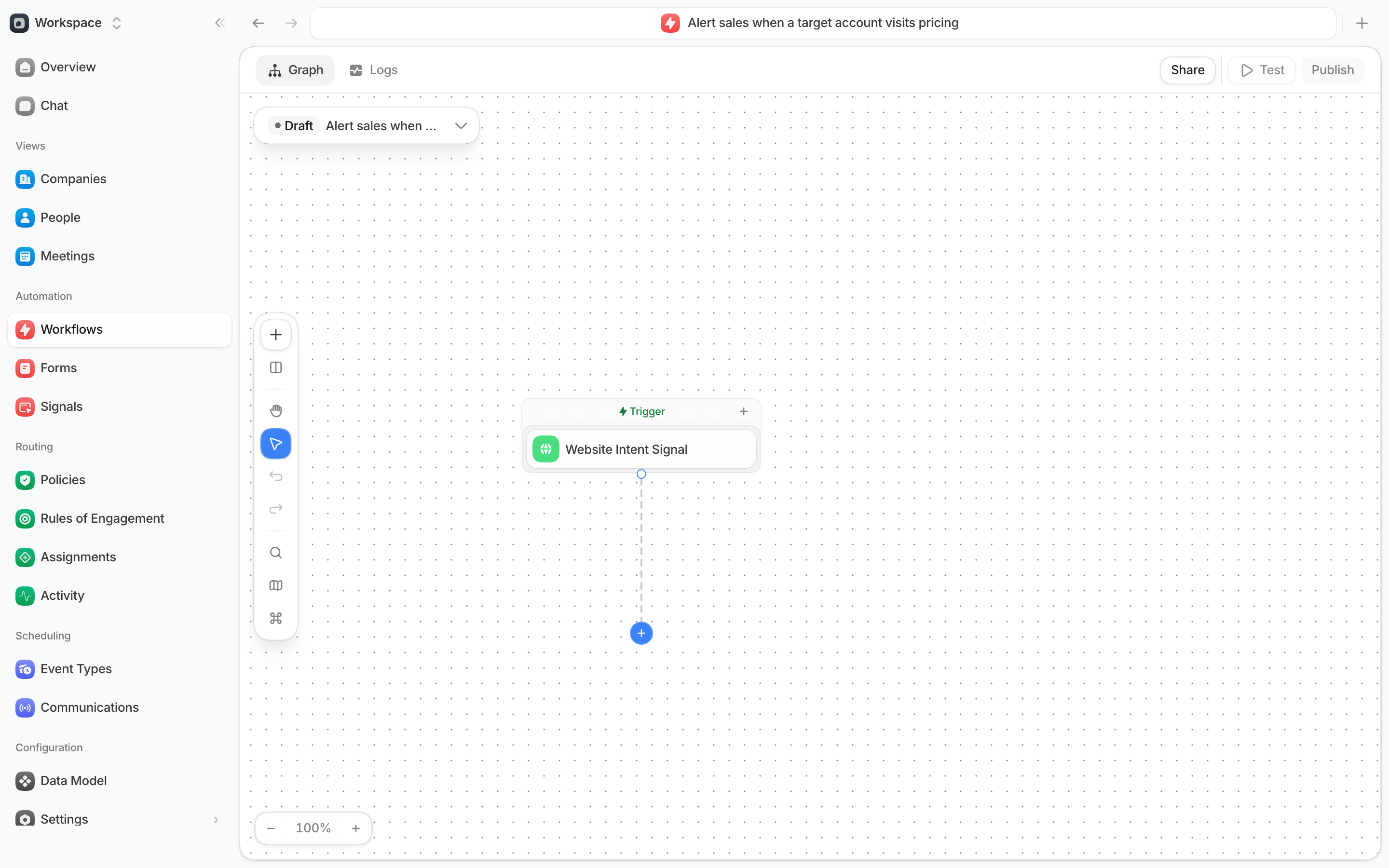
What to expect
- No workflow, no paid lookup, no credits. Reveal only pays to look up a visitor when a published, enabled workflow with an Account Signal trigger could start for that page. Turn the workflow off and Reveal stops spending until you turn it back on. A company already identified for that IP can still be added from the saved answer. Changes reach Reveal within a minute.
- Provider and workflow required. Paid lookups need Clearbit Reveal or Demandbase enabled under Settings → Connections, plus a published, enabled Account Signal workflow matching a Reveal-enabled page. Vector does not perform this lookup.
- Tracked domain must be a domain. The trigger’s Tracked domain is saved as its host, so
https://acme.com/pricingbecomesacme.com. A value that is not a domain, such as*.acme.com, blocks publish until you fix it. - Not every visit is matched. Default can only identify a company when the visitor is on a network that belongs to that company. Visitors on home networks, mobile data, or a VPN often stay anonymous.
- 1 workflow run per company per hour. When the Account Signal identifies a company on a domain, the same workflow does not start again for that company on that domain for 1 hour, even if the visitor opens several pages. A return visit later in the day starts a new run.
- People Signal is not instant. Expect a person to be identified up to an hour after the visit.
- Identified people show on their record. Open the person in People, then the Activity tab, and filter by De-anonymized to see each identification and which provider made it.
- Consent is respected. If a visitor withholds analytics consent through your consent banner, Default receives no page views from them and the Account Signal cannot run. If they withhold marketing consent, the Account Signal does not look up the company, and the People Signal does not load. See Consent Gating.