Add the Default extension to Chrome
Install it from the Chrome Web Store. You need a Default account to sign in.
What a rep can do with the Default Chrome extension
Pick up the lead on the page you’re viewing
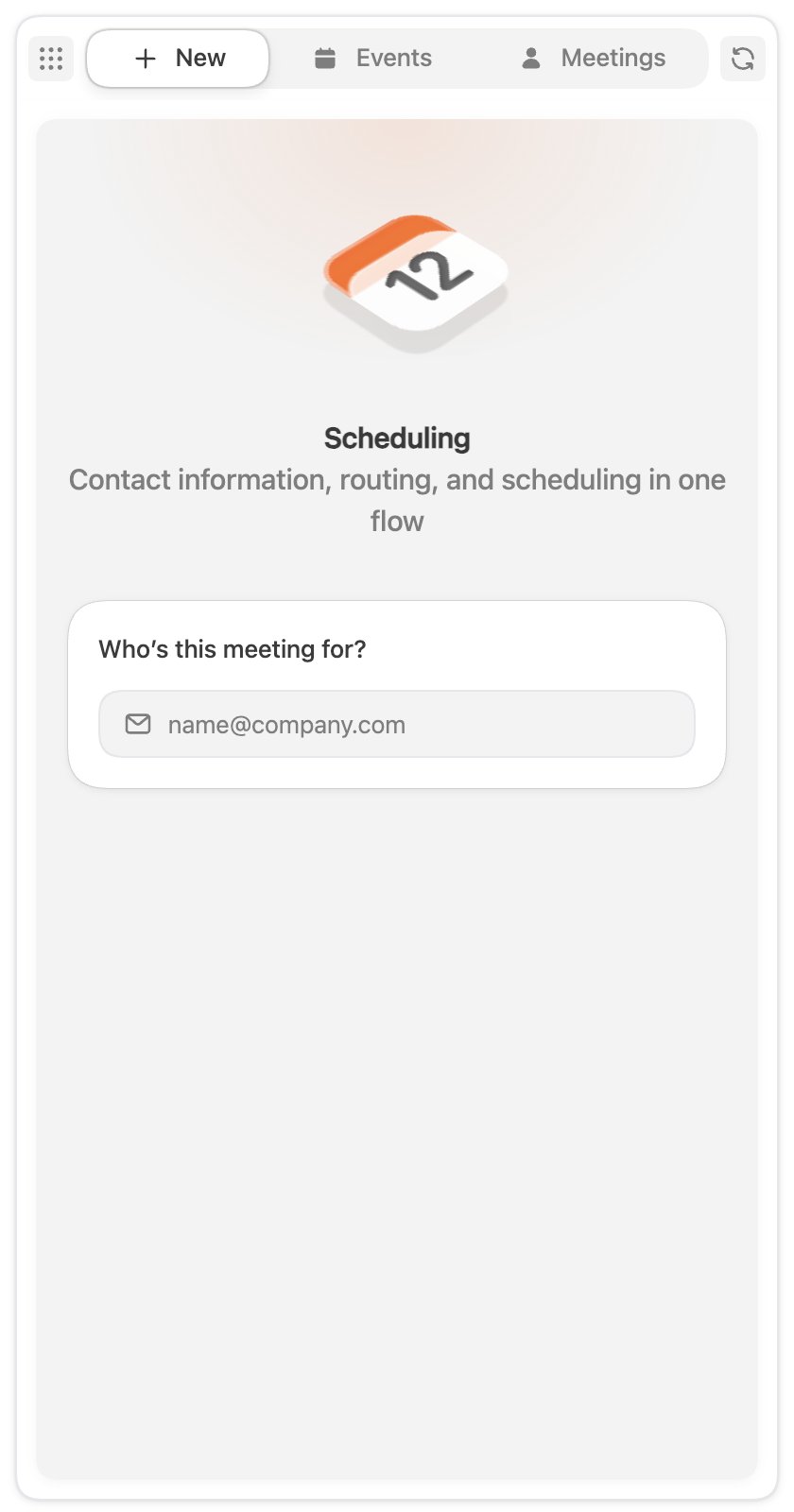
The New tab starts from a lead’s email address. On these pages, the extension finds the lead for you and offers it as Lead on this page:
Select Use to load the suggested lead. Detection is passive: Default looks nothing up until you
select Use, and the suggestion stays hidden while you’re already working a lead.
On any other page, type the lead’s email under Who’s this meeting for?. Select Clear email
to start over with a different lead.
Look up a lead in your CRM and in Default
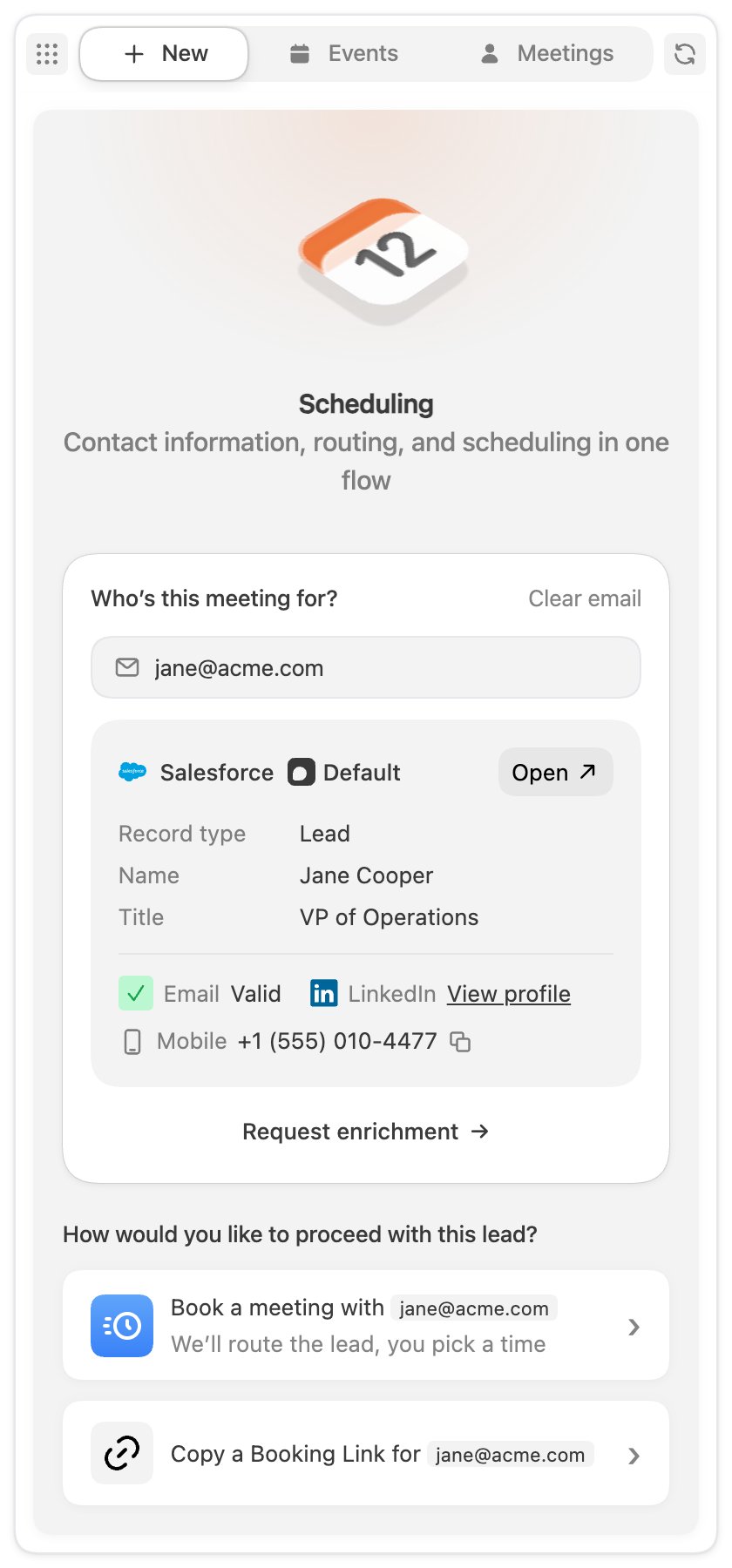
As soon as the panel has a valid email, Default looks the lead up in your connected CRM and in Default’s own data. It searches Salesforce leads and contacts, and HubSpot contacts. The lead card shows:- Where the data came from: Salesforce or HubSpot when the CRM has a record, and Default when Default’s own data contributed.
- Record type (Lead or Contact), Name and Title.
- The email, a LinkedIn View profile link, and a Mobile number with a copy button, when Default has them.
Request enrichment for a lead
Select Request enrichment under the lead card to fill in missing data about the lead.1
Choose a waterfall or a provider
Pick the Waterfall tab to run one of your workspace’s
enrichment waterfalls, or the Provider tab to run
a single provider. A provider shows its cost in credits per call. A waterfall shows a range:
the low end if its first provider finds the lead, the high end if every provider runs.
2
Run it
Select an option, then select Run enrichment. The lead card updates with what the
provider found, and the panel shows how many credits the run charged. A run that finds no
data can still charge credits when the provider bills for a miss.
Book a meeting or copy a booking link through a routing workflow
With a lead loaded, 2 actions appear under How would you like to proceed with this lead?:- Book a meeting with routes the lead through a workflow, then opens a booking page in a new tab where you pick a time on the routed host’s calendar.
- Copy a Booking Link for routes the lead the same way, then copies the lead’s scheduling link to your clipboard, ready to paste into an email or chat.
1
Select a workflow
Pick the routing workflow to run. The list shows the published workflows with an
Extension trigger that you have access to. Use Search workflows to filter a long
list.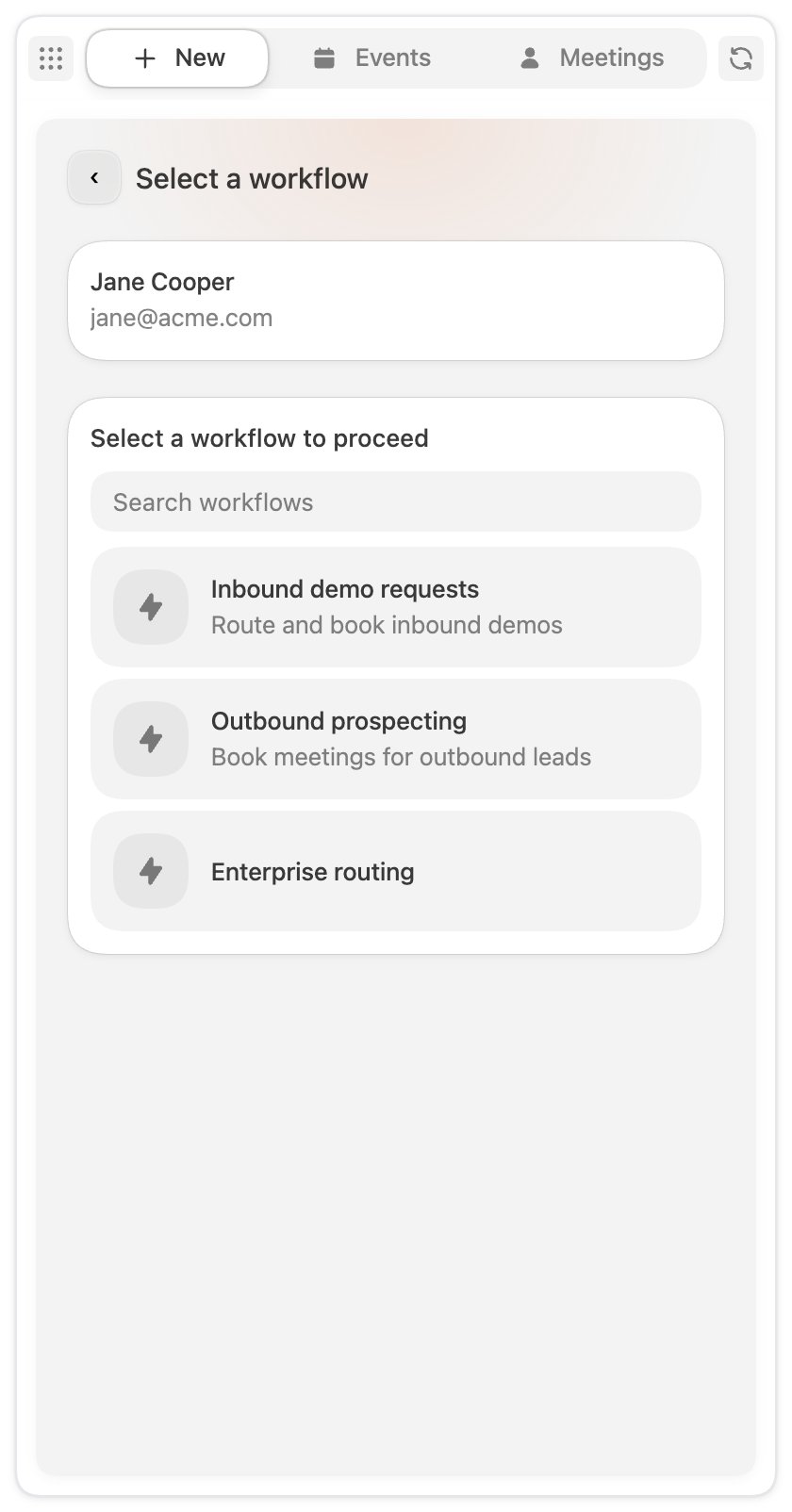
2
Fill out the Booking Form and submit
The Route this meeting screen shows the workflow’s Booking Form. The lead’s email is
filled in and locked. The other fields come from the form your admin connected to the
workflow, prefilled from the lead’s record where Default has the data. Complete any required
fields and select Submit.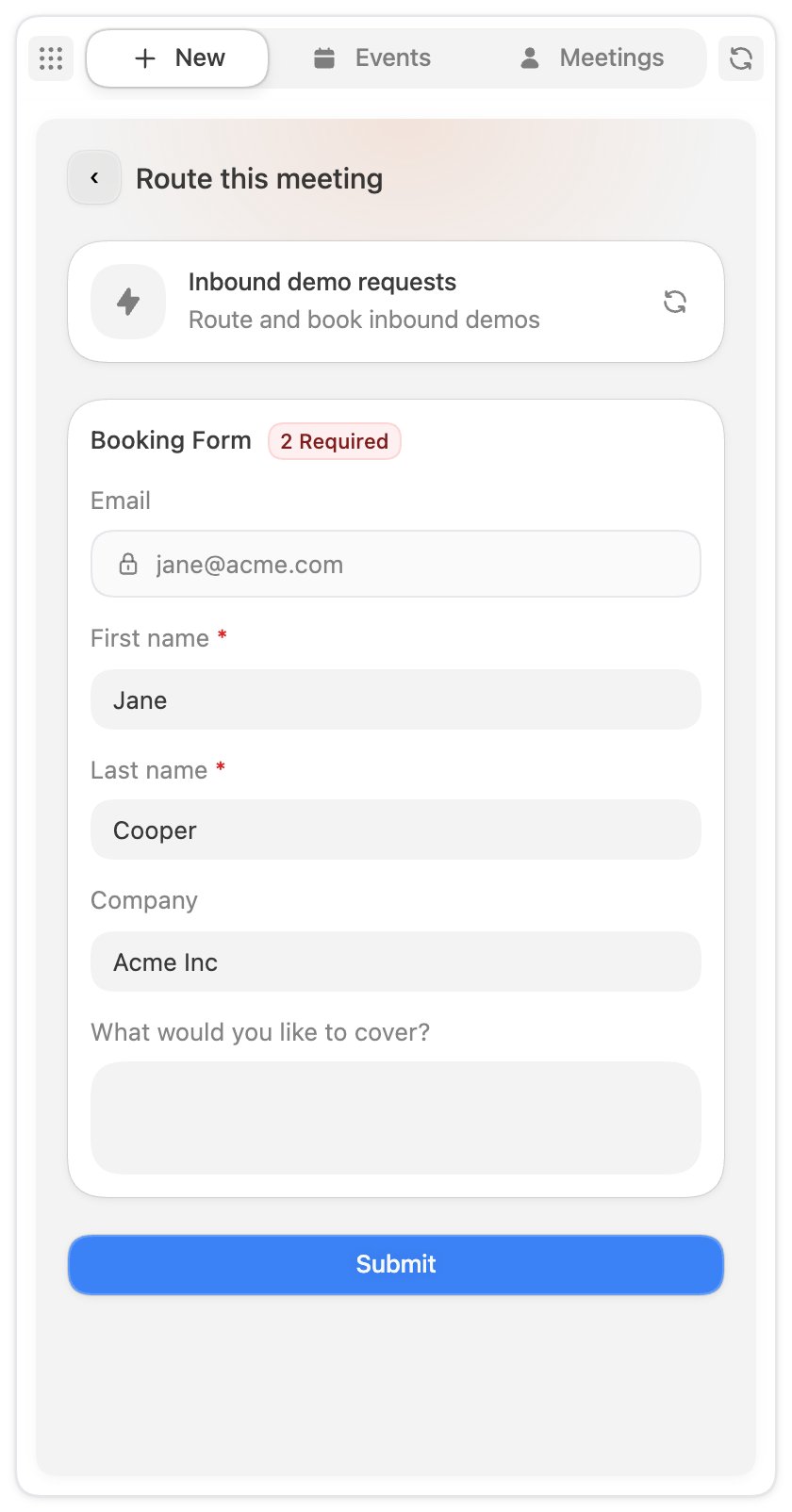
3
Book the meeting, or paste the link
For Book a meeting with, the booking page opens in a new tab. For Copy a Booking Link
for, the link is on your clipboard.
- The Host card shows who the workflow routed the lead to. Find new host is coming soon.
- Under Additional hosts, Default adds you as an optional host, marked (You), unless the workflow routed the lead to you. You can remove yourself, make yourself required, and add teammates, up to 10 additional hosts in all. Required hosts’ busy times show on the calendar.
- Under Invite guests, add up to 10 more email addresses, for example the lead’s colleagues.
- Pick a time and select Confirm. A confirmation page shows the booked meeting, and you can invite more guests from there.
Share a booking link from the Events tab
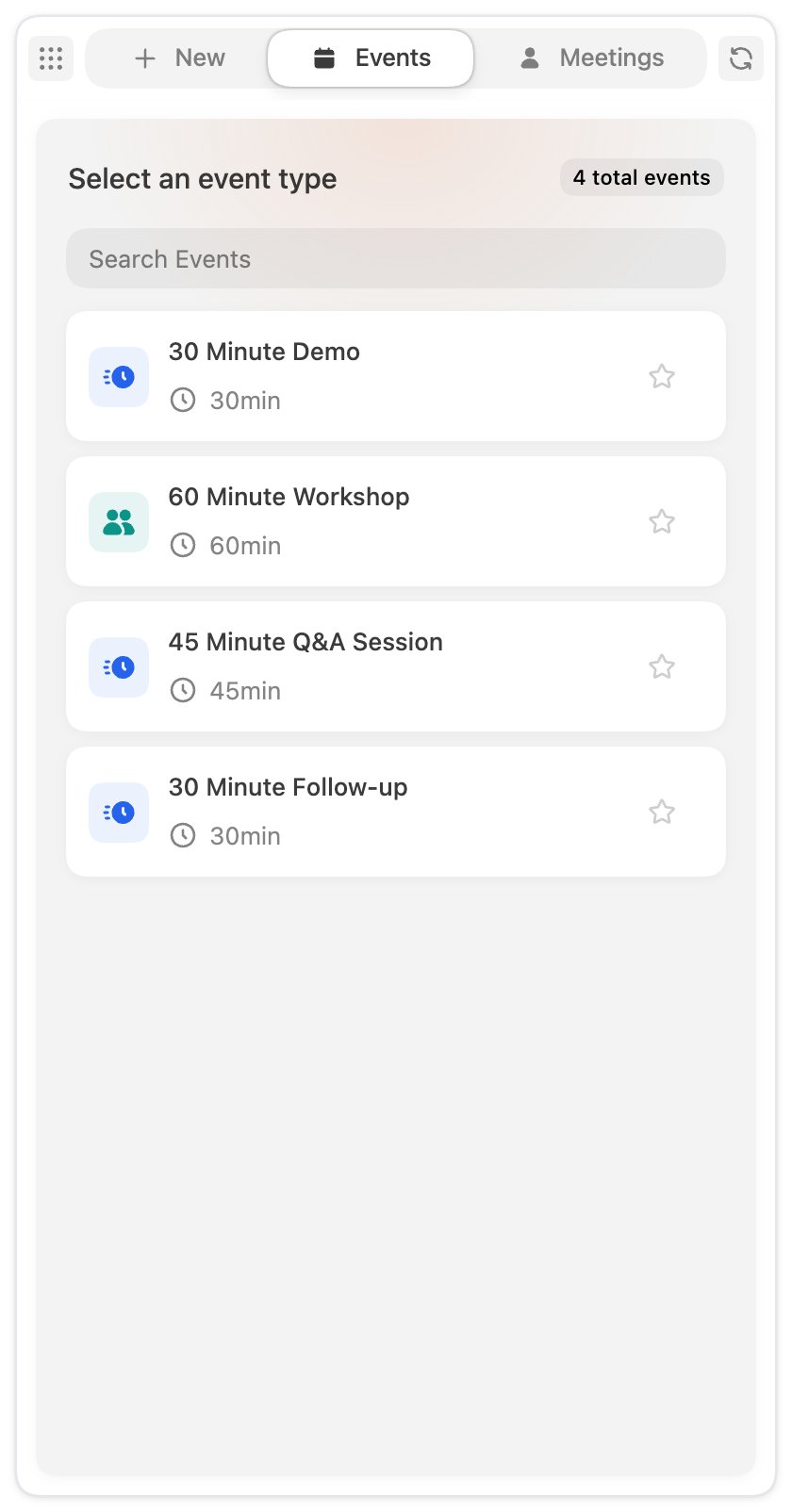
The Events tab lists the active events you have access to. Use Search Events to filter, then select an event to open Copy a booking link:- Under Pick a host, Me makes you the host, and you can add optional hosts under Add Additional hosts. Custom lets you pick the hosts from your team’s members and queues, choose the primary host, and mark each host Required or Optional.
- Members without a connected calendar show No active calendar and can’t be picked.
- The Booking link box shows the link. Select Copy booking link. When no link exists yet for that set of hosts, the button reads Create booking link, and creating one needs permission to manage the event’s booking links.
Reassign, reschedule or mark no-shows from the Meetings tab
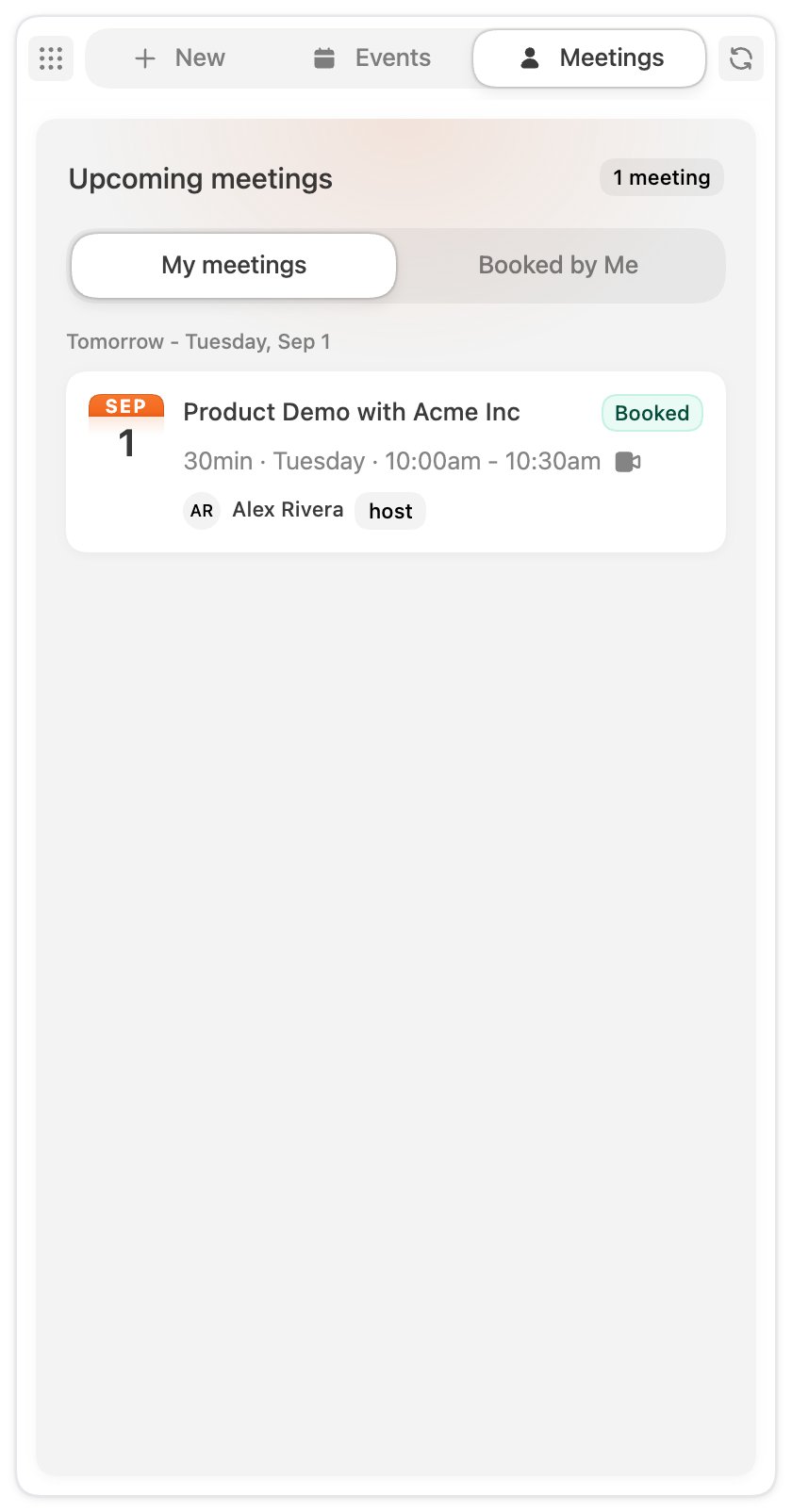
The Meetings tab lists your next upcoming meetings, grouped by day, up to 50. It has 2 views:- My meetings: meetings you host, as the primary host or a co-host.
- Booked by Me: meetings you booked for someone else, for example through Book a meeting with.
Canceled and no-show meetings stay in the list for reference, without actions.
What admins set up for the Chrome extension
The Book a meeting with and Copy a Booking Link for actions run workflows that an admin builds in Workflows. A workflow shows up in the extension when:- It starts with the Extension trigger. See Triggers.
- It is published and set live, so its status reads Live, and the rep has access to it.
If the workflow list says no routing workflows are available to you, ask an admin to publish
one with an Extension trigger or to give you access.
Panel menu
The menu in the top-left corner of the panel has:
The refresh button in the top-right corner reloads the page in your current tab.
Install the extension
You need a Default account to use the extension.Default Chrome extension
Install the extension from the Chrome Web Store.
1
Install the extension
Open the Default extension
in the Chrome Web Store and add it to Chrome.
2
Pin it to your toolbar
Select the puzzle icon in the Chrome toolbar, then select the pin next to the Default
extension so its icon stays visible.
3
Open the panel
Select the Default icon in the toolbar. The side panel opens next to the current page.
Sign in
1
Start the sign-in
Select Sign in to Default in the panel.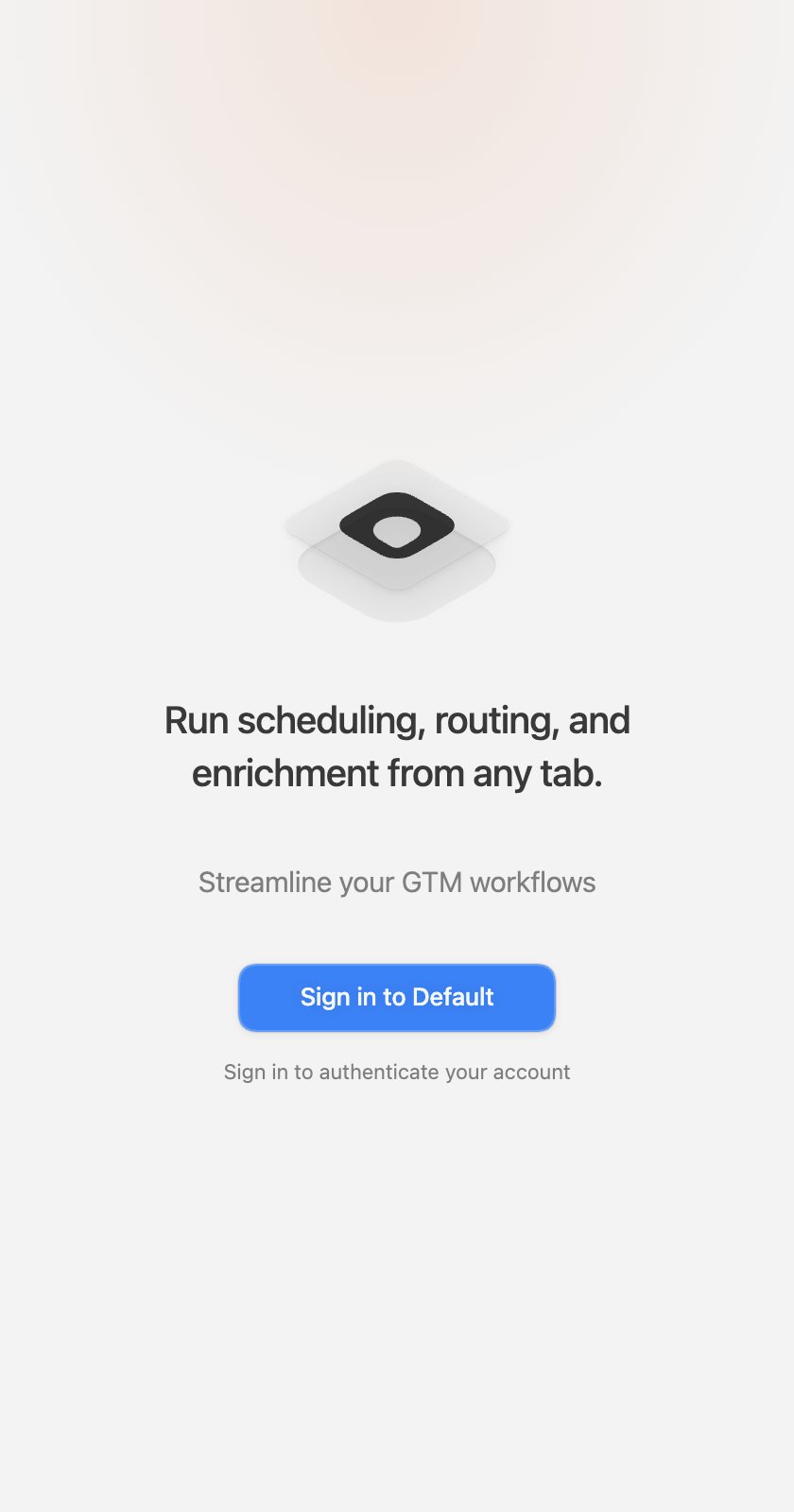
2
Approve the sign-in window
A Default sign-in window opens. Sign in with the account you use for Default, then the
window closes on its own.
3
You're in
The panel opens on the New tab, ready to take a lead.