

The Pixel and Forms SDK
The Pixel usesindex.js; the Forms SDK uses sdk-core.js. When analytics is allowed, submissions
from the SDK carry the visitor ID the Pixel stored, so they join that visitor’s page views. You can
load either or both on the same page.
Shared visitor identity does not prevent duplicate form submissions. When your code submits a form
through the SDK, exclude that form from automatic Pixel capture with data-default-ignore.
See Prevent duplicate submissions.
Most sites only need the Pixel. Use the SDK in these cases:
- Your form is not a plain HTML
<form>element. - You want to control exactly how, or whether, the scheduler appears after submission.
How it works, end to end
- The script loads and initializes. It runs as soon as the page is ready, or immediately if the page already finished loading.
- With analytics allowed, the Pixel establishes visitor identity and a 30-minute rolling session, and records pageviews. The standalone SDK does none of that. It uses the Pixel’s visitor ID when the Pixel has stored one, and otherwise an ID that lasts for the browser tab.
- The automatic Pixel fetches the list of forms wired to a scheduling workflow. It does this at startup, before the visitor gets near the submit button.
- Pre-enrichment starts while the visitor fills out a tracked form. The moment they finish typing their email and move to the next field, the script sends what they entered so far to Default. Default only starts the lookup when the form is approved, has Allow pre-enrichment on, and a published workflow attached to it enriches, and a primary waterfall is configured.
- If Default recognizes the email, it identifies the company and person in the background. It also checks your CRM for a matching record, before the visitor clicks submit.
- The visitor submits. The script, or your code if you use the SDK, sends the full responses to Default with the pre-enrichment and CRM match results that are ready by then.
- Published workflows attached to an accepting form can run. Routing, enrichment, and scheduling happen in Default, exactly as configured in your workspace.
- The workflow hands back the next action:
- Nothing. The page shows its own thank-you state.
- A redirect to a specific URL.
- A scheduler handoff. The script shows the booking calendar (see The scheduler experience).
Install
The snippet
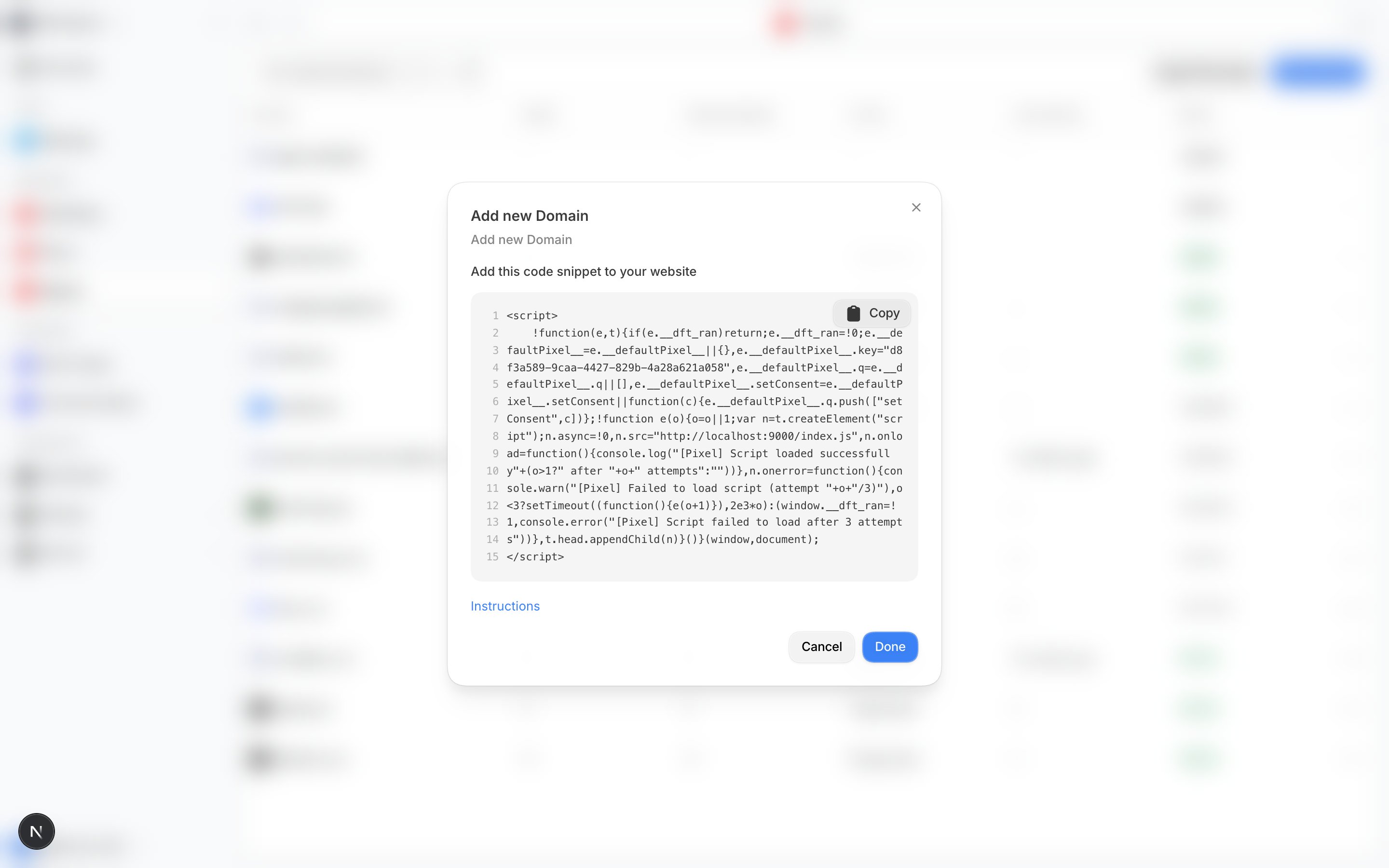
1
Copy your snippet
Select Settings in the sidebar, then Domains, open a website domain, then find Add the snippet to your site. The
snippet comes with your workspace’s public key already filled in. Your workspace has 1 key, so the
same snippet works on every domain you connect.Copy the complete generated loader. It includes load retries and a consent method that works before
the downloaded scripts start. Use the snippet shown under Add the snippet to your site without changing its script addresses.
2
Add the SDK script if you use it
To load the programmatic SDK on the same page, load it the same way with The SDK applies consent choices queued on the install loader, and it sets no tracking cookies,
so it is safe to load at any point. For a standalone SDK, see the
complete example.
sdk-core.js in place of
index.js. Both scripts read the same window.__defaultPixel__.key. Use each script address in
your copied snippet; the address below is an example.key value is a public key. It belongs in client-side code, so you do not have to hide or
proxy it.
Where it goes
Put the snippet in the<head> of every page you want tracked.
- Add it to your site-wide template or layout. You then do not have to add it page by page.
- A tag manager also works. Use a custom HTML tag that fires on all pages.
- Single-page apps need the snippet only once. The script detects client-side route changes on its own and re-evaluates each new “page” without a reload.
Initialize on page load, not at submit
This is the most common integration mistake we see. It is worth understanding why it matters, not just that it does. Some things happen correctly only when the script runs from the moment the page loads:1. Pre-enrichment and CRM matching lose their early start
The script starts to identify a visitor the moment they leave the email field, well before submit. It also starts to check your CRM then. This works only when the script’s interaction listeners were attached before the visitor typed their email. If the script,DefaultPixelSDK.init(), or the visitor’s <form> shows up later,
nothing catches that moment.
The submission still goes through. But Default must then do the identification and CRM lookup after
submit, which adds real time between “submit” and “here’s your calendar.”
2. The scheduler-enabled forms list may not have loaded yet
Right after it starts, the script fetches the list of forms on the page wired to a scheduling workflow. It then knows in advance to intercept those forms’ native submit behavior and show the calendar instead. Interception stops the browser from navigating to the form’s plainaction URL. If the script only
starts at submit time, that fetch has possibly not finished.
In the worst case, the browser follows the form’s default action. The visitor never reaches the
calendar at all.
3. Identity resolution needs a moment to run
This applies to the Pixel. Its stable anonymous visitor id takes a moment to generate, so a submission that fires in the very first instant of the script’s life may fall back to a temporary id for that one event. The Forms SDK has no such delay: it reads the Pixel’s id, or its own per-tab id, immediately. All 3 point at the same fix:DefaultPixelSDK.init(), on
page load.
Do not do this inside a submit handler. Do not put it behind a condition that delays it past the
visitor’s first interaction with the form.
The same rule applies when you call recordFormInteraction() yourself to mirror the email-blur
warmup (see Form binding below). Call it as soon as the visitor supplies their
email, not at submit time.
Form binding
Automatic detection (the Pixel)
Once running, the Pixel recognizes forms on its own. That includes forms added to the page after load, for example inside a modal or after a client-side route change:- Plain HTML forms: any
<form>element that does not match one of the vendor patterns below. The script listens for itssubmitevent and for focus, blur, and change activity on its fields. - HubSpot forms: the script recognizes a form id that starts with
hsForm_, ahs-formclass, anhs_contexthidden field, or an action that points at HubSpot’s form domains. It also recognizes HubSpot’s newer embed through that embed’s own ready and submission events. - Marketo forms: the script detects these through Marketo’s own form-ready API.
- Paperform embeds: the script detects these through Paperform’s own submission messages.
Manual submission (the SDK)
For a form the Pixel cannot detect cleanly, call the SDK directly instead. A fully custom React or Vue form is a typical case:init() call and script tag on page load, exactly as shown, per
Initialize on page load, not at submit above. Move the
submitForm() call to wherever your own code actually collects a submission.
As pasted, the sample calls both immediately. That confirms the connection works, but it is not a
real integration.
The neighboring Test tab fires real test submissions and pre-enrichment against your fields.
You do not have to leave the editor.
If your custom form’s fields are outside a native <form> or carry data-default-ignore,
automatic email interactions do not run. Call recordFormInteraction() yourself
as soon as the visitor leaves the email field, so pre-enrichment still gets its early start:
pixelFormId to submitForm(). The warmup is filed under every identifier the
blur carried, so the submit finds it by pixelFormId or by a shared HTML formId.
See recordFormInteraction for the full signature.
Excluding a page or a form from capture
- Turn off capture for an entire page with a meta tag in that page’s
<head>: - The script skips sensitive paths automatically:
/login,/signin,/account,/checkout,/oauth, and any path under/admin/. - To exclude one form without opting out the whole page, add a
data-default-ignoreattribute to that form or to any element that wraps it: - The same attribute works on HubSpot, Marketo, and Paperform embeds. Put it on the element the
embed renders into, or on a wrapper around it. Do this whenever your own code submits that form
with
submitForm(). Otherwise the Pixel also captures the vendor’s submission, and the workflow runs twice.
The scheduler experience
The Pixel and the SDK both show the booking calendar the same way. It is a full-screen overlay on top of your page. The calendar renders its own dimmed backdrop and card. It reads as a modal without a second frame around it. Before the calendar itself is ready, a branded loading indicator appears first. It uses your workspace’s scheduler colors and logo, if you set them. A short rotating message tells the visitor that something is happening. Once the calendar is ready, it replaces the indicator in a single swap, with no blank flash in between. If the visitor’s pre-enrichment and CRM matching already ran early (see above), this handoff is fast. If the script had to do that work after submit, the visitor sits in this loading state longer. TheautoDisplayScheduler option controls the display mode. Set it on DefaultPixelSDK.init() or
in the window.__defaultPixel__ block, which both scripts read.
You can also override it per call to DefaultPixelSDK.submitForm():
- Modal (default): the full-screen overlay described above. Nothing to configure.
- Inline: the calendar mounts into a container element you specify, so it feels like part of your
page. Add
loader: trueto also show the branded loading indicator in that container while the calendar loads. - Off: the script displays nothing, and you read the URL off the result yourself. This mode only
exists for
submitForm().
window.__defaultPixel__.autoDisplayScheduler = { target: "#meeting-section" } in your install
snippet, and the Pixel mounts the calendar there on a scheduler handoff.
An auto-detected form cannot turn display off. The true/false shape of autoDisplayScheduler
only affects submitForm().
On a scheduler handoff, an auto-detected form always shows the calendar somewhere, full-screen or
in your target container. There is no calling code for the Pixel to hand a suppressed URL back to.
A calendar you displayed through submitForm() closes itself in these cases:
- The visitor books or cancels.
- The booking session times out.
- A workflow is configured to redirect afterward.
Escape, or if it
fails to load.
For the full event list you can subscribe to (booked, canceled, closed, and so on), see
Scheduler events in the reference. Subscribing works the
same way from either script, with DefaultPixel.on(...) or DefaultPixelSDK.on(...).
You do not need the SDK on the page just to listen for scheduler events.
Troubleshooting
Next steps
Set up the Pixel and Forms SDK
Connect a domain, add a form, install the SDK, and verify a workflow.
Build a reliable Forms SDK flow
Apply the recommended initialization, submission, and scheduler pattern.
Use the API reference
Find every configuration option, method, return value, and scheduler event.