

All workspace members can view and search the lists. Only owners and admins can edit them.
What references what
A condition reads the email field you select and checks its domain against your workspace’s lists. The same lists apply wherever you use these work-domain operators in workflow conditions. For is not work domain, a valid excluded domain returns true instead. Both operators require a usable email, URL, or domain value. A missing or invalid value does not count as a personal email.Manage the lists
- Your list contains domains and patterns you add for this workspace.
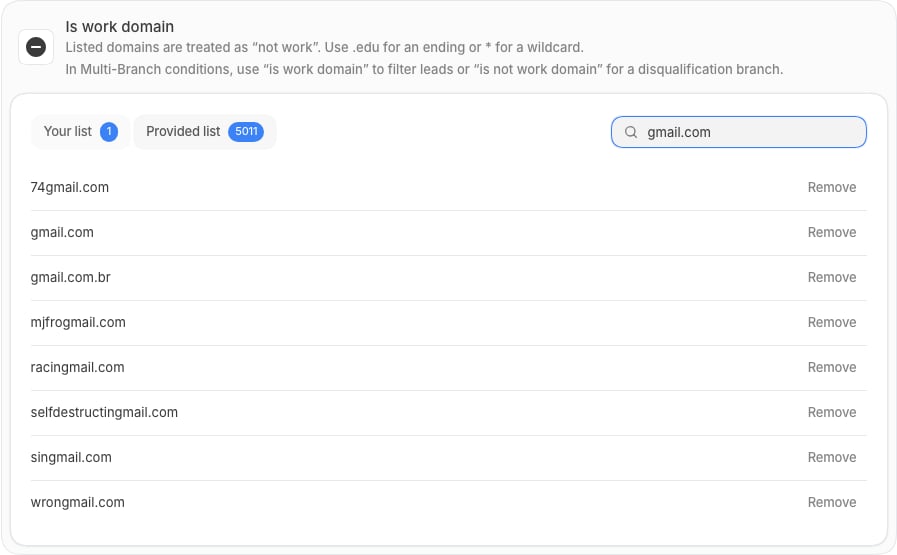
- Provided list contains Default’s free and disposable email providers. Select Remove to exclude an entry from this workspace’s checks. Select Restore to include it again.
- Search domains searches the entire selected list, including rows not currently shown.
- Removing a provided entry does not override a matching rule in Your list.
Choose a domain pattern
Each row shows what that entry matches, independent of other saved entries.
A dot is literal. An asterisk matches zero or more characters, including dots.
edu.* is a
literal prefix rule, not a special rule for universities.
Use it in a Multi-Branch condition
1
Select the email field
Add or open a Multi-Branch node. In a branch’s conditions, select the lead’s email field
from the trigger or an earlier step.
2
Choose the operator
For a branch that lets work addresses continue, select is work domain.
For a disqualification branch, select is not work domain.
These operators use the workspace lists; you do not paste the domain list into the condition.
3
Connect the next action
Connect the branch to the action you want. For example, route work addresses to sales and
send other addresses to a nurture path. Configure a CRM update if you want to save a
disqualified status. Naming a branch does not update a lead’s status.
gmail.com active in Provided list and no matching custom rule: