

Select Settings in the sidebar, then Notifications under Workspace Settings.Only admins can see this page. The page has a Slack tab.
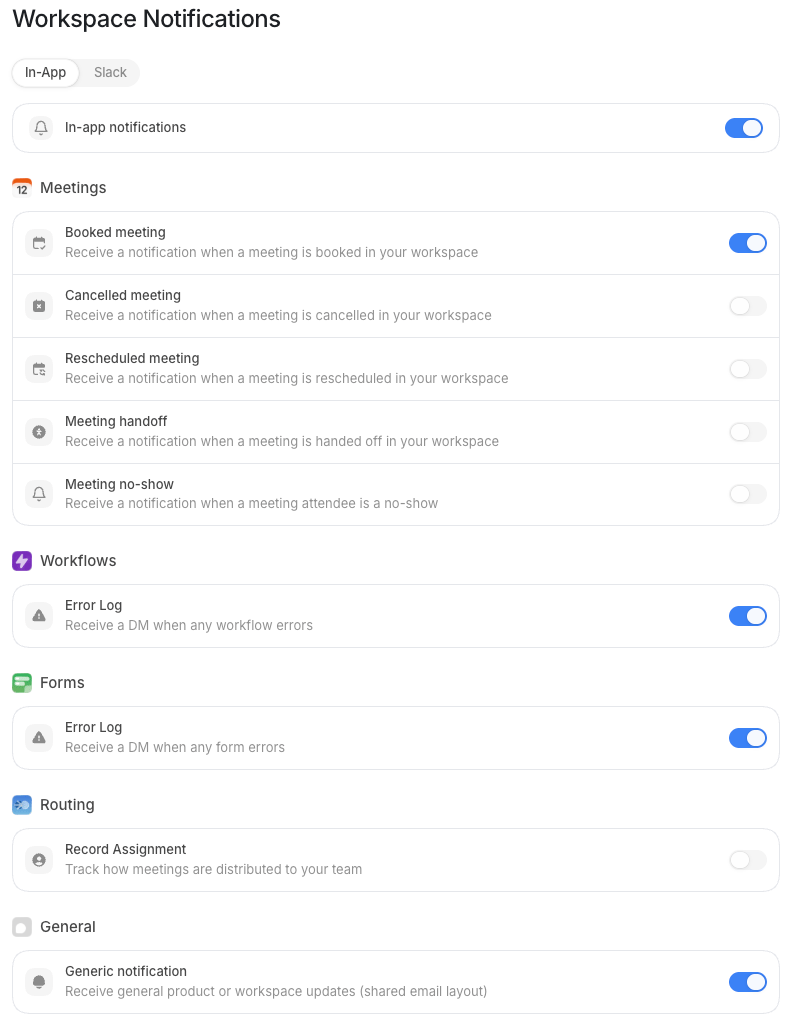
How workspace notifications work
Default uses a 3-layer precedence model to decide whether a notification reaches a user:- Workspace channel switch: you turn a channel on or off for the entire org. If a channel is off here, no one on the team receives notifications through it, regardless of their personal settings.
- Workspace per-type defaults: within each enabled channel you set which notification types are on by default for the org. Users inherit these defaults.
- User preferences: each user can adjust their own settings within what the workspace allows. They can turn a type off, but they cannot turn on a channel or type that the workspace has disabled.
The workspace page exposes Slack only. Individual users also see Mail and SMS
tabs on their personal Notifications tab in Preferences.Mail and SMS are per-user channels. This page has no org-level on/off switches for them.
Channel tabs
Select a tab to configure that channel. Each tab has the same structure: a master channel switch at the top, then the list of notification types below it.Slack
Default sends Slack notifications to Slack channels you choose, 1 per notification type. The Slack tab works only after you connect your workspace Slack integration. If Slack is disconnected, the tab shows a prompt to connect it via Connections first. After you connect Slack, toggle Slack notifications to enable the channel. Then configure each type individually. When you enable a type on the Slack tab, a Slack channel selector appears inline. Use it to send that notification type to a specific Slack channel, for example route the workflow Error Log to#ops-alerts.
For the Error Log types, the selector also offers Direct messages, which sends the
notification to every admin as a Slack direct message. After you pick a channel, turn on
Also DM admins to do both.
Notification types
Within each channel tab you set which types are on or off by default. Default groups the types by product area.Meetings
These notify the meeting host (or assigned rep) when something changes on one of their meetings. Each type appears only on the channel tabs that can actually deliver it.Workflows
Workflow notifications go to all admins in the workspace, whoever built the workflow. The workflow Error Log appears on the Slack tab only.Forms
Form notifications go to all admins in the workspace.General
Generic notification (generic.notification) is email-only. Workflow emails, exports,
and Outlook reconnect alerts all go by Mail, not Slack, so it does not appear on this
page. Members see it on the Mail tab of Notifications.
What users can change
After you set the workspace defaults, each user can adjust their personal preferences. They do this on the Notifications tab of their own Preferences page under Personal. Users can turn off any type or channel that the workspace has enabled. They cannot enable a channel you disable here. On the per-user page, users also see Mail and SMS tabs. Mail requires a valid email on their Profile, and SMS requires a valid phone number. Neither of those channels has an org-level switch. Users control them entirely from their own settings. The Routing group historically covered Record Assignment. That catalog type (routing.assignment) is hidden from Settings until a producer ships
(HIDDEN_NOTIFICATION_KEYS), so the Routing group currently renders nowhere — workspace
or personal. Do not reintroduce a Settings toggle without a reachable producer.