

Select Settings in the sidebar, then Preferences under Personal, and open the
Notifications tab.Notification links open this tab directly. It opens on the Mail channel by default.
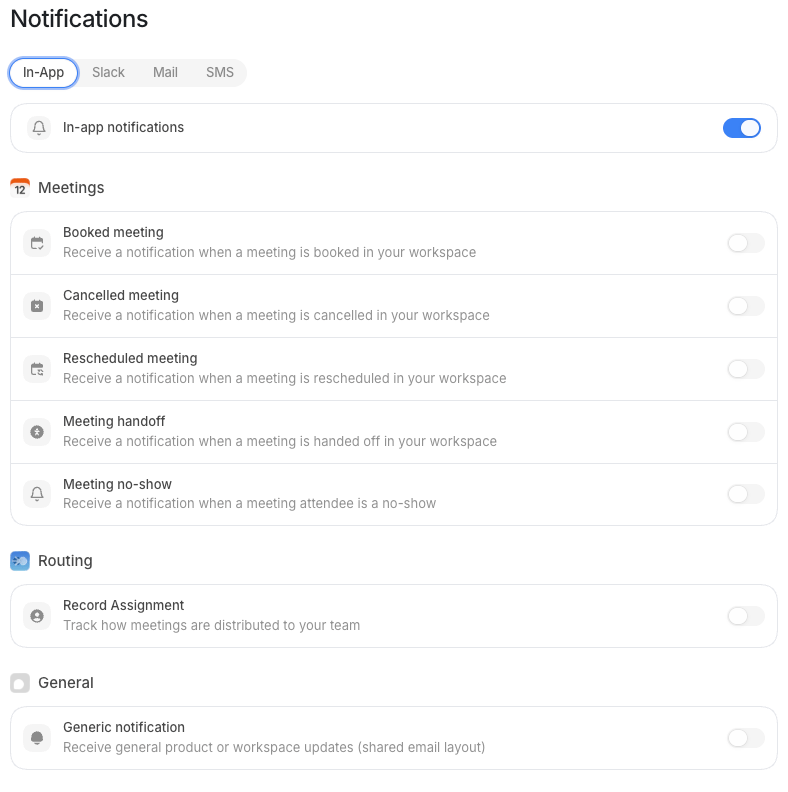
How channel controls work
Each channel tab has a channel-level toggle at the top.- Turn the channel on to receive notifications through it.
- Turn the channel off to silence the entire channel, no matter what your per-type settings say.
Channel tabs
Slack
Sends notifications as Slack messages. This channel needs a connected workspace Slack integration. If Slack is not connected, the tab shows a message that directs you to connect Slack under Connections. Once Slack is connected at the workspace level, turn on the channel. Then choose which notification types you want delivered there.SMS
Sends notifications by text message to the phone number on your profile. To enable SMS:1
Add your phone number
Add a valid E.164 phone number on Profile, for example
+15551234567.2
Open the SMS tab
Open the SMS tab on Notifications.
3
Turn on the channel toggle
Turn on the SMS notifications channel toggle.
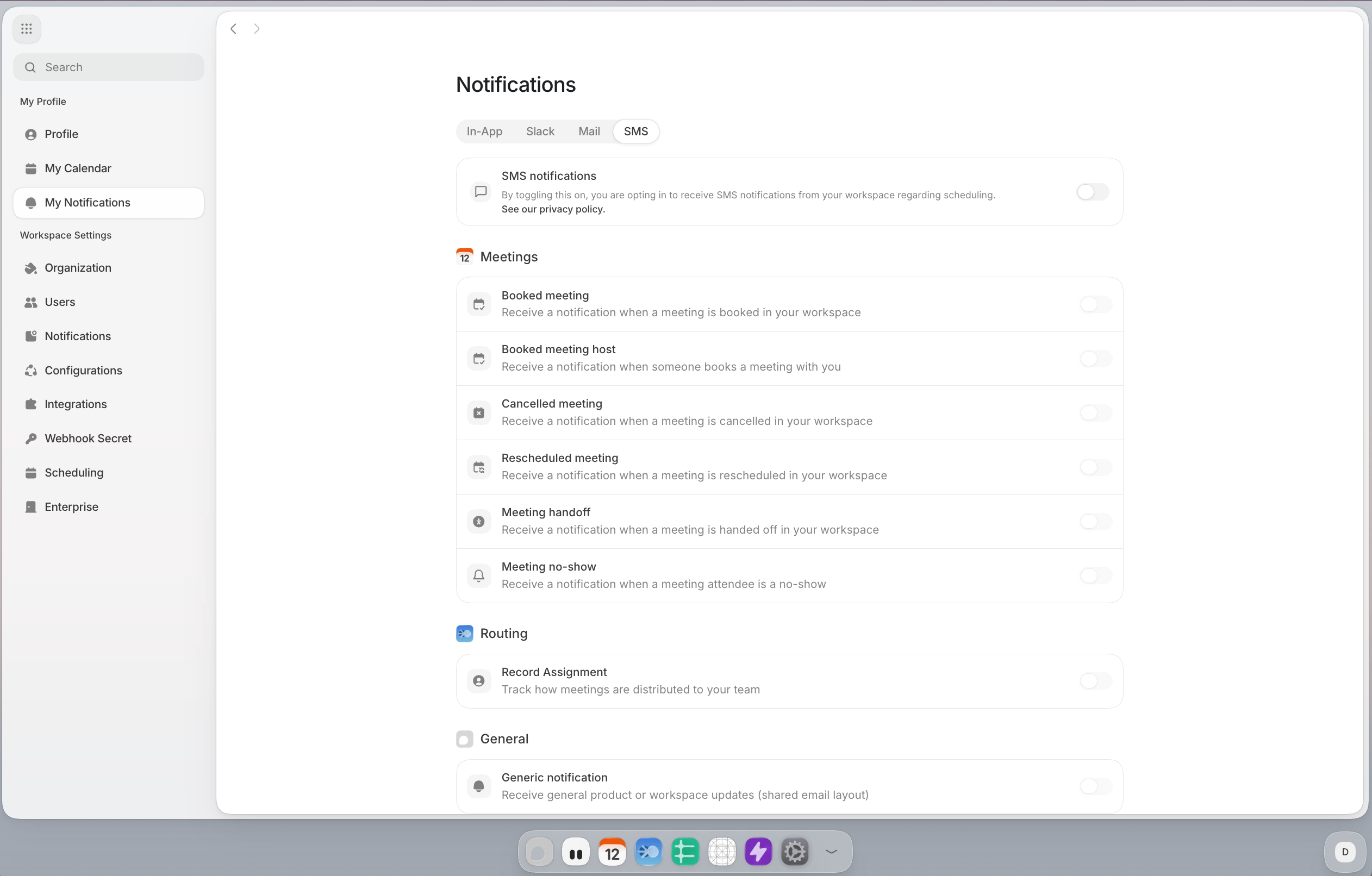
User Notifications page with SMS channel available.
SMS message recipients can opt out by replying
STOP. Default also includes compliance follow-up
text to explain why a recipient received a scheduling SMS.Notification types
Each channel tab lists only the types that can deliver on that channel. A type that Settings keeps Slack-only, or that never requests the method, does not appear.Meetings
Admins configure where the Workflows and Forms Error Log notifications go on
Workspace notifications. On this page, admins also see
both Error Log types on the Slack tab, to get a Slack direct message when any workflow
or form errors. Members don’t see these groups.
Routing
Record Assignment (routing.assignment) is hidden from Settings until a notification
producer ships. The Routing group does not appear on this page or on
Workspace notifications today.
General
Workspace precedence
Your notification settings work within limits that your workspace admin sets. 3 layers apply, in order:- Workspace channels. Your admin turns Slack on or off for the whole workspace and sets its connection status. If the workspace disables Slack, you cannot enable it for yourself. Mail and SMS have no workspace channel switch.
- Workspace defaults. Your admin sets a default on or off state for each notification type on each channel. These are the starting values every user inherits.
- Your preferences. You can turn any type off. If the workspace turns a type off, your personal toggle shows off and locked until the workspace turns it back on. Then your own setting applies again. You cannot opt into a channel or type that the workspace blocks.