Select Settings in the sidebar, then Preferences under Personal.On the Calendar tab, select Manage working hours next to Working hours under
Availability. The page opens as Manage Working Hours.
Work Hours list
The Work Hours page has 2 sections: Personal Preferences shows your Primary Timezone. This read-only value comes from your primary work schedule. To change it, edit the timezone on that schedule. Work Schedules lists every schedule you created. Each row shows the schedule name, and a Primary badge marks the schedule the slot engine uses by default. Select a row to open the schedule for editing. If you have at least 1 schedule, an Add New Schedule button appears at the top right of the list. When you have no schedules yet, the list shows an empty state with an Add New Schedule button.Create or edit a schedule
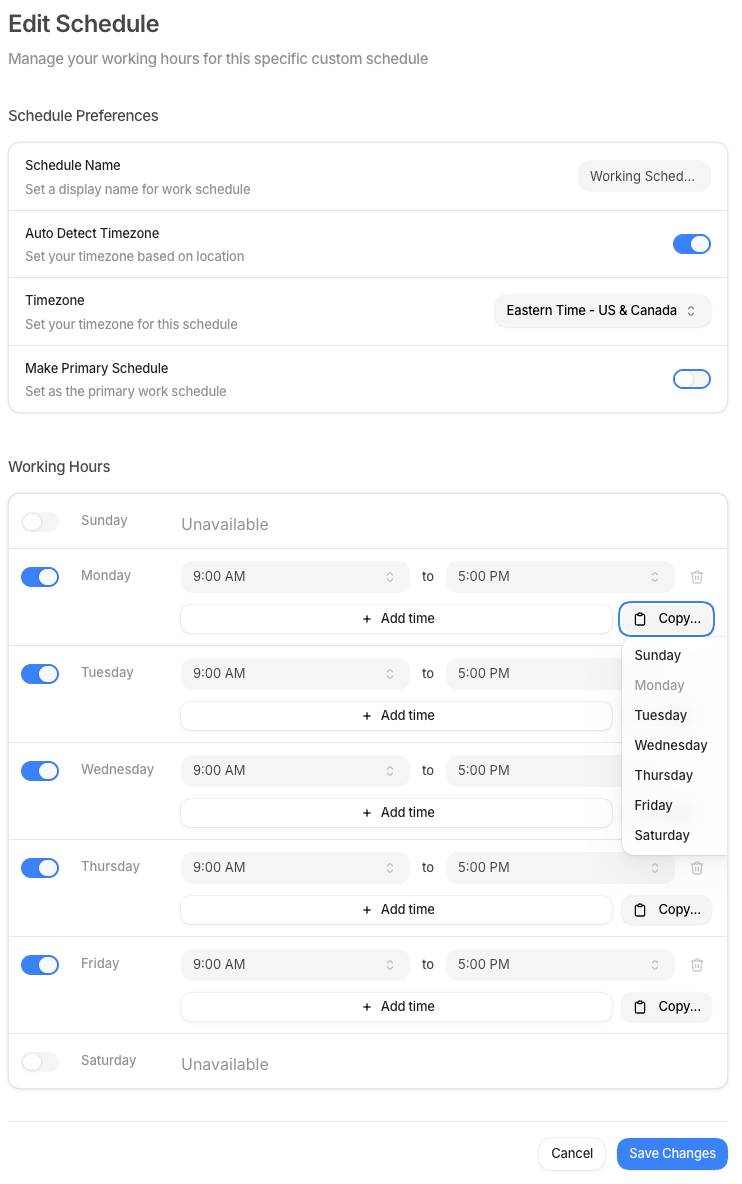
Select Add New Schedule or any existing schedule to open the schedule editor. The editor has 3 sections: Schedule Preferences, Working Hours, and, for existing schedules, Danger Zone.1
Set schedule preferences
Fill in the details for this schedule:
2
Set working hours per day
The Working Hours section shows a row for each day of the week. Toggle each day on
or off.Set 1 or more time ranges for each open day. For example, set Monday through Friday to
9:00 AM - 5:00 PM and leave Saturday and Sunday off.You can add multiple time ranges to a day if your schedule has a midday break.3
Save the schedule
Select Save Changes to save. Select Cancel to discard and go back to the list.