
Open the Settings app from the Dock (the app bar at the bottom of the screen),
then select Organization under Workspace Settings. Organization is available to admins.
There are two separate appearance surfaces in Default, and they do different things:
- Organization (this page) sets your workspace identity: the name, slug, logo, favicon, colors, and fonts used inside the product.
- Scheduling appearance sets the theme of your public booking pages and is configured separately under Settings → Scheduling.
Workspace details
Workspace name
The workspace’s display name. Enter it in the free-text field. For example,Acme Revenue Team.
Workspace identifier
The unique slug used in the URL of your scheduling links. Enter it in the free-text field. It’s validated on save, so an invalid value is rejected. For example, a slug ofacme makes booking links resolve under acme.
Logo
The workspace logo image. Select the picker to choose a file. Supported formats are PNG, JPEG, JPG, and GIF, up to 4 MB. The file is staged with a preview when you select it and only uploaded when you Save. For example, a 512×512 PNG brand mark. Your logo appears in the Dock org switcher and on event previews.Favicon
The browser-tab icon. Use the same picker, with the same PNG, JPEG, JPG, and GIF formats and 4 MB limit; it’s staged on selection and uploaded on Save. For example, a 32×32 PNG. Your favicon becomes the tab icon across the product.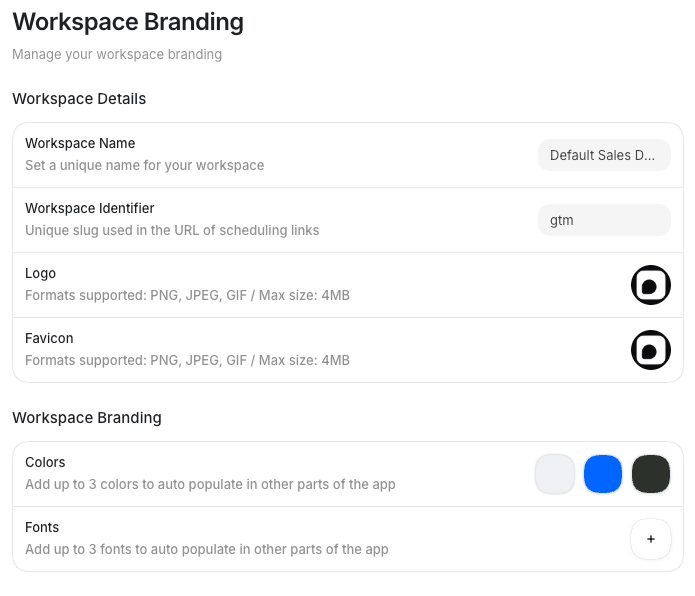
Workspace branding
Colors
A palette of brand colors that auto-populate in other parts of the app. Select the dashed + tile to add a swatch, then open the swatch to set its hex value. Hover a swatch to reveal its remove button. You can add up to 3 colors; the limit is enforced when you save. Colors are an ordered list with no fixed roles. For example, a three-swatch palette of#0B5CFF, #101828, and #F2F4F7.
Fonts
A set of brand fonts that auto-populate in other parts of the app. Select the dashed + tile to add a font, then use the search popover to pick from the built-in list, and each option previews in its own typeface. Hover a font to remove it. You can add up to 3 fonts; the limit is enforced when you save. There’s no custom font upload. For example,Inter and Poppins.
The font list has 15 options: Inter (the default), DM Sans, Geist, Geist Mono, IBM Plex Mono,
IBM Plex Sans, Lato, Lora, Montserrat, Open Sans, Playfair Display, Poppins, PT Serif, Roboto,
and Work Sans.