Open Settings from the Dock (the app bar at the bottom of the screen), then select
My Calendar under My Profile. On the My Calendar page, select Manage next to
Vacation mode under Personal Preferences, or navigate directly to My Calendar →
Out of Office.
The OOO calendar
The Out of Office page shows a full calendar with all your OOO blocks. You can switch between Month and Week views using the toggle at the top right of the calendar. Use the ← and → buttons to move between months or weeks. Two types of blocks appear on the calendar:- Manual blocks: blocks you created directly in Default.
- Calendar-synced blocks: blocks sourced from your connected Google or Outlook calendar (marked with a provider indicator). These are read-only in Default; edit or delete them in your external calendar and they’ll sync back.
Add an OOO block
1
Select a date range on the calendar
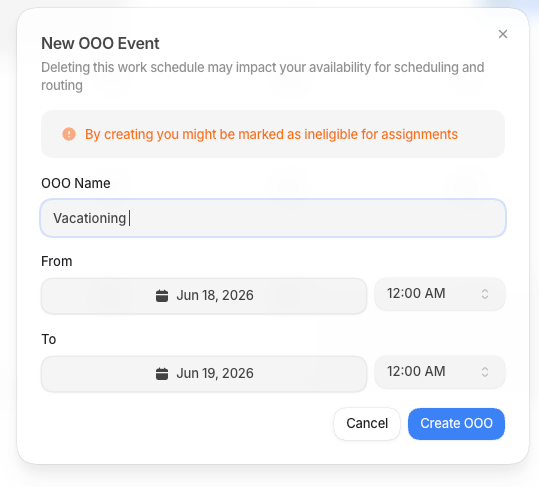
Click and drag across the days you want to block. Default opens the New OOO Event
dialog with your selected dates pre-filled.
2
Fill in the block details
3
Create the block
Select Create OOO. The block appears on the calendar immediately and Vacation mode
activates for anyone trying to book you during that period.
Creating an OOO block may make you ineligible for routing assignments during that
window, depending on how your routing policies are configured.