

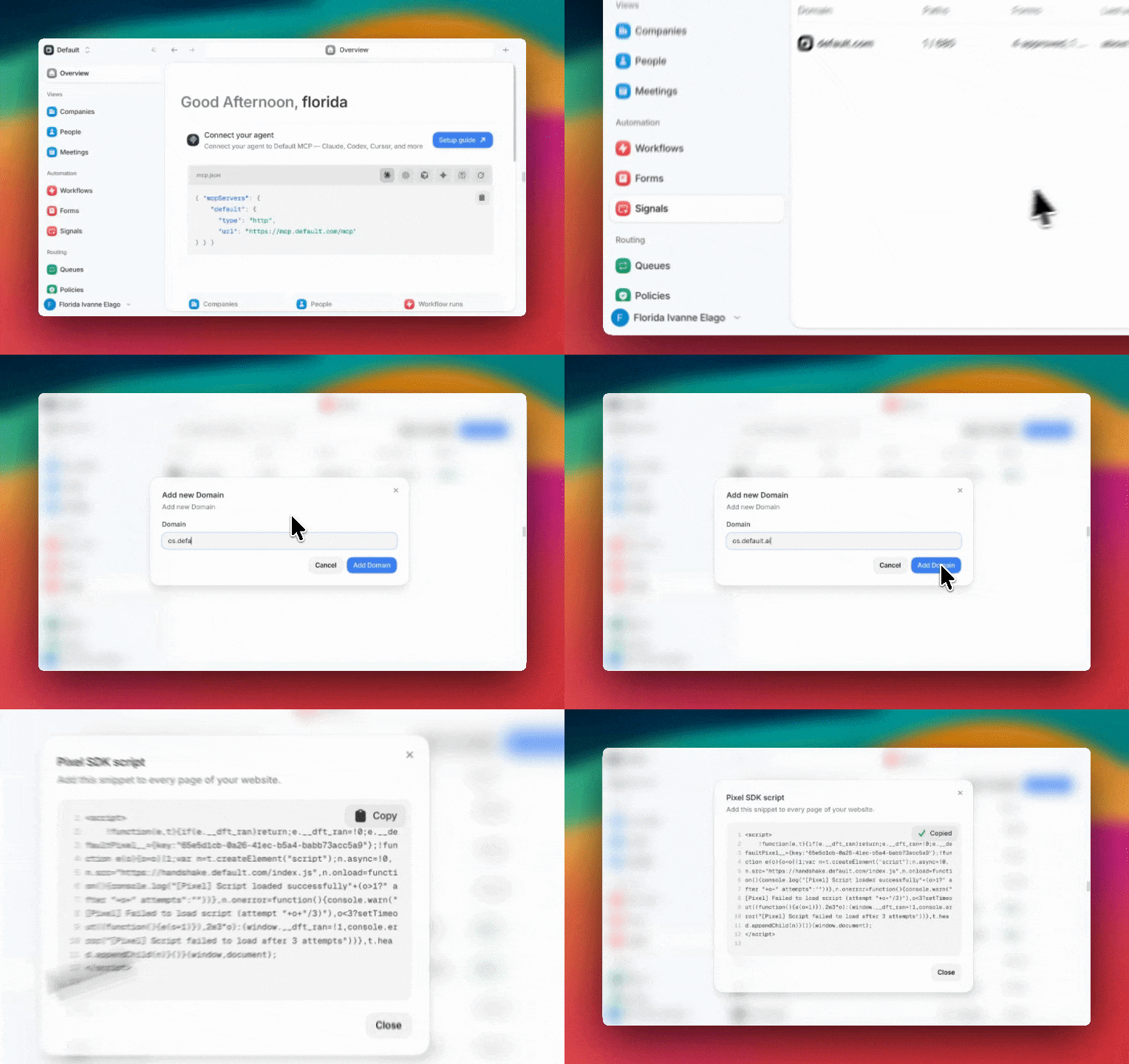
<head> of every page you want tracked. For the full walkthrough, including
approving your first form, see
Set up the Pixel and Forms SDK.
You can get the snippet back anytime with Copy Pixel script in the Signals toolbar.
Subdomains are included
Adding a domain covers that exact address and all of its subdomains. Connectingacme.com is enough for www.acme.com, try.acme.com, and blog.acme.com — you don’t
need to add each one.
Add a subdomain separately only when you want it tracked as its own line item, with its
own status, paths, and forms. If a page matches more than one connected domain, the most
specific one wins: with both acme.com and shop.acme.com connected, traffic from
shop.acme.com is attributed to shop.acme.com.
Genuinely different domains — acme.com and acme.co.uk — do need to be added
separately.
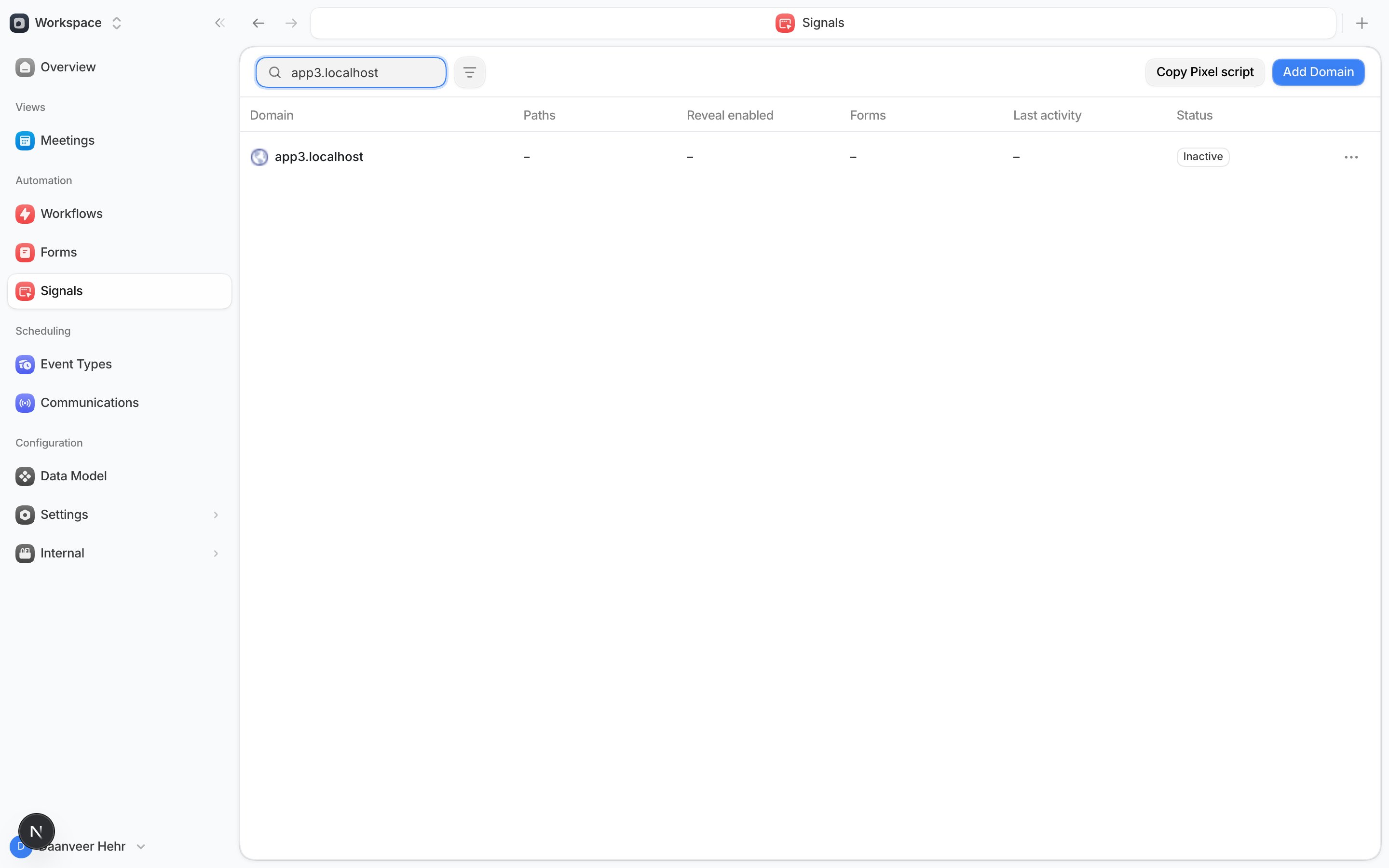
Domain status
Each domain shows a status so you know whether the Pixel is working:
The rest of the row fills in as traffic arrives:
- Paths — how many pages Default has discovered on the domain.
- Reveal enabled — how many of those pages have Reveal turned on.
- Forms — the split of approved versus pending detections, like
3 approved, 1 pending. - Last activity — when Default last heard from this domain.