> ## Documentation Index
> Fetch the complete documentation index at: https://docs.os.default.com/llms.txt
> Use this file to discover all available pages before exploring further.
# Rules of Engagement
> Build reusable rules that choose a queue or owner from CRM and enrichment data, then run them in workflows.
Rules of Engagement decides where each inbound record should go. You define the decision once,
publish it as a ruleset, and reuse it in workflows.
Use a ruleset when a lead's details should decide the destination before a queue distributes the
lead to one of its members. For example, one ruleset can send a large EMEA lead to your enterprise
queue and a smaller EMEA lead to your growth queue.
When a rule chooses a queue, Default also selects an eligible member from that queue. The queue's
[routing policy](/policies) controls how that member is selected.
Do not add **Round-Robin** after a queue rule. Rules of Engagement already selects the queue
member. A second routing step could select a different person.
Open the **Routing** app from the **Dock**, then select **Rules of Engagement**.
You need admin access to create, edit, or publish a ruleset. Evaluation logs also require admin
access.
## How a ruleset decides
Rules run from top to bottom. The first rule that matches wins, so place narrow rules above broad
rules.
Each rule has three parts:
| Part | What it does |
| ------------ | ------------------------------------------------------------------------------------------------------ |
| **Criteria** | Defines which records match the rule. Criteria can use only the inputs declared on the ruleset. |
| **Route to** | Sends a match to a queue, a user, or no one. A queue also selects an eligible member. |
| **Fallback** | Optionally chooses another queue or user when the rule matches but its selected target cannot resolve. |
If a rule needs an input that the workflow did not provide, Default skips that rule. The workflow
continues, and the evaluation log identifies the missing input.
The workflow step has its own **Fallback queue**. This is different from a rule's **Fallback**:
* A rule's **Fallback** applies after that rule matches but its target cannot resolve.
* The step's **Fallback queue** applies when the whole ruleset finishes without an owner. It returns
the queue, but it does not select a member from that queue.
* A rule that routes to **No one** is final. The step does not use its fallback queue.
For a workflow that must set an owner, use explicit queue rules and handle unmatched records on
**Else**. Use **Fallback queue** only when a later step needs the queue itself.
### What the workflow receives
| Ruleset result | Branch | Available values |
| ---------------------------------------------- | ------------ | ------------------------------------------- |
| A rule chooses a user | **Resolved** | The resolved user. |
| A rule chooses a queue with an eligible member | **Resolved** | The resolved queue and the selected member. |
| A rule chooses a queue with no eligible member | **Resolved** | The resolved queue. The user is empty. |
| No rule resolves, with **Fallback queue** set | **Resolved** | The fallback queue. The user is empty. |
| No rule resolves, with no step fallback | **Else** | No queue or user. |
| A rule chooses **No one** | **Else** | No queue or user. |
## Example: route inbound Salesforce leads
This guide builds one reusable decision for a workflow that starts when Salesforce creates a Lead.
It uses two standard Lead fields:
* Country
* Number of Employees
The ruleset sends large EMEA leads to a member of `Enterprise EMEA`. It sends other EMEA leads to
a member of `EMEA Growth`. Leads outside EMEA go to manual review on the workflow's Else branch.
Before you begin:
* Connect Salesforce in [**Settings** → **Integrations**](/settings/integrations/salesforce).
* Create the `Enterprise EMEA` and `EMEA Growth` [queues](/queues).
* Confirm that each queue has members and a routing policy.
### Create and publish the ruleset
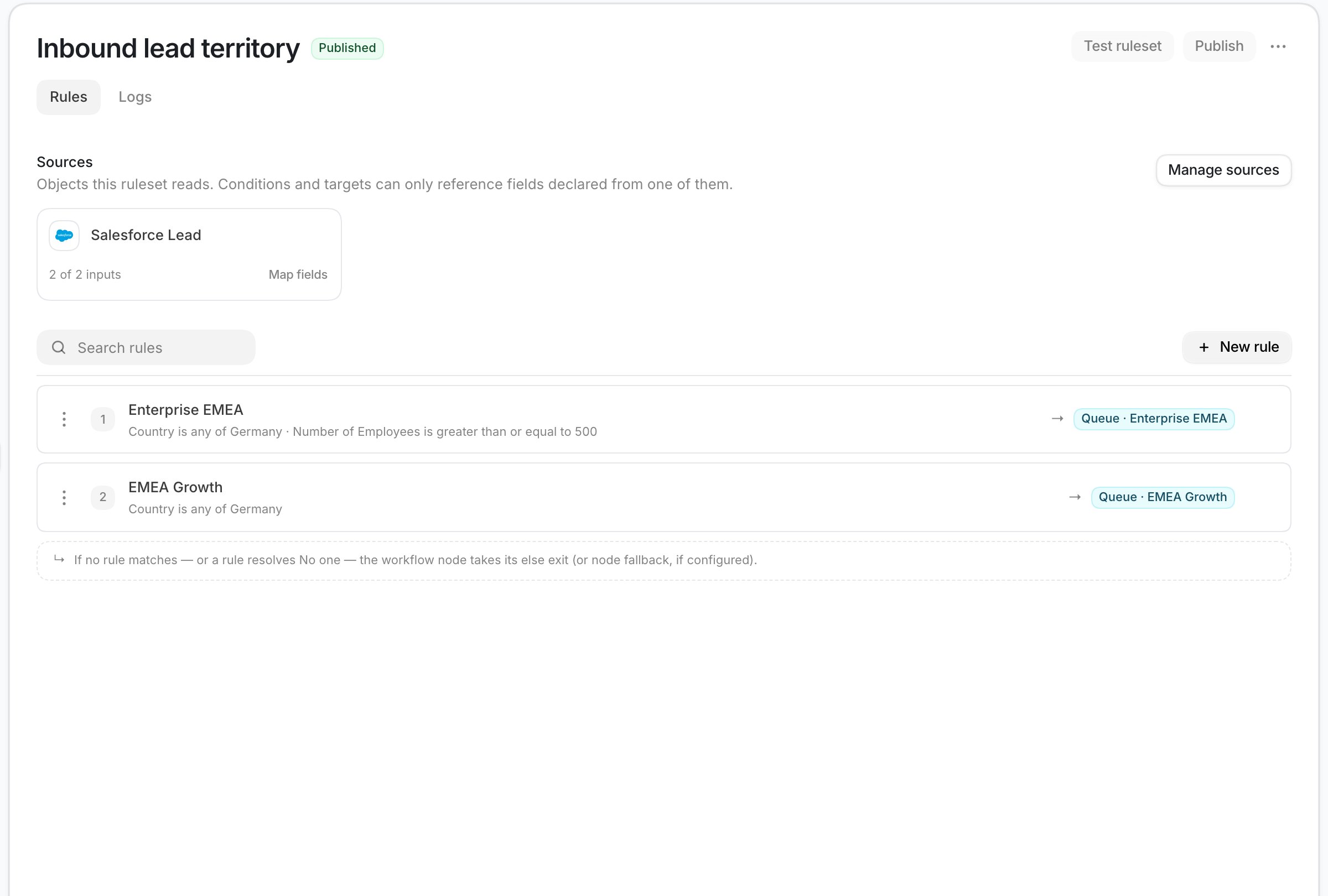
Open **Routing** from the **Dock** and select **Rules of Engagement**.
Select **New ruleset**. Enter `Inbound lead territory` in **Ruleset name**, then select
**Create**.
Select **Manage sources**, then **Add source**. Under **CRM**, choose **Salesforce**, then
choose the Lead object.
In the Salesforce Lead source, select **Add field**. Add the country field and the employee
count field from your Salesforce schema. Select **Save inputs**.
Declaring these fields makes their names and value types available to every rule in this
ruleset. The workflow maps live Lead values into them later.
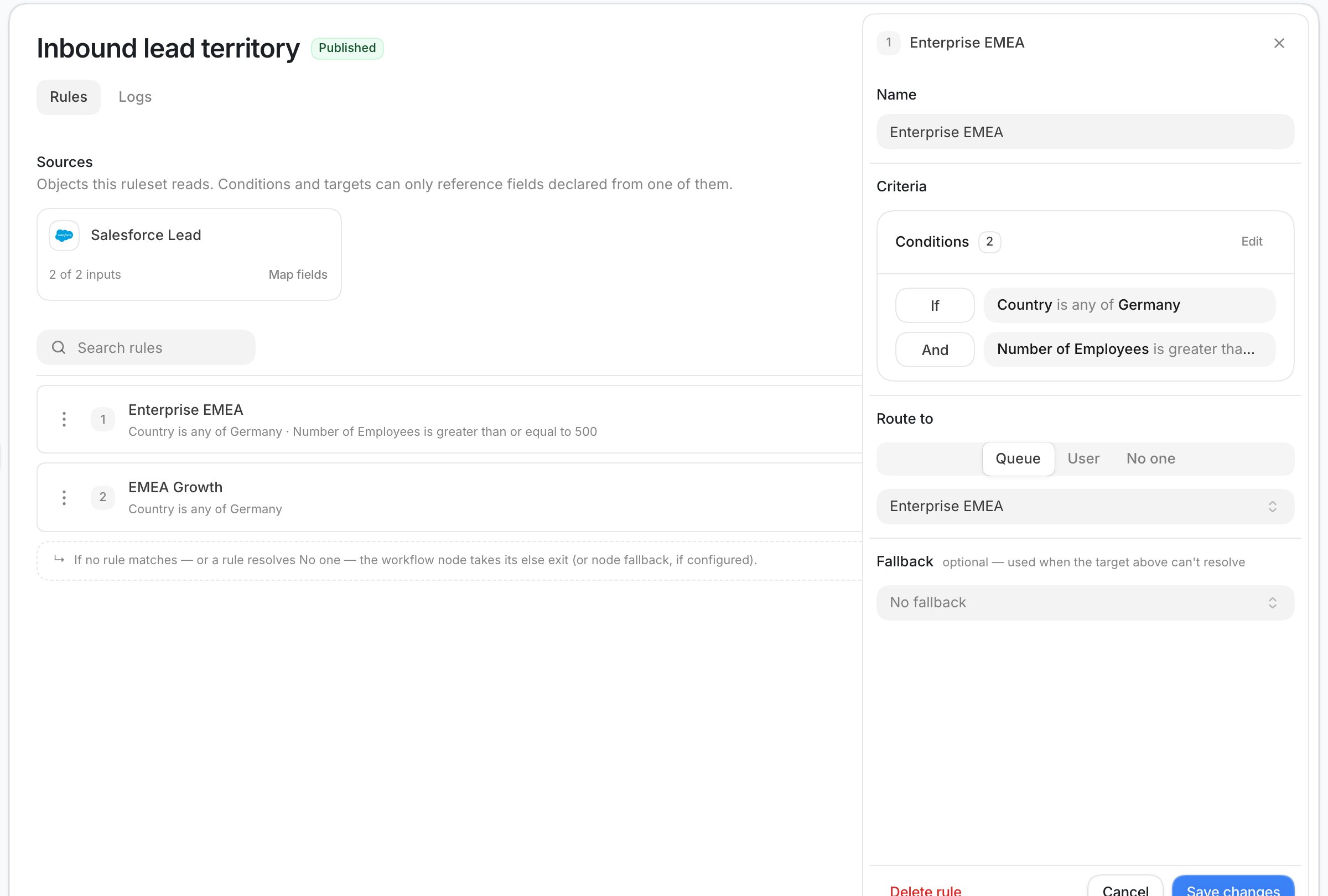
Select **New rule** and name it `Enterprise EMEA`.
Under **Criteria**, open **Match when**. Set the rule to match your EMEA countries and an
employee count of at least `500`.
Under **Route to**, select **Queue**, then choose `Enterprise EMEA`. Select **Save changes**.
Select **New rule** and name it `EMEA Growth`.
Under **Criteria**, open **Match when**. Use the same EMEA country list without the employee
count condition.
Under **Route to**, select **Queue**, then choose `EMEA Growth`. Select **Save changes**.
Keep `Enterprise EMEA` above `EMEA Growth`. The enterprise rule is more specific, and the first
matching rule wins.
Drag a rule by its handle to change the order. Then select **Publish**.
 Your edits save as a draft. Workflows continue to use the last published version until you select
**Publish**. Each publish creates a new version for future evaluations.
### Use the ruleset in a workflow
Open **Workflows** and create a workflow named `Route new Salesforce leads`.
Add the **CRM Record Created** trigger. Set **CRM** to **Salesforce** and **Record** to the Lead
object.
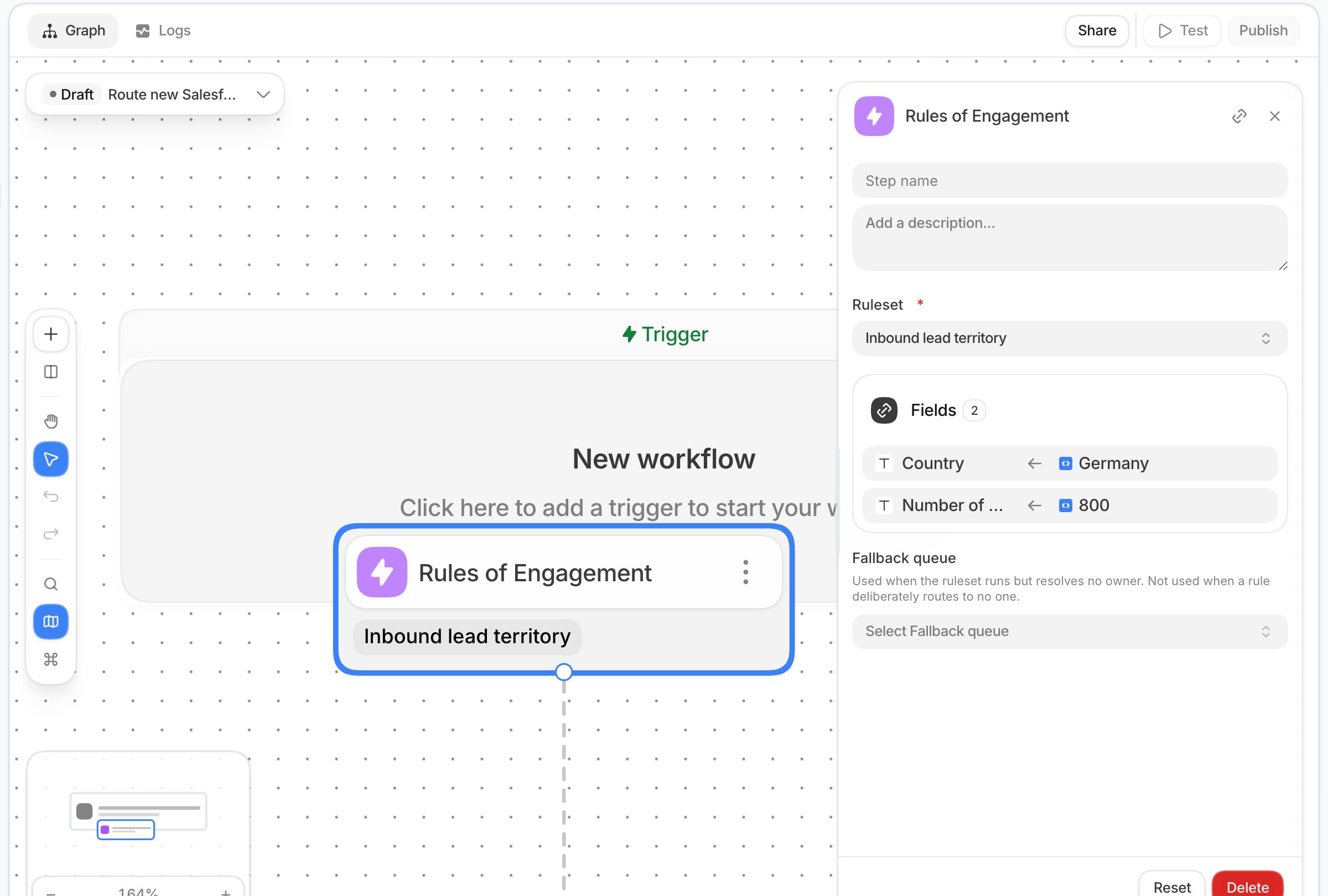
Select **Add Node**, then add **Rules of Engagement** from the Actions section.
Set **Ruleset** to `Inbound lead territory`.
Under **Inputs**, map the Salesforce Lead's country to the ruleset's country input. Map the
employee count to the ruleset's employee-count input.
Leave **Fallback queue** empty. This workflow needs a person, so unmatched leads will use the
**Else** branch instead.
Connect the **Resolved** branch to an **Update Record** step.
Set **Platform** to **Salesforce** and **Record Type** to the Lead object. Choose the Lead from
the trigger under **Record to update**. Under **Fields**, map the Salesforce owner field to the
resolved user from Rules of Engagement.
Connect the **Else** branch to the action your team uses for manual review. For example, send a
Slack message to Revenue Operations.
The Else branch runs when the step cannot make a routing decision. A deleted or unpublished
ruleset also takes this branch.
Your edits save as a draft. Workflows continue to use the last published version until you select
**Publish**. Each publish creates a new version for future evaluations.
### Use the ruleset in a workflow
Open **Workflows** and create a workflow named `Route new Salesforce leads`.
Add the **CRM Record Created** trigger. Set **CRM** to **Salesforce** and **Record** to the Lead
object.
Select **Add Node**, then add **Rules of Engagement** from the Actions section.
Set **Ruleset** to `Inbound lead territory`.
Under **Inputs**, map the Salesforce Lead's country to the ruleset's country input. Map the
employee count to the ruleset's employee-count input.
Leave **Fallback queue** empty. This workflow needs a person, so unmatched leads will use the
**Else** branch instead.
Connect the **Resolved** branch to an **Update Record** step.
Set **Platform** to **Salesforce** and **Record Type** to the Lead object. Choose the Lead from
the trigger under **Record to update**. Under **Fields**, map the Salesforce owner field to the
resolved user from Rules of Engagement.
Connect the **Else** branch to the action your team uses for manual review. For example, send a
Slack message to Revenue Operations.
The Else branch runs when the step cannot make a routing decision. A deleted or unpublished
ruleset also takes this branch.
 ### Test the complete route
Select **Test** to open **Test Workflow**. Choose the **CRM Record Created** trigger.
Use test Salesforce Leads and run these cases:
| Country | Employees | Expected result |
| ------------- | --------: | ----------------------------------------------- |
| Germany | 800 | **Resolved** with a member of `Enterprise EMEA` |
| Germany | 120 | **Resolved** with a member of `EMEA Growth` |
| United States | 120 | **Else** for manual review |
Select **Run Test** for each case. Confirm that the Rules of Engagement step takes
the expected branch. For a resolved case, confirm that Update Record receives the selected
member and updates the Lead owner.
After all three cases pass, select **Publish**. Turn on **Enabled** when you are ready for live
Salesforce Leads to run through the workflow.
A workflow test performs real actions. It can create routing assignments, update CRM records, and
send configured notifications. Use test records and test destinations.
## Review a routing decision
Open the ruleset and select **Logs**. The table shows recent evaluations with these columns:
* **Source** and **Time** identify where and when the decision ran.
* **Resolved to** shows the queue or user selected.
* **Matched rule** shows which rule won.
* **Outcome** shows **User**, **Queue**, **No one**, or **Unresolved**.
* **Version** shows the published ruleset version used for that decision.
The log loads evaluations from the last seven days, newest first. Use the table controls to search,
filter, sort, and choose columns. Select **Load more** when it appears.
Select an evaluation to see:
* The input values the ruleset received.
* Input problems, such as a type mismatch or an undeclared value.
* Every rule from the evaluated version, in evaluation order.
* Whether each rule matched, did not match, lacked an input, or was not reached.
For a workflow evaluation, use the link beside **Source** to open the matching workflow run.
## Fix an unexpected result
| What you see | What to check |
| ---------------------------------------------------------------------- | ---------------------------------------------------------------------------------------------------------------------------------------- |
| A broader rule wins | Move the more specific rule above it. The first match wins. |
| **Skipped — missing input** | Open the workflow step and map that input. Also confirm that the source record contains a value. |
| **Unresolved** | Check whether any rule matched and whether its target could resolve. Use **Else** for manual review when the workflow requires a person. |
| The workflow uses **Resolved**, but the evaluation says **Unresolved** | The ruleset found no owner, and the step's **Fallback queue** supplied the queue. This is expected. |
| The workflow takes **Else** | Check for a **No one** rule, a missing published ruleset, or an evaluation error. Open both the ruleset evaluation and the workflow run. |
| The queue resolved, but the owner is empty | Check that the queue has an active policy and at least one eligible member. A queue can resolve without a member. |
| A field is absent from **Match when** | Open **Manage sources** and add the field under its CRM or enrichment source. Then publish the ruleset again. |
Deleting a ruleset does not repair workflows that use it. Those workflows stop resolving through
that step and take **Else**. Update the workflows before you select **Delete ruleset**.
### Test the complete route
Select **Test** to open **Test Workflow**. Choose the **CRM Record Created** trigger.
Use test Salesforce Leads and run these cases:
| Country | Employees | Expected result |
| ------------- | --------: | ----------------------------------------------- |
| Germany | 800 | **Resolved** with a member of `Enterprise EMEA` |
| Germany | 120 | **Resolved** with a member of `EMEA Growth` |
| United States | 120 | **Else** for manual review |
Select **Run Test** for each case. Confirm that the Rules of Engagement step takes
the expected branch. For a resolved case, confirm that Update Record receives the selected
member and updates the Lead owner.
After all three cases pass, select **Publish**. Turn on **Enabled** when you are ready for live
Salesforce Leads to run through the workflow.
A workflow test performs real actions. It can create routing assignments, update CRM records, and
send configured notifications. Use test records and test destinations.
## Review a routing decision
Open the ruleset and select **Logs**. The table shows recent evaluations with these columns:
* **Source** and **Time** identify where and when the decision ran.
* **Resolved to** shows the queue or user selected.
* **Matched rule** shows which rule won.
* **Outcome** shows **User**, **Queue**, **No one**, or **Unresolved**.
* **Version** shows the published ruleset version used for that decision.
The log loads evaluations from the last seven days, newest first. Use the table controls to search,
filter, sort, and choose columns. Select **Load more** when it appears.
Select an evaluation to see:
* The input values the ruleset received.
* Input problems, such as a type mismatch or an undeclared value.
* Every rule from the evaluated version, in evaluation order.
* Whether each rule matched, did not match, lacked an input, or was not reached.
For a workflow evaluation, use the link beside **Source** to open the matching workflow run.
## Fix an unexpected result
| What you see | What to check |
| ---------------------------------------------------------------------- | ---------------------------------------------------------------------------------------------------------------------------------------- |
| A broader rule wins | Move the more specific rule above it. The first match wins. |
| **Skipped — missing input** | Open the workflow step and map that input. Also confirm that the source record contains a value. |
| **Unresolved** | Check whether any rule matched and whether its target could resolve. Use **Else** for manual review when the workflow requires a person. |
| The workflow uses **Resolved**, but the evaluation says **Unresolved** | The ruleset found no owner, and the step's **Fallback queue** supplied the queue. This is expected. |
| The workflow takes **Else** | Check for a **No one** rule, a missing published ruleset, or an evaluation error. Open both the ruleset evaluation and the workflow run. |
| The queue resolved, but the owner is empty | Check that the queue has an active policy and at least one eligible member. A queue can resolve without a member. |
| A field is absent from **Match when** | Open **Manage sources** and add the field under its CRM or enrichment source. Then publish the ruleset again. |
Deleting a ruleset does not repair workflows that use it. Those workflows stop resolving through
that step and take **Else**. Update the workflows before you select **Delete ruleset**.