> ## Documentation Index
> Fetch the complete documentation index at: https://docs.os.default.com/llms.txt
> Use this file to discover all available pages before exploring further.
# Signals
> Connect the websites Default tracks, and manage their paths and status.
**Signals** is where your connected websites live. Default only accepts data from domains
you've connected here, which is why connecting one comes before installing the script.
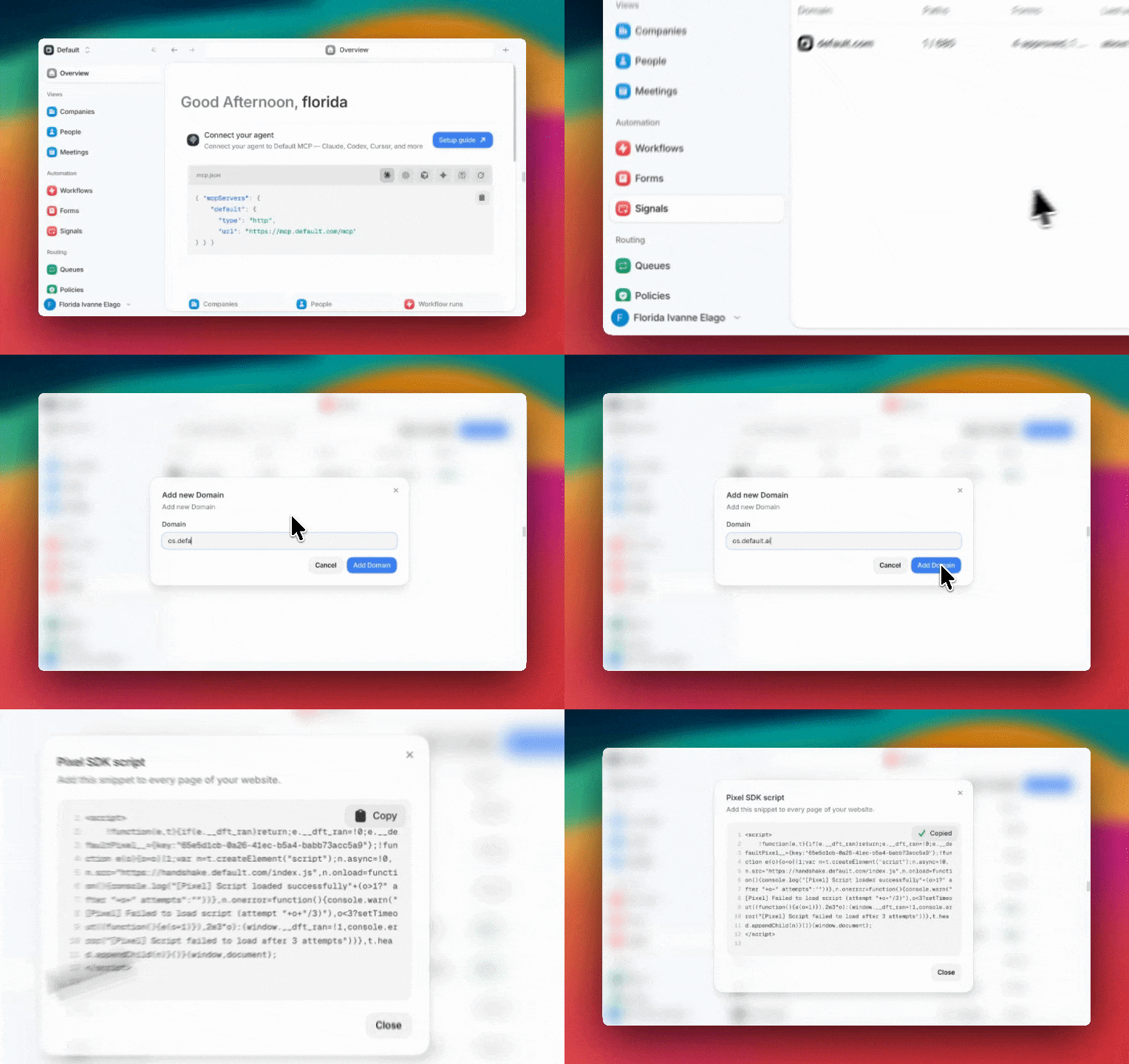 To connect one, open **Signals**, select **Add Domain**, and enter your website
address. Default shows the Pixel snippet with your public key already filled in; paste it
into the `` of every page you want tracked. For the full walkthrough, including
approving your first form, see
[Set up the Pixel and Forms SDK](/pixel-sdk-setup).
You can get the snippet back anytime with **Copy Pixel script** in the Signals toolbar.
## Subdomains are included
Adding a domain covers that exact address **and all of its subdomains**. Connecting
`acme.com` is enough for `www.acme.com`, `try.acme.com`, and `blog.acme.com` — you don't
need to add each one.
Add a subdomain separately only when you want it tracked as its own line item, with its
own status, paths, and forms. If a page matches more than one connected domain, the most
specific one wins: with both `acme.com` and `shop.acme.com` connected, traffic from
`shop.acme.com` is attributed to `shop.acme.com`.
Genuinely different domains — `acme.com` and `acme.co.uk` — do need to be added
separately.
To connect one, open **Signals**, select **Add Domain**, and enter your website
address. Default shows the Pixel snippet with your public key already filled in; paste it
into the `` of every page you want tracked. For the full walkthrough, including
approving your first form, see
[Set up the Pixel and Forms SDK](/pixel-sdk-setup).
You can get the snippet back anytime with **Copy Pixel script** in the Signals toolbar.
## Subdomains are included
Adding a domain covers that exact address **and all of its subdomains**. Connecting
`acme.com` is enough for `www.acme.com`, `try.acme.com`, and `blog.acme.com` — you don't
need to add each one.
Add a subdomain separately only when you want it tracked as its own line item, with its
own status, paths, and forms. If a page matches more than one connected domain, the most
specific one wins: with both `acme.com` and `shop.acme.com` connected, traffic from
`shop.acme.com` is attributed to `shop.acme.com`.
Genuinely different domains — `acme.com` and `acme.co.uk` — do need to be added
separately.
 ## Domain status
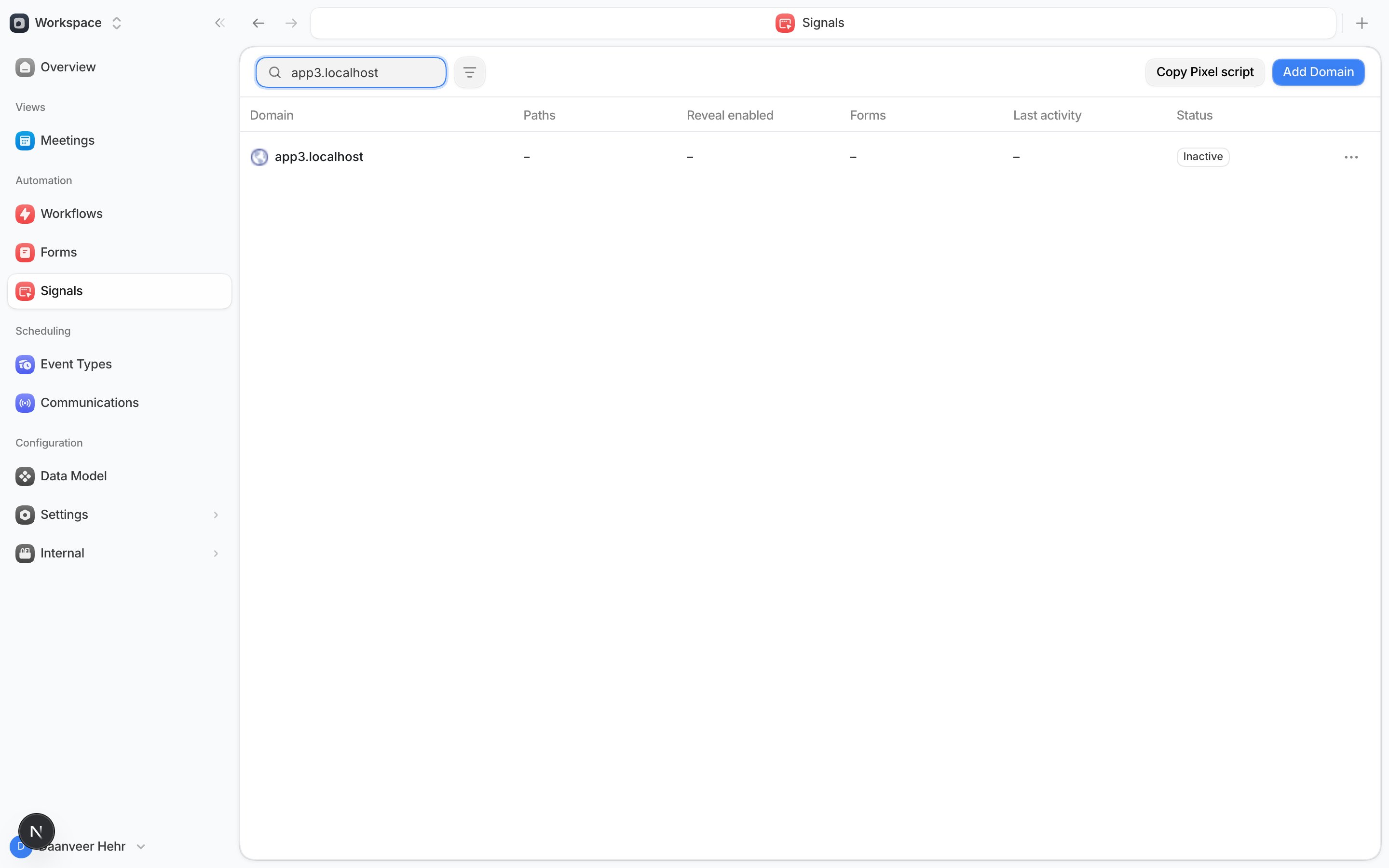
Each domain shows a status so you know whether the Pixel is working:
| Status | What it means |
| ------------ | --------------------------------------------------------------------------------------------------- |
| **Active** | Default is receiving events from the Pixel on this domain. |
| **Inactive** | No events yet. Either the snippet isn't live, or nobody has loaded a tracked page since it went up. |
| **Error** | The Pixel couldn't be detected. Recheck that the script is on the pages you're testing. |
| **Archived** | You've archived the domain; it no longer receives events. |
The rest of the row fills in as traffic arrives:
* **Paths** — how many pages Default has discovered on the domain.
* **Reveal enabled** — how many of those pages have [Reveal](/forms/reveal) turned on.
* **Forms** — the split of approved versus pending detections, like `3 approved, 1 pending`.
* **Last activity** — when Default last heard from this domain.
Select a domain to open its detail view, where you can see the individual paths, turn
[Reveal](/forms/reveal) on per path, and remove paths you don't want tracked.
The domain's actions menu is also where you add forms. **Catalog forms** opens a page on the
domain in a new tab with catalog mode running, so you can see which forms are tracked and add
the ones that aren't — see [Add forms from your site](/forms/your-forms#add-forms-from-your-site).
To stop tracking a site, open the domain's menu and select **Archive domain**. Archiving
is reversible — the same menu offers **Unarchive domain** afterward.
## Domain status
Each domain shows a status so you know whether the Pixel is working:
| Status | What it means |
| ------------ | --------------------------------------------------------------------------------------------------- |
| **Active** | Default is receiving events from the Pixel on this domain. |
| **Inactive** | No events yet. Either the snippet isn't live, or nobody has loaded a tracked page since it went up. |
| **Error** | The Pixel couldn't be detected. Recheck that the script is on the pages you're testing. |
| **Archived** | You've archived the domain; it no longer receives events. |
The rest of the row fills in as traffic arrives:
* **Paths** — how many pages Default has discovered on the domain.
* **Reveal enabled** — how many of those pages have [Reveal](/forms/reveal) turned on.
* **Forms** — the split of approved versus pending detections, like `3 approved, 1 pending`.
* **Last activity** — when Default last heard from this domain.
Select a domain to open its detail view, where you can see the individual paths, turn
[Reveal](/forms/reveal) on per path, and remove paths you don't want tracked.
The domain's actions menu is also where you add forms. **Catalog forms** opens a page on the
domain in a new tab with catalog mode running, so you can see which forms are tracked and add
the ones that aren't — see [Add forms from your site](/forms/your-forms#add-forms-from-your-site).
To stop tracking a site, open the domain's menu and select **Archive domain**. Archiving
is reversible — the same menu offers **Unarchive domain** afterward.