> ## Documentation Index
> Fetch the complete documentation index at: https://docs.os.default.com/llms.txt
> Use this file to discover all available pages before exploring further.
# Visitor De-anonymization
> Turn on Reveal to identify the companies and people that visit your website, then start workflows when they do.
Most website visitors never fill in a form. Reveal identifies them anyway. When a visitor
opens a page you chose, Default looks up the company behind the visit as the page loads. Default
can also identify the person in batches. A workflow can then alert your team, enrich the
record, or route the account.
## How it works
Reveal gives you two signals. Each one can start a workflow.
| | Account Signal | People Signal |
| ------------------------------- | --------------------------------------------------- | ------------------------------------------------------------------------------------------------- |
| **What it identifies** | The visitor's company. | The visitor as a person: name, title, and email. Default also identifies the company when it can. |
| **When results arrive** | In real time, as the page loads. | In batches, about every 30 minutes. |
| **Where it runs** | Only on pages where you turned **Reveal** on. | On every page that has the Pixel installed. |
| **How it works** | Default matches the visitor's network to a company. | Default's partner Vector matches the visitor to a person. |
| **Visitor consent it respects** | Analytics consent. | Marketing consent. |
The **Reveal** switch on a page controls the Account Signal for that page. Pricing, demo, and
customer pages are the usual choice, because a visit there shows real intent.
Reveal identifies visitors. It does not show a list of them on its own. To act on an
identification, add a workflow that starts with an **Account Signal** or **People Signal**
trigger. The steps are below.
## Before you begin
You need:
* Admin access to your Default workspace. Only admins can open **Signals**.
* Your website connected in **Signals**, with the Pixel installed on every page you want tracked.
Follow [Set up the Pixel and Forms SDK](/pixel-sdk-setup) if you have not done this yet.
* At least one visit to each page you want to reveal. Default discovers a page the first time
the Pixel reports a visit to it. A page that nobody has opened is not in the list yet.
Website intent providers are available at an additional cost. Each identification uses
credits. Speak to the Default CS team to learn more. See
[Enrichment providers](/settings/integrations/enrichment) for the provider list.
## Turn on Reveal for a page
In the sidebar, under **Automation**, select **Signals**. The list shows every connected domain.
The **Reveal enabled** column shows how many pages on each domain have Reveal turned on.
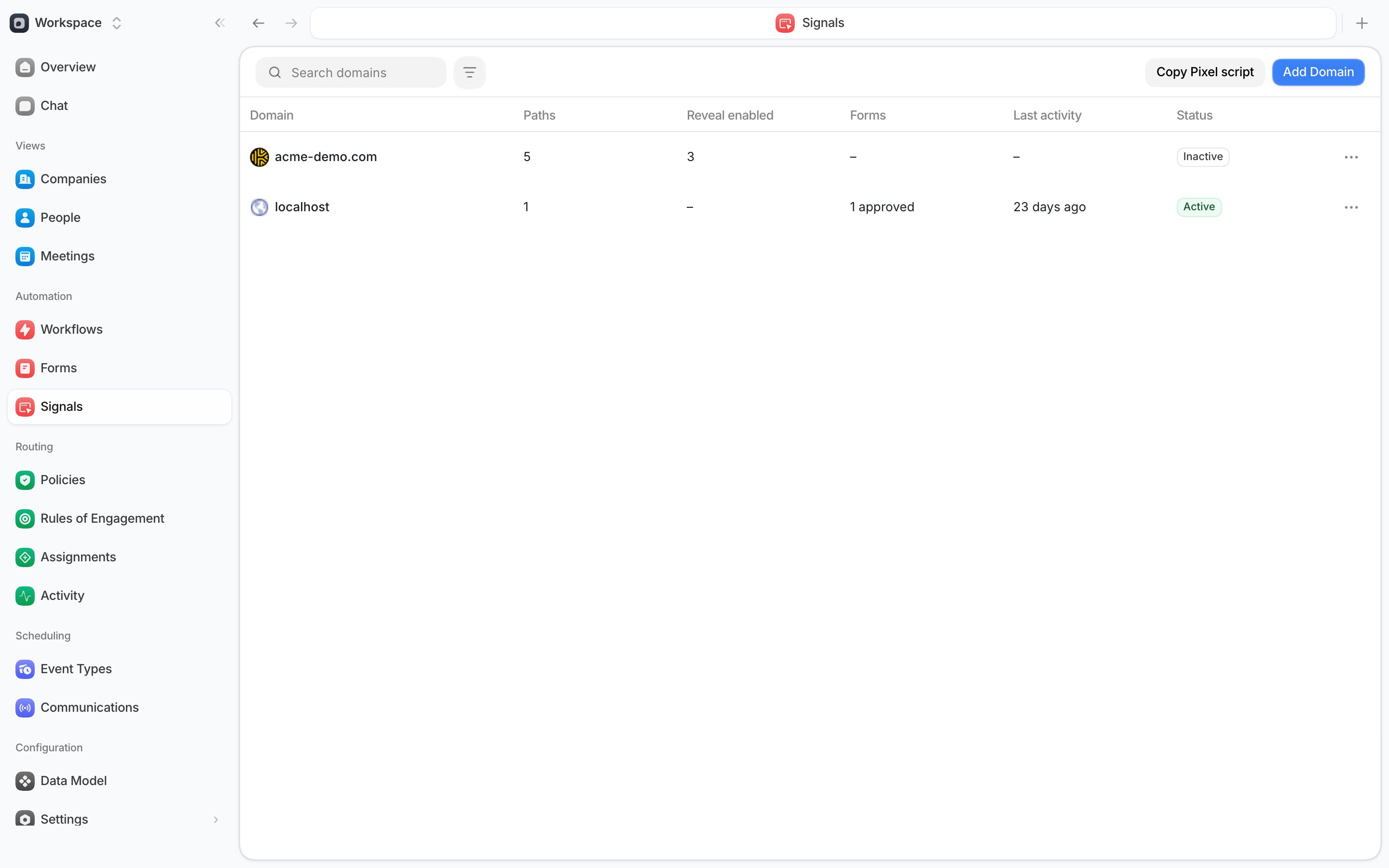 Select the domain row. A window opens with the **Paths** table. Each row is one page that
Default has discovered on the domain.
Select the domain row. A window opens with the **Paths** table. Each row is one page that
Default has discovered on the domain.
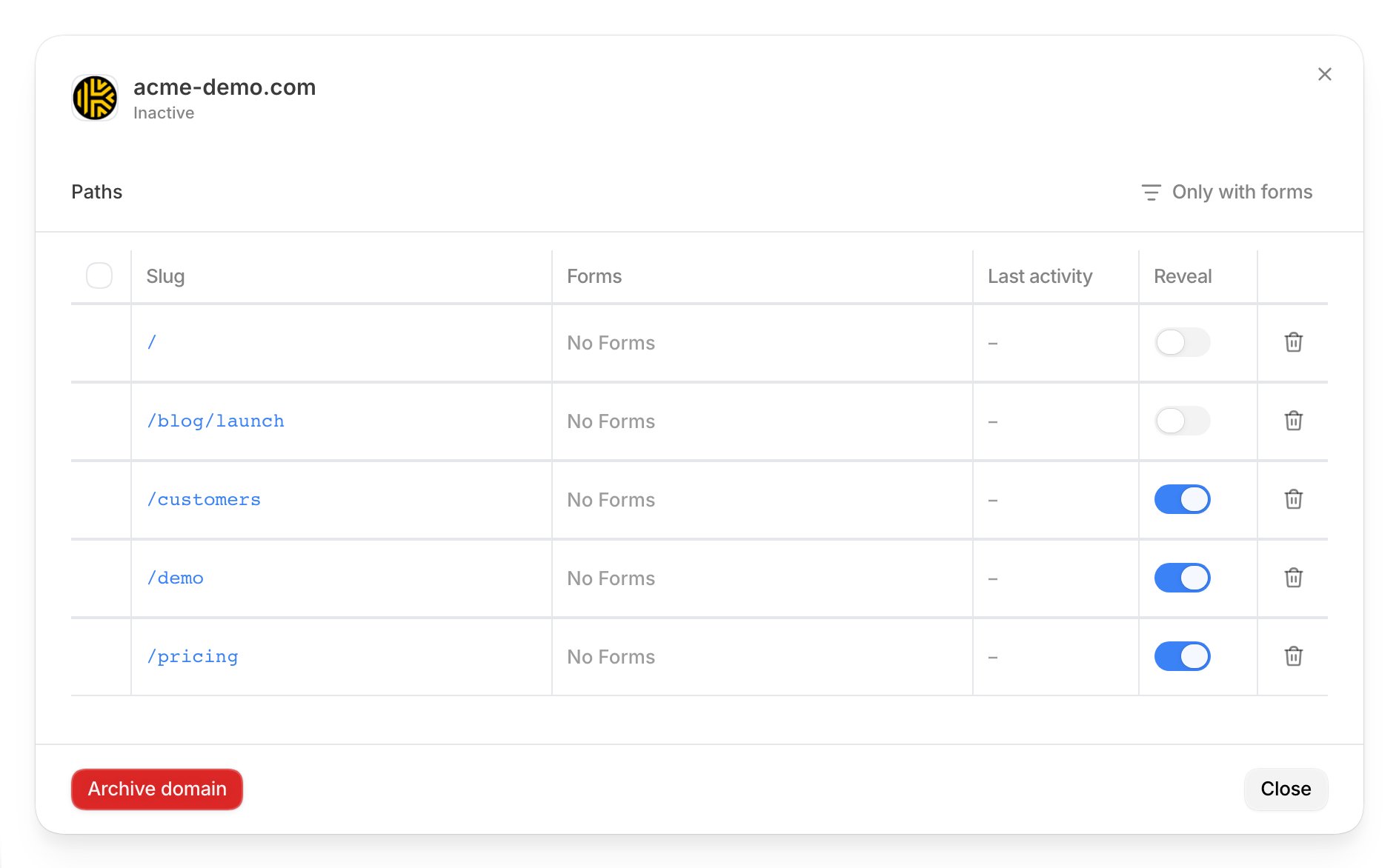 In the **Reveal** column, turn on the switch for each page you want to reveal. The change saves
immediately.
To change many pages at once, tick the checkbox at the start of each row. A bar appears above
the table. Select **Enable reveal** or **Disable reveal**.
In the **Reveal** column, turn on the switch for each page you want to reveal. The change saves
immediately.
To change many pages at once, tick the checkbox at the start of each row. A bar appears above
the table. Select **Enable reveal** or **Disable reveal**.
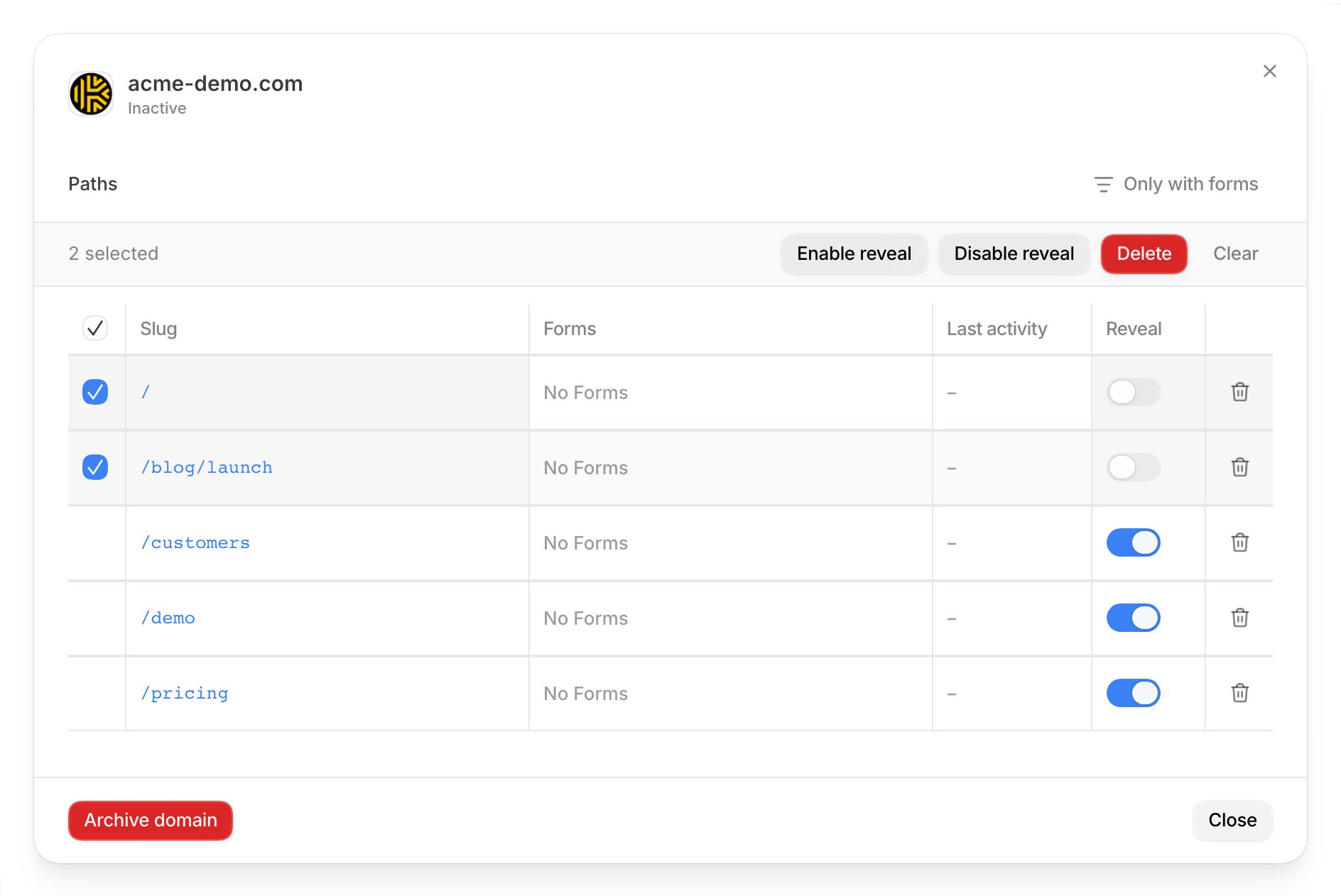 Select **Close**. Back in the list, the **Reveal enabled** column shows the new count. Refresh
the page if the count has not updated yet.
Reveal is now on. From the next visit on, Default identifies companies that open those pages.
## Start a workflow when a visitor is identified
This is where Reveal becomes useful. The example below alerts sales when a company opens the
pricing page.
Open **Workflows** and select **Create new**. Give the workflow a name, for example
"Alert sales when a target account visits pricing".
On the canvas, select the **Add Node** button (the plus icon in the toolbar on the left). Then
select **Triggers** at the top of the panel. Type "Signal" in the search box to find both
Reveal triggers.
Select **Close**. Back in the list, the **Reveal enabled** column shows the new count. Refresh
the page if the count has not updated yet.
Reveal is now on. From the next visit on, Default identifies companies that open those pages.
## Start a workflow when a visitor is identified
This is where Reveal becomes useful. The example below alerts sales when a company opens the
pricing page.
Open **Workflows** and select **Create new**. Give the workflow a name, for example
"Alert sales when a target account visits pricing".
On the canvas, select the **Add Node** button (the plus icon in the toolbar on the left). Then
select **Triggers** at the top of the panel. Type "Signal" in the search box to find both
Reveal triggers.
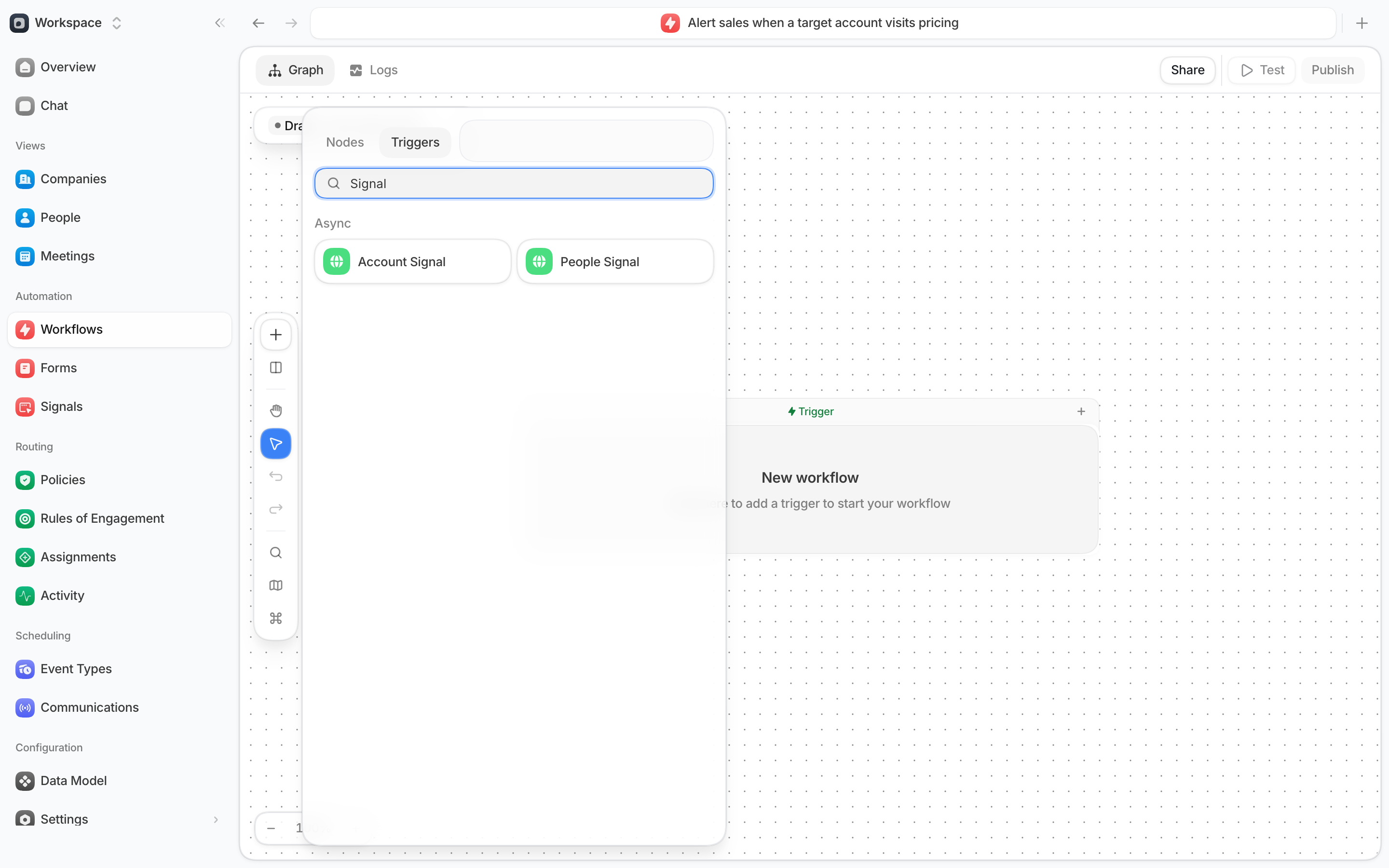 * Select **Account Signal** to start the workflow as soon as a company is identified on a page
with Reveal on.
* Select **People Signal** to start the workflow when a person is identified. Results arrive in
batches, about every 30 minutes.
Both fields are optional. Leave them empty to fire for every identified visit.
| Field | What it does | Example |
| -------------------- | ----------------------------------------------------------- | ---------- |
| **Tracked domain** | Fires only for visits on this domain. Subdomains match too. | `acme.com` |
| **Page URL pattern** | Fires only when the page URL contains this text. | `/pricing` |
* Select **Account Signal** to start the workflow as soon as a company is identified on a page
with Reveal on.
* Select **People Signal** to start the workflow when a person is identified. Results arrive in
batches, about every 30 minutes.
Both fields are optional. Leave them empty to fire for every identified visit.
| Field | What it does | Example |
| -------------------- | ----------------------------------------------------------- | ---------- |
| **Tracked domain** | Fires only for visits on this domain. Subdomains match too. | `acme.com` |
| **Page URL pattern** | Fires only when the page URL contains this text. | `/pricing` |
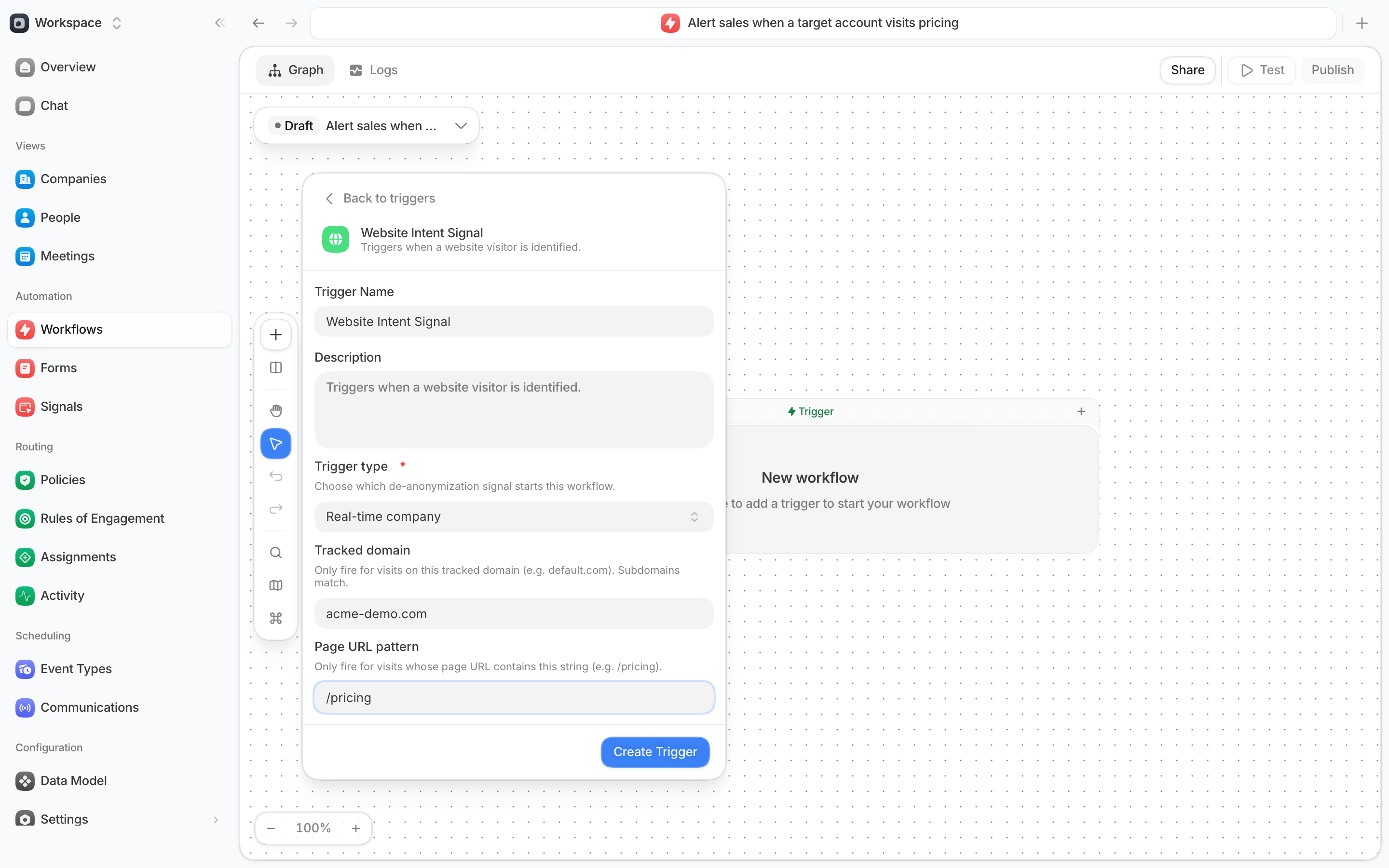 Select **Create Trigger**.
The trigger appears at the top of the canvas. Select the plus below it to add the next step,
for example a Slack message to the account owner, an enrichment step, or a routing step. The
trigger gives later steps the company's domain, and for **People Signal** also the person's
name, title, and email.
Select **Publish** when the workflow is ready. Reveal only starts published workflows.
Select **Create Trigger**.
The trigger appears at the top of the canvas. Select the plus below it to add the next step,
for example a Slack message to the account owner, an enrichment step, or a routing step. The
trigger gives later steps the company's domain, and for **People Signal** also the person's
name, title, and email.
Select **Publish** when the workflow is ready. Reveal only starts published workflows.
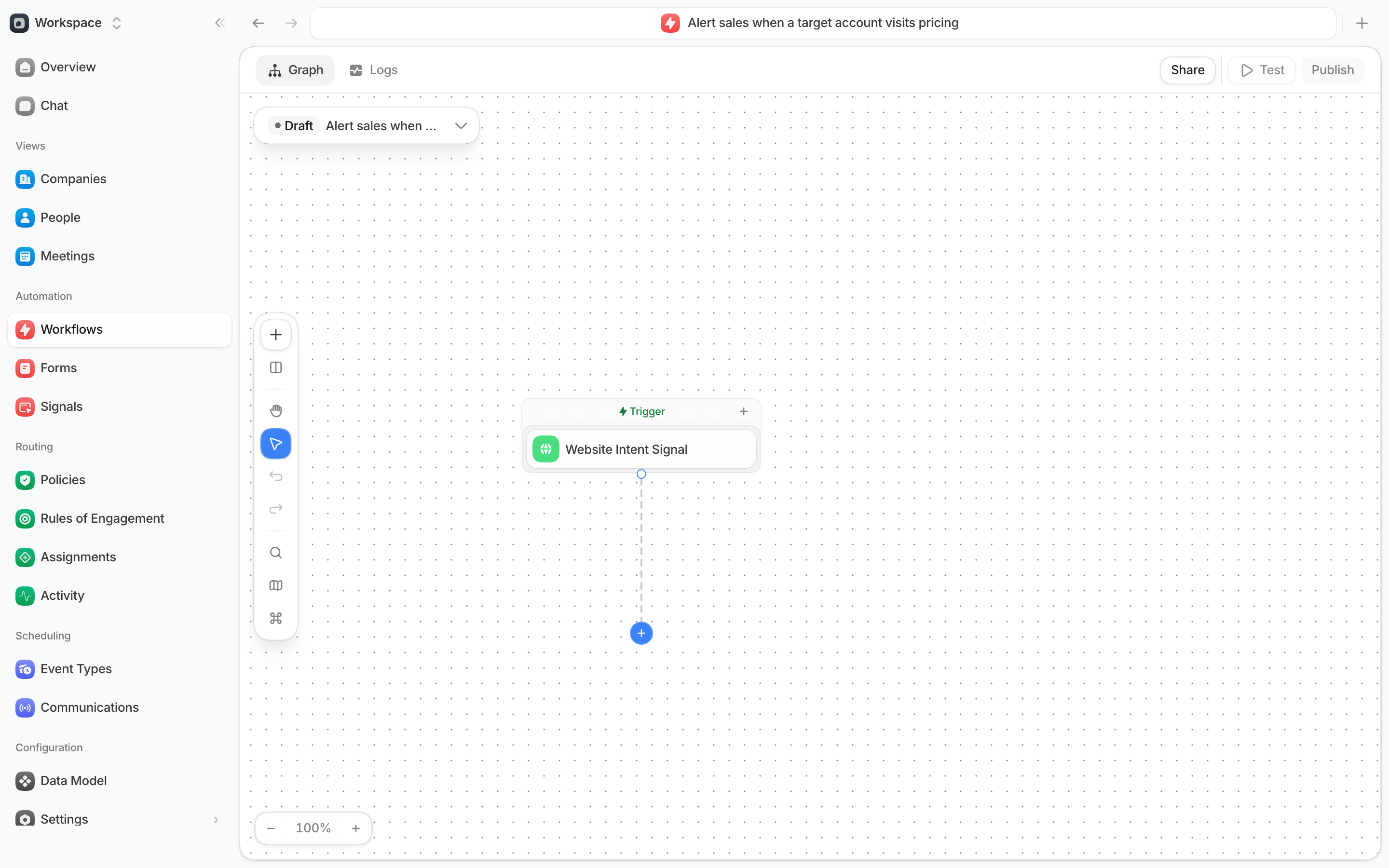 For every field on this trigger, see [Website intent signal](/workflows/triggers#website-intent-signal).
## What to expect
* **Not every visit is matched.** Default can only identify a company when the visitor is on a
network that belongs to that company. Visitors on home networks, mobile data, or a VPN often
stay anonymous.
* **One workflow run per company per hour.** When the Account Signal identifies a company on a
domain, the same workflow does not start again for that company on that domain for one hour,
even if the visitor opens several pages. A return visit later in the day starts a new run.
* **People Signal is not instant.** Expect a person to be identified up to an hour after the
visit.
* **Identified people show on their record.** Open the person in **People**, then the
**Activity** tab, and filter by **De-anonymized** to see each identification and which provider
made it.
* **Consent is respected.** If a visitor withholds analytics consent through your consent banner,
Default receives no page views from them and the Account Signal cannot run. If they withhold
marketing consent, the People Signal does not load. See
[Consent Gating](/forms/privacy#consent-gating).
## Troubleshooting
| Problem | What to check |
| ---------------------------------------- | -------------------------------------------------------------------------------------------------------------------------------------------------- |
| The page is not in the **Paths** table. | Nobody has opened it since the Pixel went live. Open the page once in your browser, then reopen the domain window. |
| The domain shows **Inactive**. | The Pixel is not sending events yet. Recheck the snippet on the page. See [Signals](/forms/signals#domain-status). |
| The workflow never starts. | Confirm the **Reveal** switch is on for that page, the workflow is published, and the **Tracked domain** and **Page URL pattern** match the visit. |
| The workflow started once, then stopped. | This is the one-hour window per company. Wait for a new visit later in the day. |
| A known visitor was not identified. | Company matching needs a company network. Visitors on home Wi-Fi, mobile data, or a VPN cannot be matched. |
For every field on this trigger, see [Website intent signal](/workflows/triggers#website-intent-signal).
## What to expect
* **Not every visit is matched.** Default can only identify a company when the visitor is on a
network that belongs to that company. Visitors on home networks, mobile data, or a VPN often
stay anonymous.
* **One workflow run per company per hour.** When the Account Signal identifies a company on a
domain, the same workflow does not start again for that company on that domain for one hour,
even if the visitor opens several pages. A return visit later in the day starts a new run.
* **People Signal is not instant.** Expect a person to be identified up to an hour after the
visit.
* **Identified people show on their record.** Open the person in **People**, then the
**Activity** tab, and filter by **De-anonymized** to see each identification and which provider
made it.
* **Consent is respected.** If a visitor withholds analytics consent through your consent banner,
Default receives no page views from them and the Account Signal cannot run. If they withhold
marketing consent, the People Signal does not load. See
[Consent Gating](/forms/privacy#consent-gating).
## Troubleshooting
| Problem | What to check |
| ---------------------------------------- | -------------------------------------------------------------------------------------------------------------------------------------------------- |
| The page is not in the **Paths** table. | Nobody has opened it since the Pixel went live. Open the page once in your browser, then reopen the domain window. |
| The domain shows **Inactive**. | The Pixel is not sending events yet. Recheck the snippet on the page. See [Signals](/forms/signals#domain-status). |
| The workflow never starts. | Confirm the **Reveal** switch is on for that page, the workflow is published, and the **Tracked domain** and **Page URL pattern** match the visit. |
| The workflow started once, then stopped. | This is the one-hour window per company. Wait for a new visit later in the day. |
| A known visitor was not identified. | Company matching needs a company network. Visitors on home Wi-Fi, mobile data, or a VPN cannot be matched. |