> ## Documentation Index
> Fetch the complete documentation index at: https://docs.os.default.com/llms.txt
> Use this file to discover all available pages before exploring further.
# Chrome extension
> Install the DefaultOS Chrome extension and sign in to look up, enrich, route, and book leads from any tab.
Install the extension from the Chrome Web Store.
The DefaultOS Chrome extension puts scheduling, routing, and enrichment in a browser side panel,
so you can work a lead without leaving the page you found them on. Look up a lead's CRM record,
book a meeting through one of your workflows, copy a booking link, or manage your upcoming
meetings from any tab.
You need a Default account to use the extension. If your team hasn't set up routing workflows
for the extension yet, see [Triggers](/workflows/triggers) for the Extension trigger.
## Install and open the side panel
Install [**DefaultOS**](https://chromewebstore.google.com/detail/defaultos-%E2%80%94-enrich-route/eickegpbdinhjlkcbmcfmledigejiign)
from the Chrome Web Store.
Select the puzzle icon in the Chrome toolbar, then select the pin next to **DefaultOS** so
the icon stays visible.
Select the DefaultOS icon in the toolbar. The side panel opens next to the current page.
## Sign in
Select **Sign in to Default** in the panel.
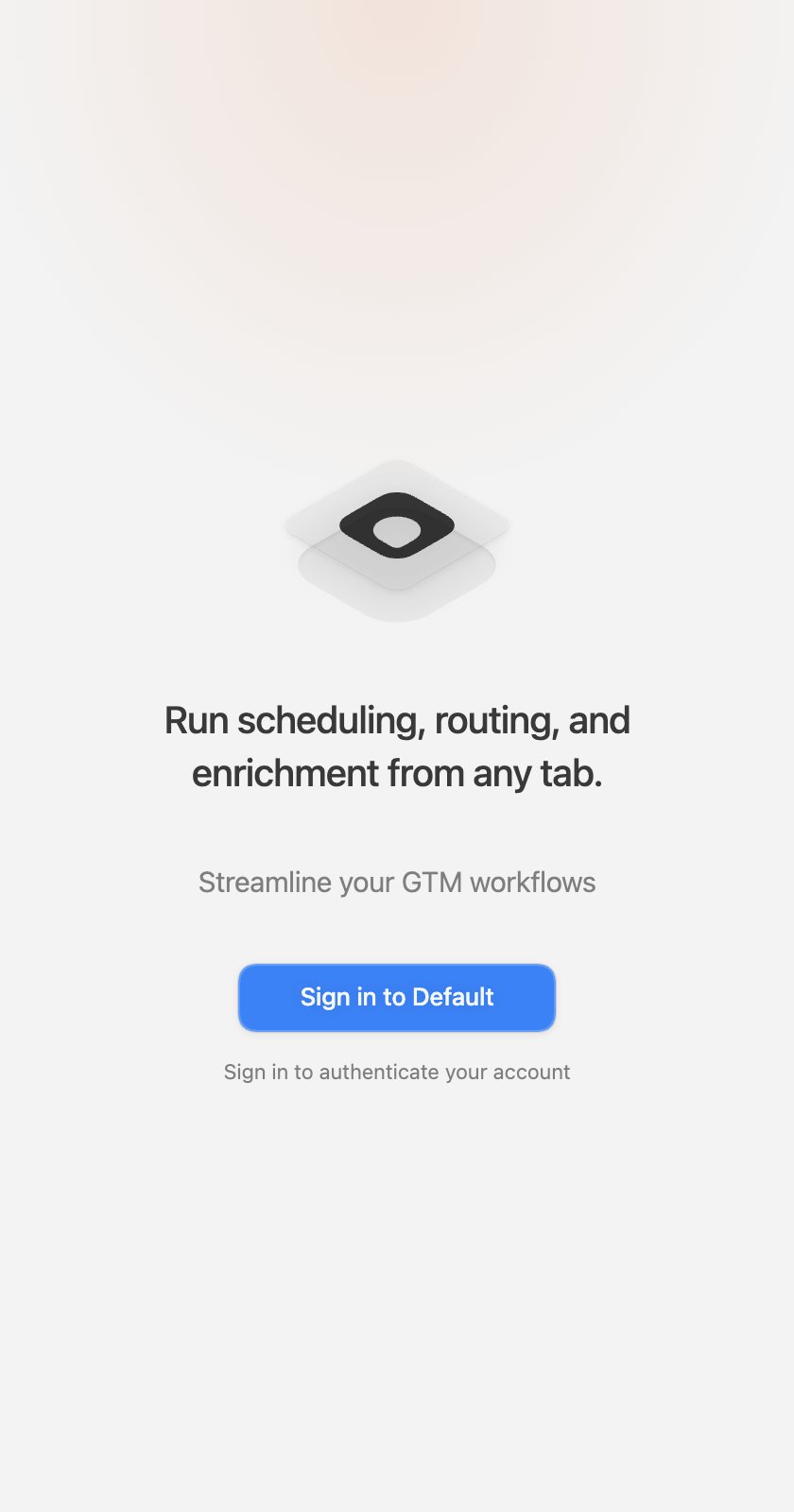 A Default sign-in window opens. Sign in with the account you use for Default, then the
window closes on its own.
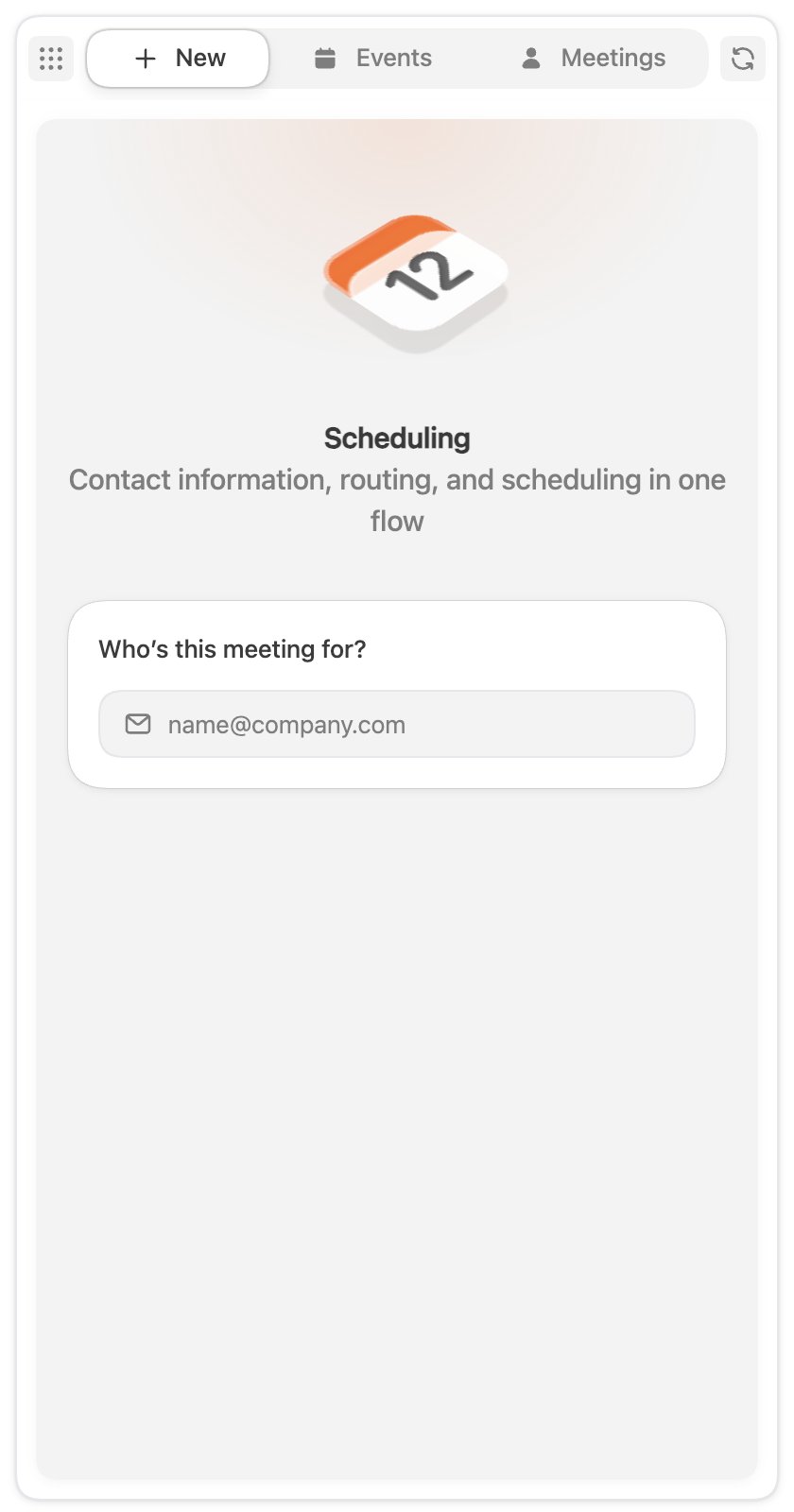
The panel opens on the **New** tab, ready to take a lead.
A Default sign-in window opens. Sign in with the account you use for Default, then the
window closes on its own.
The panel opens on the **New** tab, ready to take a lead.
 You stay signed in between browser sessions. To sign out, open the menu in the top-left corner
of the panel and select **Logout**.
## Work a lead
The **New** tab starts from a lead's email address. There are two ways to get one in:
* **From the page you're on.** On Gmail, Salesforce, and HubSpot pages, the extension detects
the lead you're viewing and offers it as **Lead on this page**. Select **Use** to load it.
Detection is passive: nothing is looked up until you accept the suggestion.
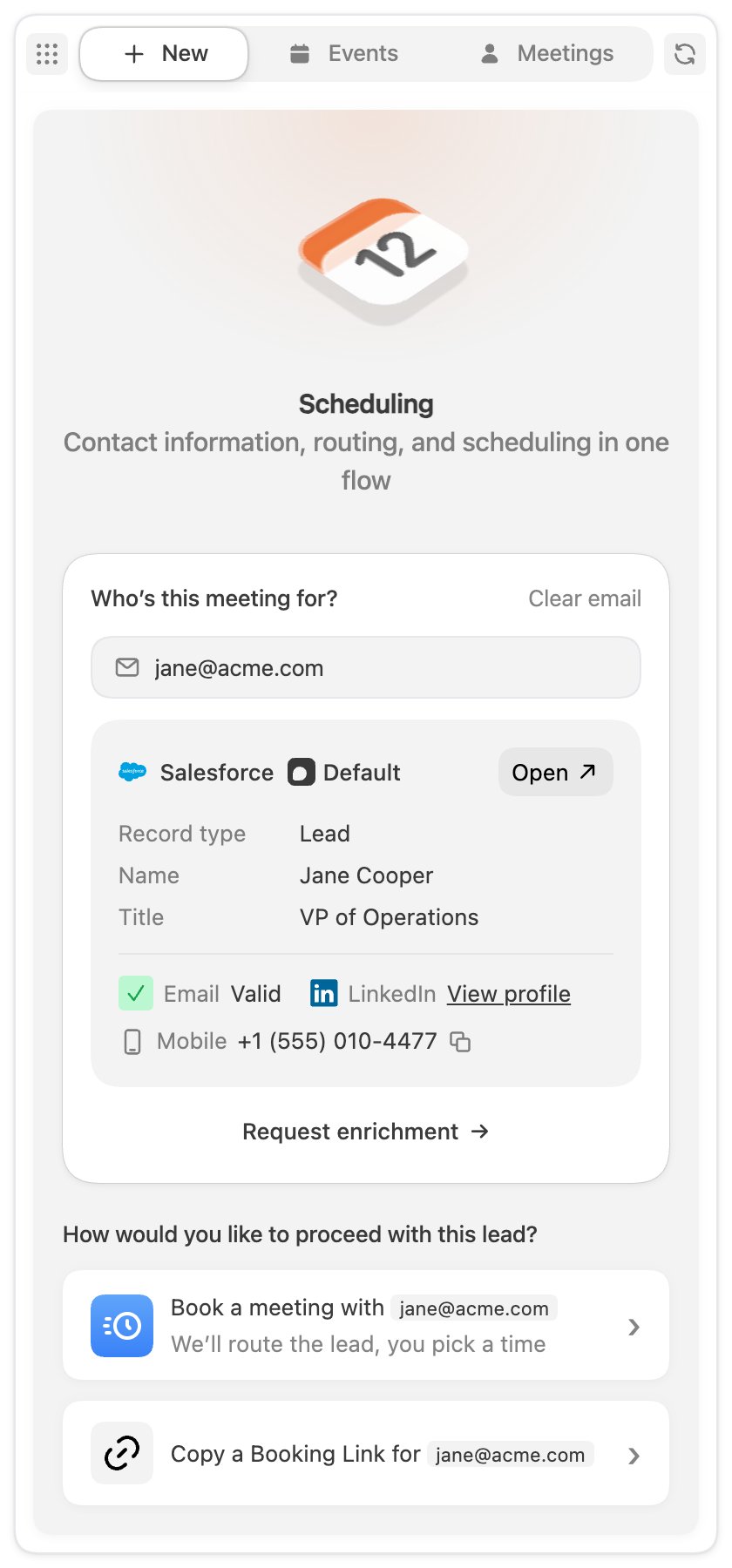
* **Typed by hand.** Enter the email under **Who's this meeting for?** on any page.
Default then looks the lead up across your connected CRM and Default's own data, and shows the
record type, name, and title, plus email validity, a LinkedIn profile link, and a mobile number
when they're known. **Open** jumps to the CRM record. If there's no match, select
**Request enrichment** to find them.
You stay signed in between browser sessions. To sign out, open the menu in the top-left corner
of the panel and select **Logout**.
## Work a lead
The **New** tab starts from a lead's email address. There are two ways to get one in:
* **From the page you're on.** On Gmail, Salesforce, and HubSpot pages, the extension detects
the lead you're viewing and offers it as **Lead on this page**. Select **Use** to load it.
Detection is passive: nothing is looked up until you accept the suggestion.
* **Typed by hand.** Enter the email under **Who's this meeting for?** on any page.
Default then looks the lead up across your connected CRM and Default's own data, and shows the
record type, name, and title, plus email validity, a LinkedIn profile link, and a mobile number
when they're known. **Open** jumps to the CRM record. If there's no match, select
**Request enrichment** to find them.
 ## Book a meeting or copy a booking link
With a lead loaded, two actions appear:
* **Book a meeting with** routes the lead through a workflow, then opens the booking page in a
new tab so you can pick a time with them.
* **Copy a Booking Link for** routes the same way, but puts the scheduling link on your
clipboard to paste into an email or chat.
Both follow the same two steps:
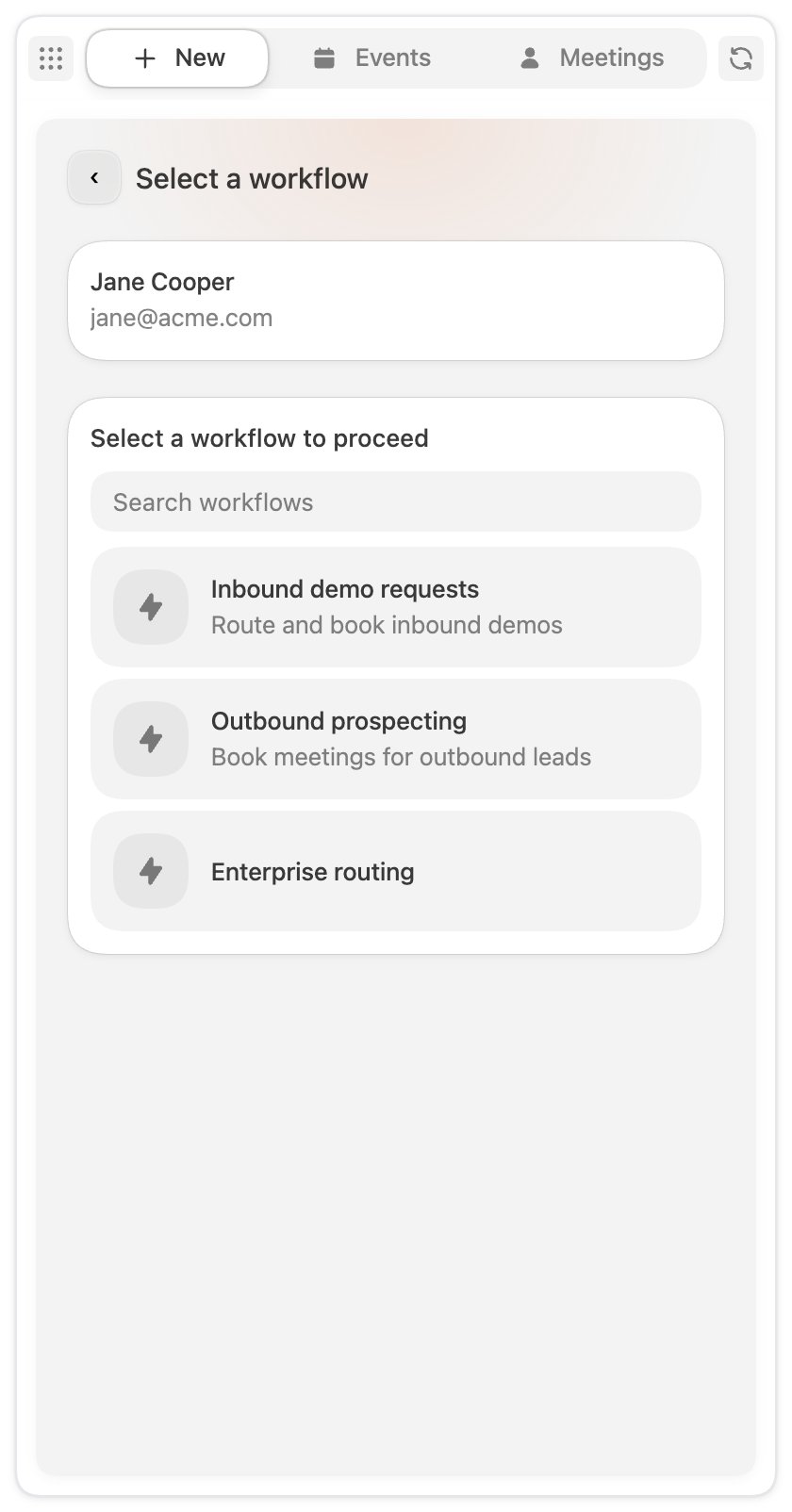
Pick the routing workflow to run. The list shows the published workflows with an Extension
trigger that you have access to.
## Book a meeting or copy a booking link
With a lead loaded, two actions appear:
* **Book a meeting with** routes the lead through a workflow, then opens the booking page in a
new tab so you can pick a time with them.
* **Copy a Booking Link for** routes the same way, but puts the scheduling link on your
clipboard to paste into an email or chat.
Both follow the same two steps:
Pick the routing workflow to run. The list shows the published workflows with an Extension
trigger that you have access to.
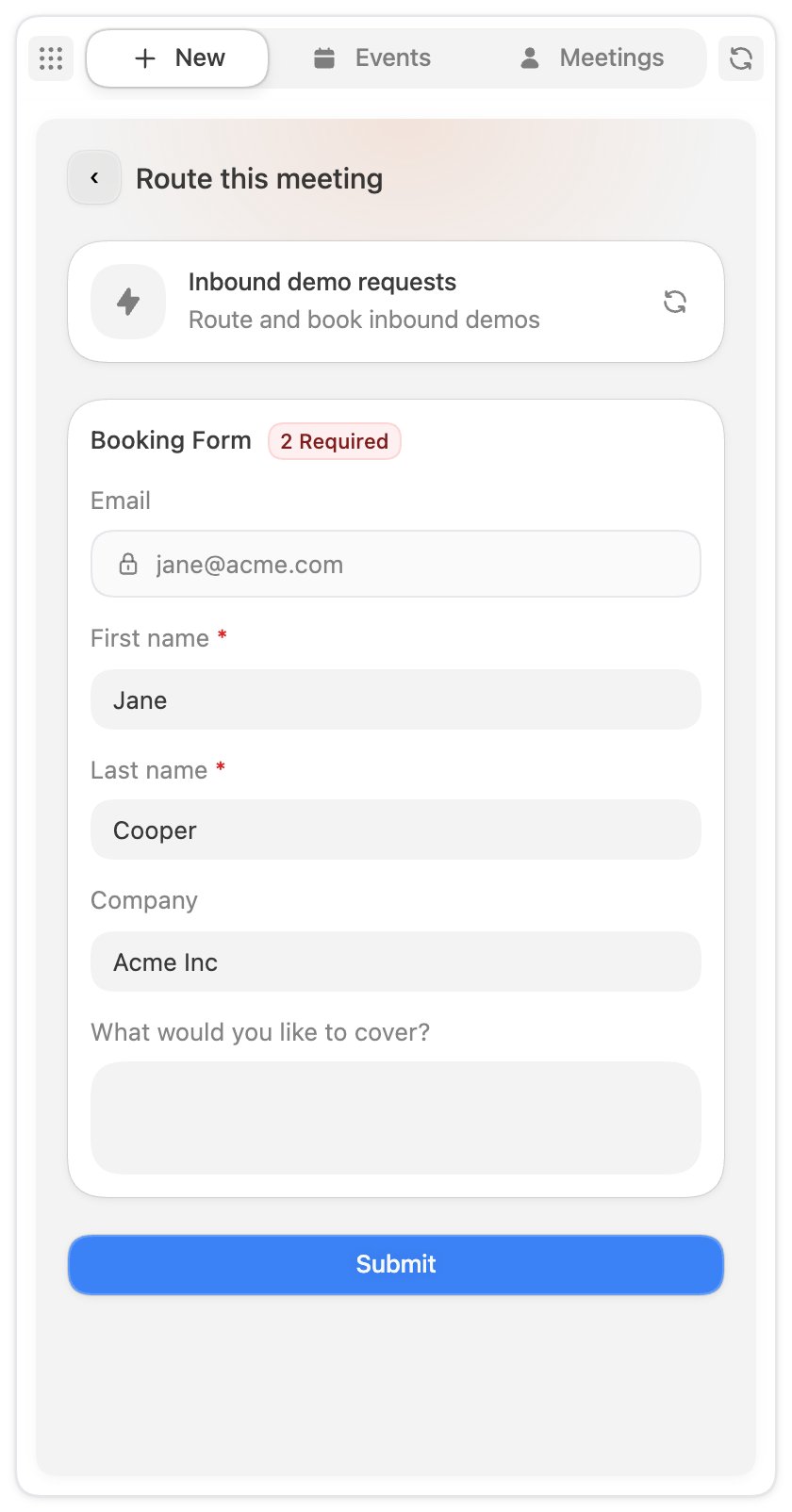
 The workflow's **Booking Form** opens with the fields of the form your admin connected to
the workflow, prefilled from the lead's record where Default has the data. Complete any
required fields and select **Submit**. The workflow routes the meeting, then either the
booking page opens or the link lands on your clipboard.
The workflow's **Booking Form** opens with the fields of the form your admin connected to
the workflow, prefilled from the lead's record where Default has the data. Complete any
required fields and select **Submit**. The workflow routes the meeting, then either the
booking page opens or the link lands on your clipboard.
 The workflow list is configured by your admins in Workflows, using the Extension trigger, and
the Booking Form is the form connected to that trigger. See [Triggers](/workflows/triggers).
If the list says no routing workflows are available to you, ask an admin to publish one.
## Events
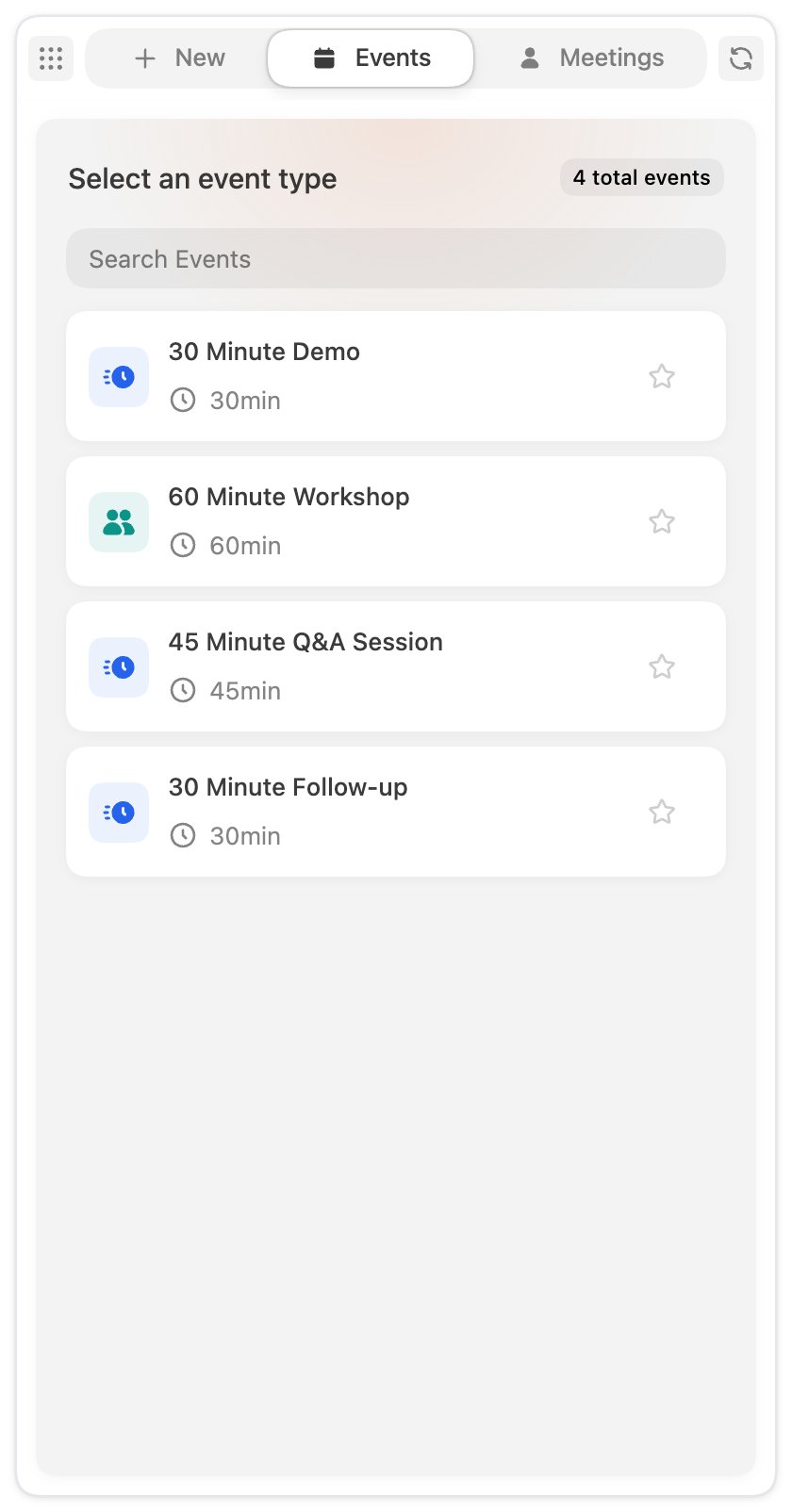
The **Events** tab lists the bookable event types you have access to. Search to filter, then
select an event to copy a booking link for it. On the copy screen you pick the host: yourself,
or a custom host set with additional hosts from your team's members and queues.
The workflow list is configured by your admins in Workflows, using the Extension trigger, and
the Booking Form is the form connected to that trigger. See [Triggers](/workflows/triggers).
If the list says no routing workflows are available to you, ask an admin to publish one.
## Events
The **Events** tab lists the bookable event types you have access to. Search to filter, then
select an event to copy a booking link for it. On the copy screen you pick the host: yourself,
or a custom host set with additional hosts from your team's members and queues.
 ## Meetings
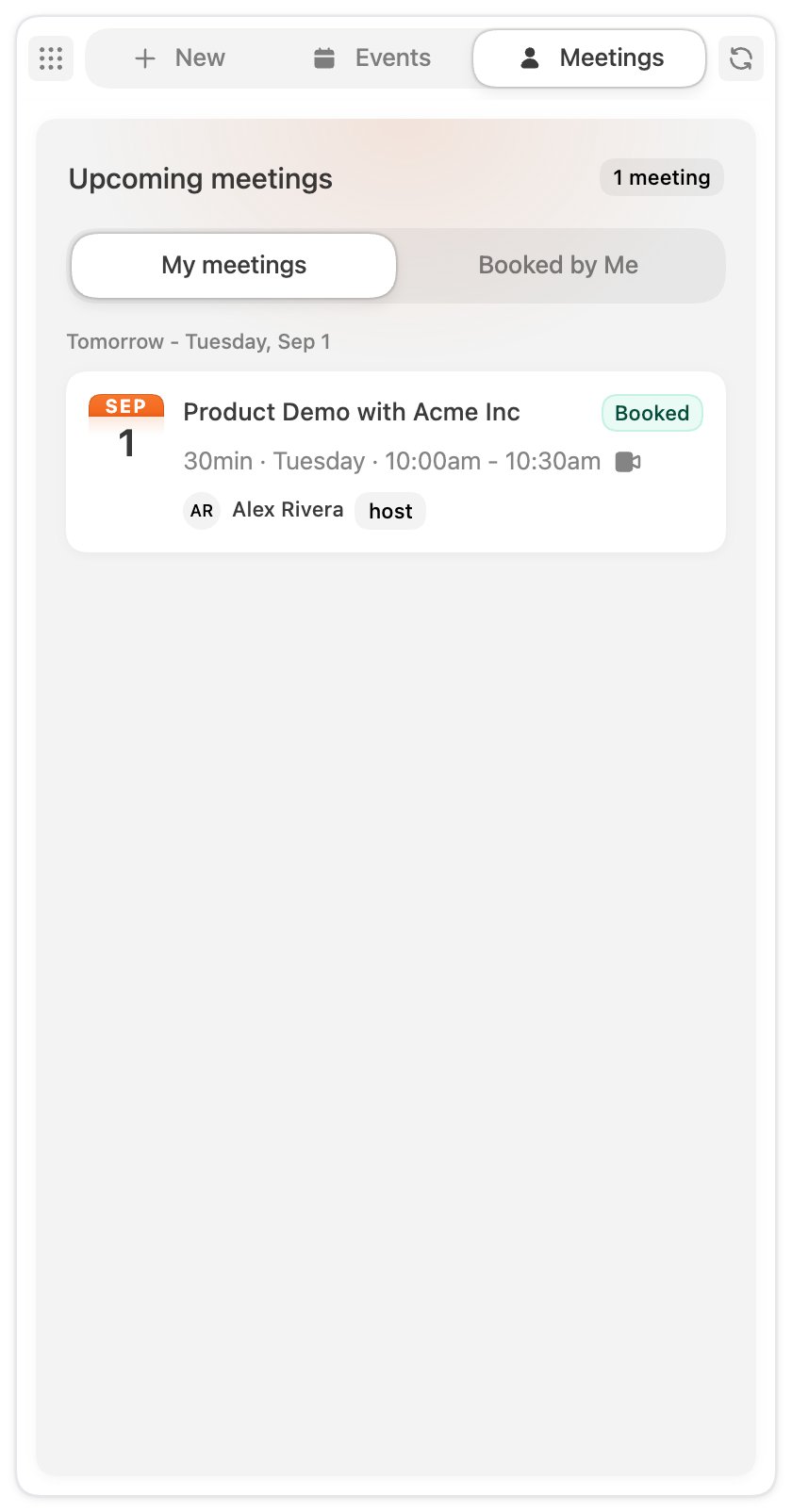
The **Meetings** tab shows your upcoming meetings: **My meetings** for the ones you host, and
**Booked by Me** for the ones you booked for someone else. Select a meeting to act on it:
**Join** the call, **Reassign** it to another host, mark a **No-show**, **Reschedule**, or
**Cancel**. Cancel and no-show ask you to confirm first.
## Meetings
The **Meetings** tab shows your upcoming meetings: **My meetings** for the ones you host, and
**Booked by Me** for the ones you booked for someone else. Select a meeting to act on it:
**Join** the call, **Reassign** it to another host, mark a **No-show**, **Reschedule**, or
**Cancel**. Cancel and no-show ask you to confirm first.
 ## Panel menu
The menu in the top-left corner of the panel has:
| Item | What it does |
| ------------------- | -------------------------------------------------------------- |
| **Open in Default** | Opens the Default web app in a new tab. |
| **Theme** | Switches the panel between light, dark, and system appearance. |
| **Logout** | Signs you out of the extension. |
## Panel menu
The menu in the top-left corner of the panel has:
| Item | What it does |
| ------------------- | -------------------------------------------------------------- |
| **Open in Default** | Opens the Default web app in a new tab. |
| **Theme** | Switches the panel between light, dark, and system appearance. |
| **Logout** | Signs you out of the extension. |