> ## Documentation Index
> Fetch the complete documentation index at: https://docs.os.default.com/llms.txt
> Use this file to discover all available pages before exploring further.
# Workspace Notifications
> Set org-wide notification defaults and control which channels are available to your team.
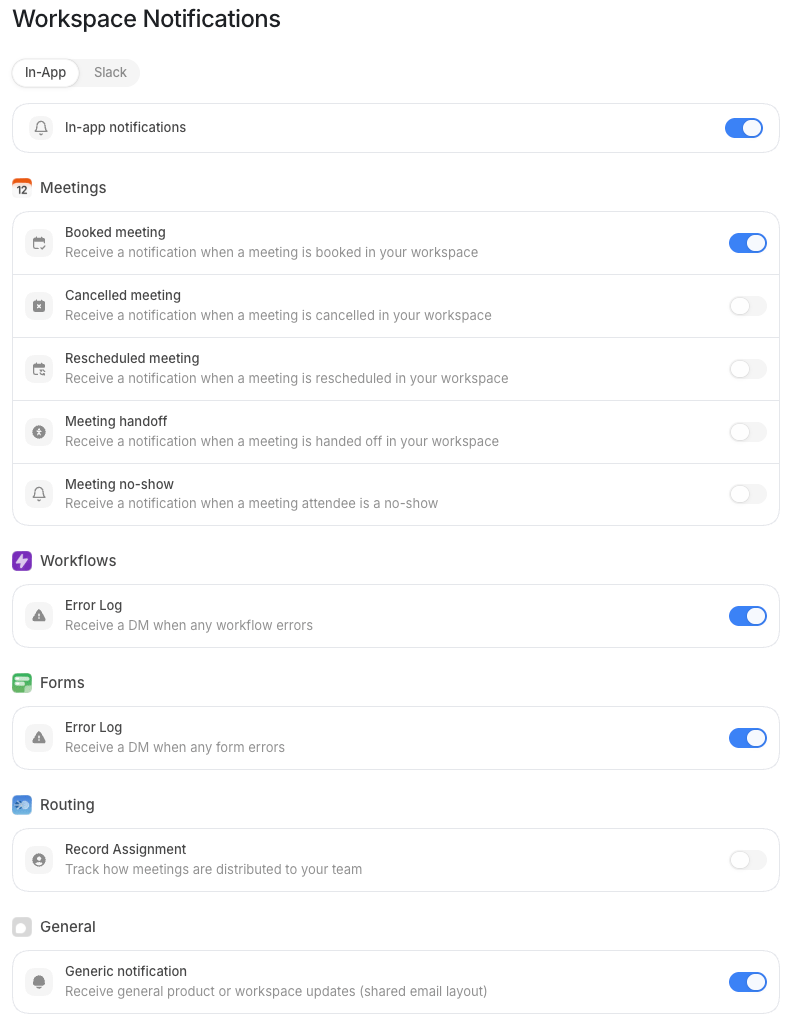
**Workspace Notifications** is where admins set the org-wide defaults for every notification
channel and type. The settings here act as a ceiling, users can opt out of any notification
on their own **Notifications** page (under **User Settings**), but they can't turn on a
channel or type that you've disabled here.
Open **Settings** from the **Dock** (the app bar at the bottom of the screen), then select
**Notifications** under **Workspace Settings**. This page is visible to admins only. The
page is tabbed by channel: **In-App** and **Slack**.
 ## How workspace notifications work
Default uses a three-layer precedence model to decide whether a notification reaches a user:
1. **Workspace channel switch**: you turn a channel on or off for the entire org. If a
channel is off here, no one on the team receives notifications through it, regardless of
their personal settings.
2. **Workspace per-type defaults**: within each enabled channel you set which notification
types are on by default for the org. Users inherit these defaults.
3. **User preferences**: each user can adjust their own settings within what the workspace
allows. They can turn a type off, but they cannot turn on a channel or type that the
workspace has disabled.
The workspace page controls **layers 1 and 2**. Users manage layer 3 from their own
Notifications page.
The workspace page exposes **In-App** and **Slack** only. Individual users also see
**Mail** and **SMS** tabs on their personal Notifications page. Mail and SMS are
per-user channels, there are no org-level on/off switches for them here.
## Channel tabs
Select a tab to configure that channel. Each tab has the same structure: a master channel
switch at the top, then the list of notification types below it.
### In-App
**In-App** notifications appear inside the Default product, typically as in-product alerts
or banners. Toggle **In-app notifications** at the top of the tab to enable or disable
the entire channel for the workspace.
### Slack
**Slack** notifications are sent to Slack channels you choose, one per notification type.
The **Slack** tab is only actionable once your workspace Slack integration is connected.
If Slack is disconnected, the tab shows a prompt to connect it via **Integrations** first.
Once connected, toggle **Slack notifications** to enable the channel, then configure each
type individually. When a type is enabled on the Slack tab, a **Slack channel selector**
appears inline so you can direct that notification type to a specific Slack channel,
for example, route all **Workflow errors** to `#ops-alerts`.
## Notification types
Within each channel tab you set which types are on or off by default. The types are
grouped by product area.
### Meeting
These notify the meeting host (or assigned rep) when something changes on one of their
meetings. Toggle each type on the **In-App** or **Slack** tab to enable or disable it
org-wide.
| Type | What it covers |
| ----------------------- | --------------------------------------------------------------- |
| **Booked meeting** | A new meeting is booked in your workspace. |
| **Booked meeting host** | Someone books a meeting directly with a team member (the host). |
| **Cancelled meeting** | A meeting is cancelled. |
| **Rescheduled meeting** | A meeting is rescheduled to a new time. |
| **Meeting handoff** | A meeting is handed off to a different host. |
| **Meeting no-show** | A meeting attendee is a no-show. |
### Workflows
Workflow notifications go to all admins in the workspace (not just the user who built the
workflow).
| Type | What it covers |
| ------------- | ----------------------------------- |
| **Error Log** | A workflow errors during execution. |
### Forms
Form notifications go to all admins in the workspace.
| Type | What it covers |
| ------------- | ------------------------------------------- |
| **Error Log** | A form errors during submission processing. |
### General
| Type | What it covers |
| ------------------------ | ------------------------------------- |
| **Generic notification** | General product or workspace updates. |
## What users can change
Once you've set the workspace defaults, each user can visit their own **Notifications**
page (under **User Settings**) to adjust their personal preferences. They can turn off
any type or channel that the workspace has enabled. They cannot enable a channel you've
disabled here.
On the per-user page, users also see **Mail** and **SMS** tabs. Mail requires a valid
email on their Profile; SMS requires a valid phone number. Neither of those channels has
an org-level switch, users control them entirely from their own settings.
The **Routing** group, which covers **Record Assignment**, is also per-user only. It appears on
each user's own [Notifications](/settings/notifications) page and on the notification settings you
open for a member from **Users**, but not on this page. There is no org-wide default for it.
## How workspace notifications work
Default uses a three-layer precedence model to decide whether a notification reaches a user:
1. **Workspace channel switch**: you turn a channel on or off for the entire org. If a
channel is off here, no one on the team receives notifications through it, regardless of
their personal settings.
2. **Workspace per-type defaults**: within each enabled channel you set which notification
types are on by default for the org. Users inherit these defaults.
3. **User preferences**: each user can adjust their own settings within what the workspace
allows. They can turn a type off, but they cannot turn on a channel or type that the
workspace has disabled.
The workspace page controls **layers 1 and 2**. Users manage layer 3 from their own
Notifications page.
The workspace page exposes **In-App** and **Slack** only. Individual users also see
**Mail** and **SMS** tabs on their personal Notifications page. Mail and SMS are
per-user channels, there are no org-level on/off switches for them here.
## Channel tabs
Select a tab to configure that channel. Each tab has the same structure: a master channel
switch at the top, then the list of notification types below it.
### In-App
**In-App** notifications appear inside the Default product, typically as in-product alerts
or banners. Toggle **In-app notifications** at the top of the tab to enable or disable
the entire channel for the workspace.
### Slack
**Slack** notifications are sent to Slack channels you choose, one per notification type.
The **Slack** tab is only actionable once your workspace Slack integration is connected.
If Slack is disconnected, the tab shows a prompt to connect it via **Integrations** first.
Once connected, toggle **Slack notifications** to enable the channel, then configure each
type individually. When a type is enabled on the Slack tab, a **Slack channel selector**
appears inline so you can direct that notification type to a specific Slack channel,
for example, route all **Workflow errors** to `#ops-alerts`.
## Notification types
Within each channel tab you set which types are on or off by default. The types are
grouped by product area.
### Meeting
These notify the meeting host (or assigned rep) when something changes on one of their
meetings. Toggle each type on the **In-App** or **Slack** tab to enable or disable it
org-wide.
| Type | What it covers |
| ----------------------- | --------------------------------------------------------------- |
| **Booked meeting** | A new meeting is booked in your workspace. |
| **Booked meeting host** | Someone books a meeting directly with a team member (the host). |
| **Cancelled meeting** | A meeting is cancelled. |
| **Rescheduled meeting** | A meeting is rescheduled to a new time. |
| **Meeting handoff** | A meeting is handed off to a different host. |
| **Meeting no-show** | A meeting attendee is a no-show. |
### Workflows
Workflow notifications go to all admins in the workspace (not just the user who built the
workflow).
| Type | What it covers |
| ------------- | ----------------------------------- |
| **Error Log** | A workflow errors during execution. |
### Forms
Form notifications go to all admins in the workspace.
| Type | What it covers |
| ------------- | ------------------------------------------- |
| **Error Log** | A form errors during submission processing. |
### General
| Type | What it covers |
| ------------------------ | ------------------------------------- |
| **Generic notification** | General product or workspace updates. |
## What users can change
Once you've set the workspace defaults, each user can visit their own **Notifications**
page (under **User Settings**) to adjust their personal preferences. They can turn off
any type or channel that the workspace has enabled. They cannot enable a channel you've
disabled here.
On the per-user page, users also see **Mail** and **SMS** tabs. Mail requires a valid
email on their Profile; SMS requires a valid phone number. Neither of those channels has
an org-level switch, users control them entirely from their own settings.
The **Routing** group, which covers **Record Assignment**, is also per-user only. It appears on
each user's own [Notifications](/settings/notifications) page and on the notification settings you
open for a member from **Users**, but not on this page. There is no org-wide default for it.