> ## Documentation Index
> Fetch the complete documentation index at: https://docs.os.default.com/llms.txt
> Use this file to discover all available pages before exploring further.
# My Notifications
> Choose which events Default tells you about, and how they reach you: in-app, Slack, email, or SMS.
Your **Notifications** settings let you decide which events Default tells you about and how those
notifications reach you. The page is organized into channel tabs, and inside each tab you turn on the
specific notification types you want delivered through that channel.
Open **Settings** from the **Dock** (the app bar at the bottom of the screen), then select
**My Notifications** under **My Profile**. The page opens on the **In-App** tab by default.
 ## How channel controls work
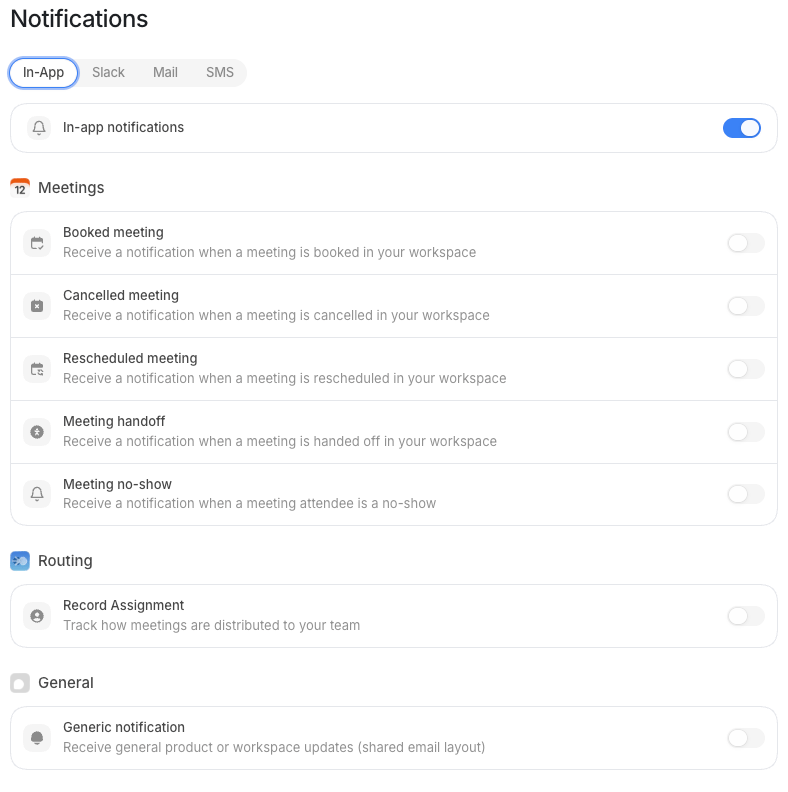
Each channel tab has a channel-level toggle at the top. Turn the channel on to receive any notifications
through it, or turn it off to silence the entire channel no matter what your per-type settings say. Below
the channel toggle, each notification group lists its types as individual toggles, so you can opt into or
out of each one on its own.
Per-type toggles are only active when the channel itself is on. If you turn a channel off, the type-level
toggles dim but keep their settings, so turning the channel back on restores your previous choices.
## Channel tabs
### In-App
Delivers notifications inside Default, like a badge or feed item when a meeting is booked. No extra setup
is needed, and the channel is available to everyone.
### Slack
Sends notifications as Slack messages. This channel needs the **workspace Slack integration** to be
connected. If it isn't, the tab shows a message directing you to connect Slack under **Integrations**.
Once Slack is connected at the workspace level, you can turn on the channel and choose which notification
types you want delivered there.
### Mail
Sends notifications by email to the address on your profile. If your profile doesn't have a valid email
address, the channel toggle is disabled and the tab prompts you to
[add an email to your profile](/settings/profile).
### SMS
Sends notifications by text message to the phone number on your profile.
To enable SMS:
Add a valid E.164 phone number on [Profile](/settings/profile), for example `+15551234567`.
Open the **SMS** tab on **Notifications**.
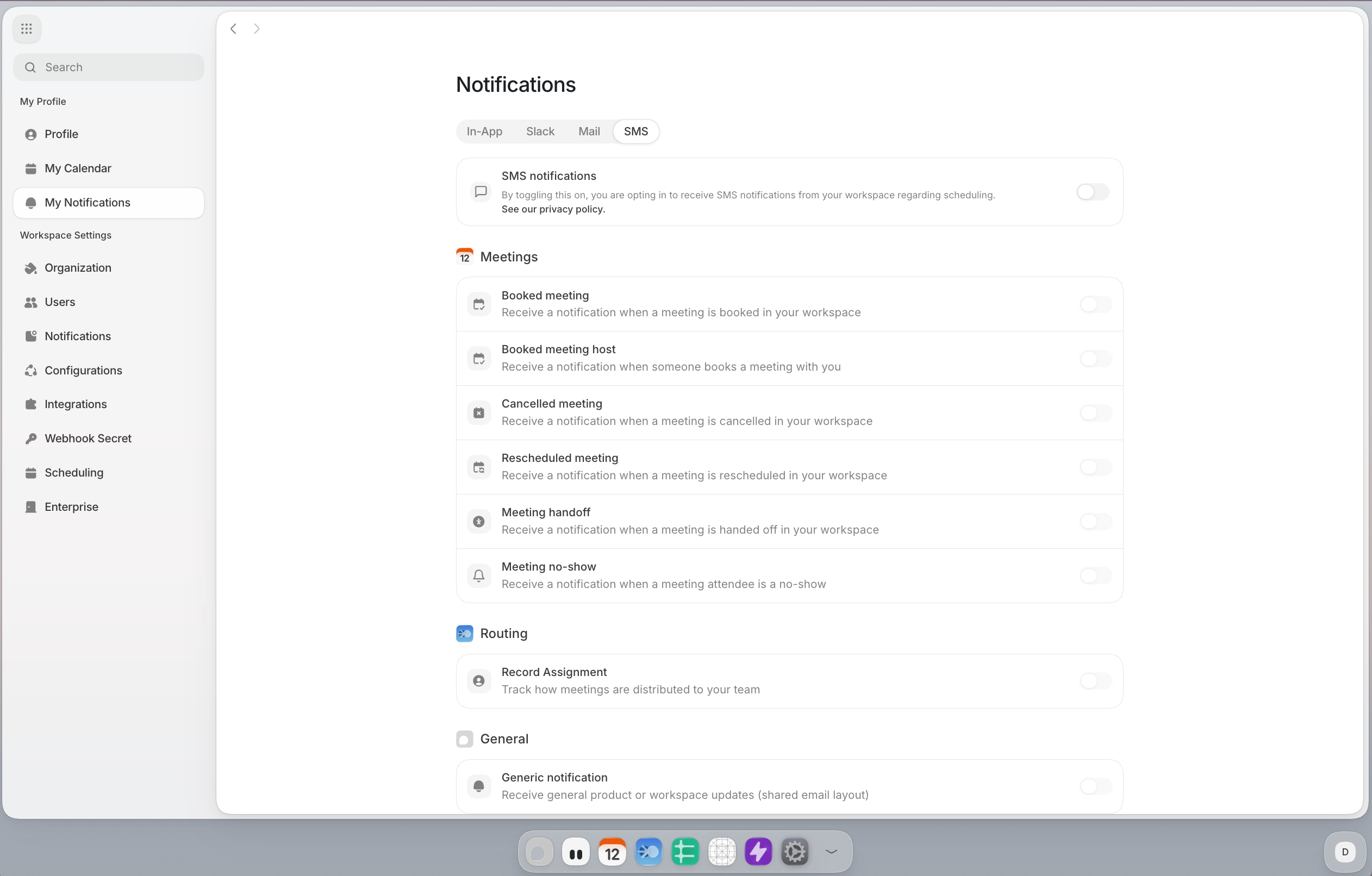
Turn on the **SMS notifications** channel toggle.
When the SMS toggle is on, you are explicitly opting in to scheduling-related SMS notifications
for your user account. The UI also shows a privacy policy link at the point of opt-in.
## How channel controls work
Each channel tab has a channel-level toggle at the top. Turn the channel on to receive any notifications
through it, or turn it off to silence the entire channel no matter what your per-type settings say. Below
the channel toggle, each notification group lists its types as individual toggles, so you can opt into or
out of each one on its own.
Per-type toggles are only active when the channel itself is on. If you turn a channel off, the type-level
toggles dim but keep their settings, so turning the channel back on restores your previous choices.
## Channel tabs
### In-App
Delivers notifications inside Default, like a badge or feed item when a meeting is booked. No extra setup
is needed, and the channel is available to everyone.
### Slack
Sends notifications as Slack messages. This channel needs the **workspace Slack integration** to be
connected. If it isn't, the tab shows a message directing you to connect Slack under **Integrations**.
Once Slack is connected at the workspace level, you can turn on the channel and choose which notification
types you want delivered there.
### Mail
Sends notifications by email to the address on your profile. If your profile doesn't have a valid email
address, the channel toggle is disabled and the tab prompts you to
[add an email to your profile](/settings/profile).
### SMS
Sends notifications by text message to the phone number on your profile.
To enable SMS:
Add a valid E.164 phone number on [Profile](/settings/profile), for example `+15551234567`.
Open the **SMS** tab on **Notifications**.
Turn on the **SMS notifications** channel toggle.
When the SMS toggle is on, you are explicitly opting in to scheduling-related SMS notifications
for your user account. The UI also shows a privacy policy link at the point of opt-in.
 SMS message recipients can opt out by replying `STOP`. Default also includes compliance follow-up
text to explain why a recipient received a scheduling SMS.
## Notification types
Each channel tab shows the same set of notification types, grouped by area. Turn each type on or off
within the channel you're configuring.
### Meeting
| Type | What triggers it |
| ----------------------- | ---------------------------------------------------- |
| **Booked meeting** | A meeting is booked in your workspace. |
| **Booked meeting host** | Someone books a meeting with you. |
| **Cancelled meeting** | A meeting is cancelled in your workspace. |
| **Rescheduled meeting** | A meeting is rescheduled in your workspace. |
| **Meeting handoff** | A meeting is handed off to another host. |
| **Meeting no-show** | An attendee doesn't show up for a scheduled meeting. |
### Workflows
| Type | What triggers it |
| ------------- | ------------------------------------------------------------------ |
| **Error Log** | A workflow errors during execution. Delivered to workspace admins. |
### Forms
| Type | What triggers it |
| ------------- | --------------------------------------------------------------- |
| **Error Log** | A form errors during processing. Delivered to workspace admins. |
### Routing
| Type | What triggers it |
| --------------------- | ---------------------------------------------------- |
| **Record Assignment** | A lead or object is assigned to you through routing. |
### General
| Type | What triggers it |
| ------------------------ | ------------------------------------- |
| **Generic notification** | General product or workspace updates. |
## Workspace precedence
Your notification settings work within limits set by your workspace admin. There are three layers, applied
in order:
1. **Workspace channels.** Your admin turns each channel on or off for the whole workspace and sets the
connection status for Slack. If a channel is disabled at the workspace level, you can't enable it for
yourself.
2. **Workspace defaults.** Your admin sets a default on or off state for each notification type on each
channel. These are the starting values every user inherits.
3. **Your preferences.** You can turn any type off, or back on if the workspace default is off. You can
always opt out of anything, but you can't opt into a channel or type that the workspace has blocked.
In short, the workspace sets the ceiling, and you narrow things within it.
SMS message recipients can opt out by replying `STOP`. Default also includes compliance follow-up
text to explain why a recipient received a scheduling SMS.
## Notification types
Each channel tab shows the same set of notification types, grouped by area. Turn each type on or off
within the channel you're configuring.
### Meeting
| Type | What triggers it |
| ----------------------- | ---------------------------------------------------- |
| **Booked meeting** | A meeting is booked in your workspace. |
| **Booked meeting host** | Someone books a meeting with you. |
| **Cancelled meeting** | A meeting is cancelled in your workspace. |
| **Rescheduled meeting** | A meeting is rescheduled in your workspace. |
| **Meeting handoff** | A meeting is handed off to another host. |
| **Meeting no-show** | An attendee doesn't show up for a scheduled meeting. |
### Workflows
| Type | What triggers it |
| ------------- | ------------------------------------------------------------------ |
| **Error Log** | A workflow errors during execution. Delivered to workspace admins. |
### Forms
| Type | What triggers it |
| ------------- | --------------------------------------------------------------- |
| **Error Log** | A form errors during processing. Delivered to workspace admins. |
### Routing
| Type | What triggers it |
| --------------------- | ---------------------------------------------------- |
| **Record Assignment** | A lead or object is assigned to you through routing. |
### General
| Type | What triggers it |
| ------------------------ | ------------------------------------- |
| **Generic notification** | General product or workspace updates. |
## Workspace precedence
Your notification settings work within limits set by your workspace admin. There are three layers, applied
in order:
1. **Workspace channels.** Your admin turns each channel on or off for the whole workspace and sets the
connection status for Slack. If a channel is disabled at the workspace level, you can't enable it for
yourself.
2. **Workspace defaults.** Your admin sets a default on or off state for each notification type on each
channel. These are the starting values every user inherits.
3. **Your preferences.** You can turn any type off, or back on if the workspace default is off. You can
always opt out of anything, but you can't opt into a channel or type that the workspace has blocked.
In short, the workspace sets the ceiling, and you narrow things within it.