> ## Documentation Index
> Fetch the complete documentation index at: https://docs.os.default.com/llms.txt
> Use this file to discover all available pages before exploring further.
# Zoom
> Connect Zoom so Default can add Zoom links to booked meetings.
Connecting **Zoom** lets Default add a Zoom link to meetings booked through your workspace. Zoom is
connected once for the whole workspace by an admin.
Open **Settings** from the **Dock** (the app bar at the bottom of the screen), then select
**Integrations** under **Workspace Settings**. You can also reach the Zoom integration page
directly at
[os.default.com/settings/integrations/zoom](https://os.default.com/settings/integrations/zoom).
Admin access is required.
## Connect Zoom
Zoom appears alongside the other conferencing tools on the **Integrations** page.
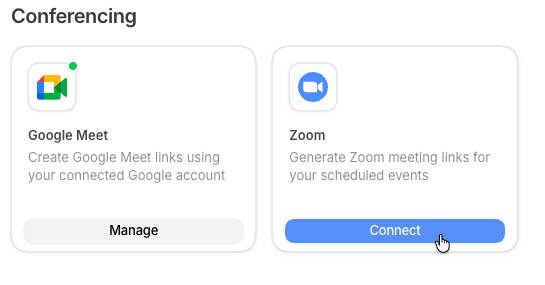 Open **Integrations** in **Settings** and find the **Zoom** card in the **Conferencing**
section.
Select the blue **Connect** button on the Zoom card. The card opens the Zoom integration page,
where you finish connecting.
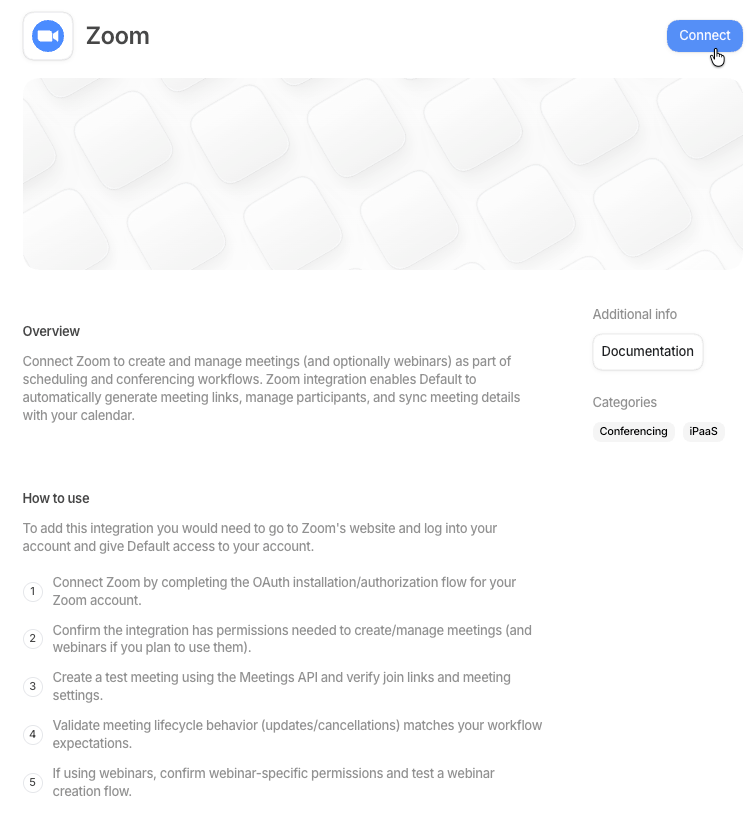
On the Zoom integration page, select **Connect** again to start the Zoom sign-in, then approve
it to finish connecting.
Zoom can now be selected as a location option on your events.
Open **Integrations** in **Settings** and find the **Zoom** card in the **Conferencing**
section.
Select the blue **Connect** button on the Zoom card. The card opens the Zoom integration page,
where you finish connecting.
On the Zoom integration page, select **Connect** again to start the Zoom sign-in, then approve
it to finish connecting.
Zoom can now be selected as a location option on your events.
 ## Manage or disconnect your Zoom integration
Once Zoom is connected, its **Connect** button becomes **Manage**. To update your connection, select
**Manage** on the Zoom card, then select **Disconnect** to remove the integration.
## Manage or disconnect your Zoom integration
Once Zoom is connected, its **Connect** button becomes **Manage**. To update your connection, select
**Manage** on the Zoom card, then select **Disconnect** to remove the integration.