> ## Documentation Index
> Fetch the complete documentation index at: https://docs.os.default.com/llms.txt
> Use this file to discover all available pages before exploring further.
# Objects
> Define fields on Company and Person records and control which data sources fill them, in what order.
**Objects** is where you manage the fields that live on your **Company** and **Person** records,
the two core objects Default tracks. For each field you control which connected data sources can
fill it and in what priority order, so Default always uses the most authoritative value available.
Open **Settings** from the **Dock** (the app bar at the bottom of the screen), then select
**Data Model** under **Workspace Settings**, then **Objects**. Admin access is required.
The Objects page lists two objects: **Company** and **Person**. Select one to open its field
and priority editor.
## Objects list
The Objects page shows the two available object types. Select one to open its configuration.
| Object | What it represents |
| ----------- | --------------------------------------------------------- |
| **Company** | An organization or account, the company a lead works for. |
| **Person** | An individual contact or lead. |
## Priority
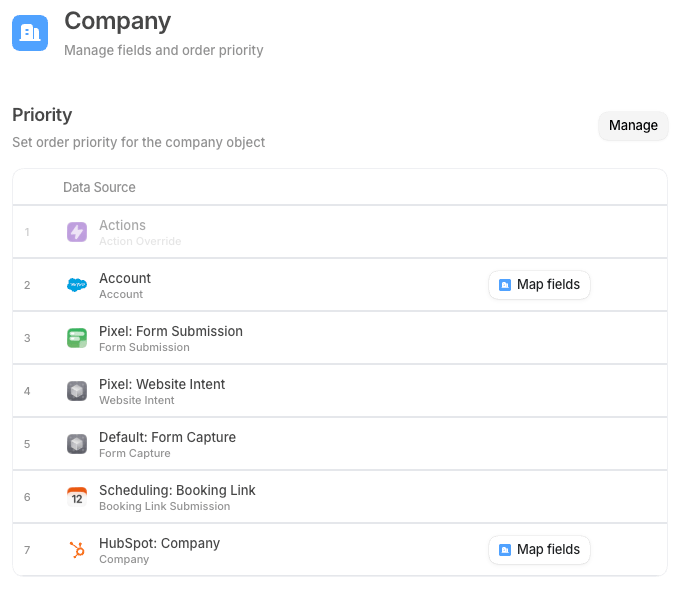
Each object page opens with a **Priority** section at the top. This is the workspace-level,
field-agnostic source order: when Default needs to populate any field on this object, it tries
your data sources in the order listed here, stopping at the first that returns a value.
The first row is always **Default**, the data Default captures natively (for example, from
form submissions via the pixel). Default is always first and cannot be reordered or removed.
### Add and remove data sources
Select **Manage** to open the data source picker. The picker shows all enrichment providers and
any CRM objects that your workspace has connected via **Integrations**. Toggle a source to add
or remove it. Sources you add appear at the bottom of the priority list; drag to reorder them.
The available data sources depend on which integrations are connected:
* **Enrichment providers**: Clearbit, Apollo, and People Data Labs are available when connected.
* **CRM sources**: Salesforce and HubSpot objects (for example, `Salesforce: Lead` or
`HubSpot: Contact`) appear when those integrations are healthy. Each CRM source exposes the
object types it supports for the selected destination object (Company or Person).
A data source that appears with a warning indicator has been disconnected since it was added.
It remains in the priority list so your field mappings are preserved, but it won't return
values until you reconnect the integration.
### Reorder data sources
Drag any row (except Default) to change its position. Rows higher in the list take priority.
Unsaved changes are staged locally. Select **Save** in the header to apply them.
### Map fields (CRM sources)
For CRM sources, a **Map fields** button appears on the row. Selecting it opens a dialog where
you map each Default field to its corresponding field in the CRM object. For example, map
Default's `email` field to Salesforce's `Email` field on the Lead object. Mappings tell Default
exactly which CRM field to read when the CRM is the winning source for a given field.
## Fields
Below Priority, the **Fields** section lists every field defined on the object. Each field
displays its name, data type, and the data source icons that contribute to it in priority order.
### Standard fields
Standard fields ship with Default and represent the most common properties for each object.
**Person standard fields**
| Field | Description |
| ------------------ | ------------------------------------------ |
| **Email** | Primary email address. |
| **First Name** | Given name. |
| **Last Name** | Family name. |
| **Phone Number** | Contact phone. |
| **Title** | Job title. |
| **Company Name** | Name of the company the person belongs to. |
| **Company Domain** | Domain of the company. |
| **LinkedIn URL** | LinkedIn profile URL. |
| **City** | City. |
| **State** | State or region. |
| **Country** | Country. |
| **Owner** | The Default user assigned to this record. |
**Company standard fields**
| Field | Description |
| ---------------- | ----------------------------------------------- |
| **Domain** | Company website domain, the primary identifier. |
| **Name** | Company name. |
| **Website URL** | Full website URL. |
| **Headcount** | Number of employees. |
| **LinkedIn URL** | LinkedIn company page URL. |
| **City** | City. |
| **State** | State or region. |
| **Country** | Country. |
| **Owner** | The Default user assigned to this record. |
### Custom fields
Select **Add custom field** to create a field that isn't in the standard set. The field
configuration dialog has the following options:
| Option | What it is | How to use it |
| ------------------ | ------------------------------------------------------ | ------------------------------------------------------------------------------------------------------------------------------------------------------------------- |
| **Label** | The display name for the field. | Type a name, such as `Annual Revenue`. Default generates the field key automatically as `custom:
 ## Priority
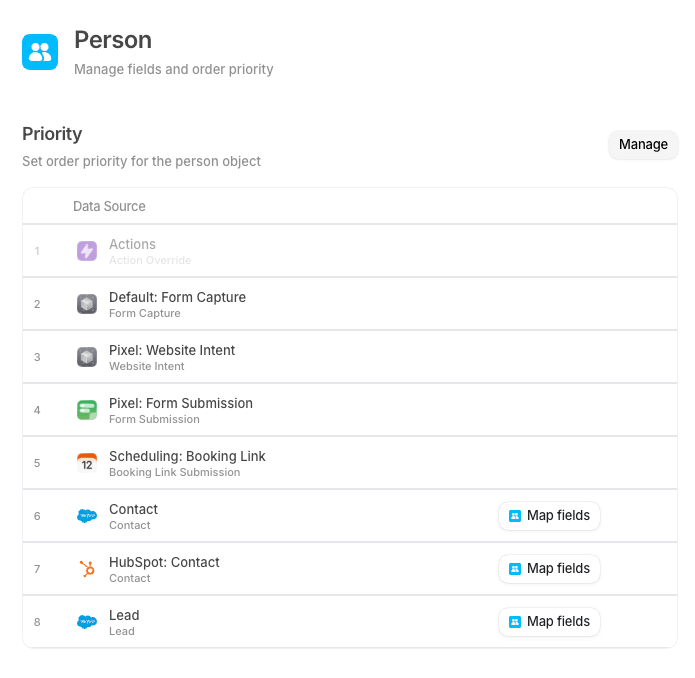
Each object page opens with a **Priority** section at the top. This is the workspace-level,
field-agnostic source order: when Default needs to populate any field on this object, it tries
your data sources in the order listed here, stopping at the first that returns a value.
The first row is always **Default**, the data Default captures natively (for example, from
form submissions via the pixel). Default is always first and cannot be reordered or removed.
### Add and remove data sources
Select **Manage** to open the data source picker. The picker shows all enrichment providers and
any CRM objects that your workspace has connected via **Integrations**. Toggle a source to add
or remove it. Sources you add appear at the bottom of the priority list; drag to reorder them.
The available data sources depend on which integrations are connected:
* **Enrichment providers**: Clearbit, Apollo, and People Data Labs are available when connected.
* **CRM sources**: Salesforce and HubSpot objects (for example, `Salesforce: Lead` or
`HubSpot: Contact`) appear when those integrations are healthy. Each CRM source exposes the
object types it supports for the selected destination object (Company or Person).
## Priority
Each object page opens with a **Priority** section at the top. This is the workspace-level,
field-agnostic source order: when Default needs to populate any field on this object, it tries
your data sources in the order listed here, stopping at the first that returns a value.
The first row is always **Default**, the data Default captures natively (for example, from
form submissions via the pixel). Default is always first and cannot be reordered or removed.
### Add and remove data sources
Select **Manage** to open the data source picker. The picker shows all enrichment providers and
any CRM objects that your workspace has connected via **Integrations**. Toggle a source to add
or remove it. Sources you add appear at the bottom of the priority list; drag to reorder them.
The available data sources depend on which integrations are connected:
* **Enrichment providers**: Clearbit, Apollo, and People Data Labs are available when connected.
* **CRM sources**: Salesforce and HubSpot objects (for example, `Salesforce: Lead` or
`HubSpot: Contact`) appear when those integrations are healthy. Each CRM source exposes the
object types it supports for the selected destination object (Company or Person).
 ## Fields
Below Priority, the **Fields** section lists every field defined on the object. Each field
displays its name, data type, and the data source icons that contribute to it in priority order.
### Standard fields
Standard fields ship with Default and represent the most common properties for each object.
**Person standard fields**
| Field | Description |
| ------------------ | ------------------------------------------ |
| **Email** | Primary email address. |
| **First Name** | Given name. |
| **Last Name** | Family name. |
| **Phone Number** | Contact phone. |
| **Title** | Job title. |
| **Company Name** | Name of the company the person belongs to. |
| **Company Domain** | Domain of the company. |
| **LinkedIn URL** | LinkedIn profile URL. |
| **City** | City. |
| **State** | State or region. |
| **Country** | Country. |
| **Owner** | The Default user assigned to this record. |
**Company standard fields**
| Field | Description |
| ---------------- | ----------------------------------------------- |
| **Domain** | Company website domain, the primary identifier. |
| **Name** | Company name. |
| **Website URL** | Full website URL. |
| **Headcount** | Number of employees. |
| **LinkedIn URL** | LinkedIn company page URL. |
| **City** | City. |
| **State** | State or region. |
| **Country** | Country. |
| **Owner** | The Default user assigned to this record. |
### Custom fields
Select **Add custom field** to create a field that isn't in the standard set. The field
configuration dialog has the following options:
| Option | What it is | How to use it |
| ------------------ | ------------------------------------------------------ | ------------------------------------------------------------------------------------------------------------------------------------------------------------------- |
| **Label** | The display name for the field. | Type a name, such as `Annual Revenue`. Default generates the field key automatically as `custom:
## Fields
Below Priority, the **Fields** section lists every field defined on the object. Each field
displays its name, data type, and the data source icons that contribute to it in priority order.
### Standard fields
Standard fields ship with Default and represent the most common properties for each object.
**Person standard fields**
| Field | Description |
| ------------------ | ------------------------------------------ |
| **Email** | Primary email address. |
| **First Name** | Given name. |
| **Last Name** | Family name. |
| **Phone Number** | Contact phone. |
| **Title** | Job title. |
| **Company Name** | Name of the company the person belongs to. |
| **Company Domain** | Domain of the company. |
| **LinkedIn URL** | LinkedIn profile URL. |
| **City** | City. |
| **State** | State or region. |
| **Country** | Country. |
| **Owner** | The Default user assigned to this record. |
**Company standard fields**
| Field | Description |
| ---------------- | ----------------------------------------------- |
| **Domain** | Company website domain, the primary identifier. |
| **Name** | Company name. |
| **Website URL** | Full website URL. |
| **Headcount** | Number of employees. |
| **LinkedIn URL** | LinkedIn company page URL. |
| **City** | City. |
| **State** | State or region. |
| **Country** | Country. |
| **Owner** | The Default user assigned to this record. |
### Custom fields
Select **Add custom field** to create a field that isn't in the standard set. The field
configuration dialog has the following options:
| Option | What it is | How to use it |
| ------------------ | ------------------------------------------------------ | ------------------------------------------------------------------------------------------------------------------------------------------------------------------- |
| **Label** | The display name for the field. | Type a name, such as `Annual Revenue`. Default generates the field key automatically as `custom: