> ## Documentation Index
> Fetch the complete documentation index at: https://docs.os.default.com/llms.txt
> Use this file to discover all available pages before exploring further.
# Work Hours
> Create named work schedules that define which days and hours you're open for bookings.
Work Hours lets you define one or more **work schedules**, named sets of per-day time
ranges that tell Default when you're available to be booked. The slot engine reads your
primary schedule when generating open times for events you host.
Open **Settings** from the **Dock** (the app bar at the bottom of the screen), then select
**My Calendar** under **My Profile**. On the My Calendar page, select **Manage** next to
**Work Hours** under **Personal Preferences**, or navigate directly to
**My Calendar → Work Hours**.
## Work Hours list
The Work Hours page has two sections:
**Personal Preferences** shows your **Primary Timezone**, the timezone from your primary
work schedule, displayed read-only here. To change it, open that schedule and update the
timezone there.
**Work Schedules** lists every schedule you've created. Each row shows the schedule name and
a **Primary** badge if it's the one the slot engine uses by default. Select a row to open
and edit it. If you have at least one schedule, an **Add New Schedule** button appears at the
top right of the list.
When you have no schedules yet, the list shows an empty state with an **Add New Schedule**
button to get started.
## Create or edit a schedule
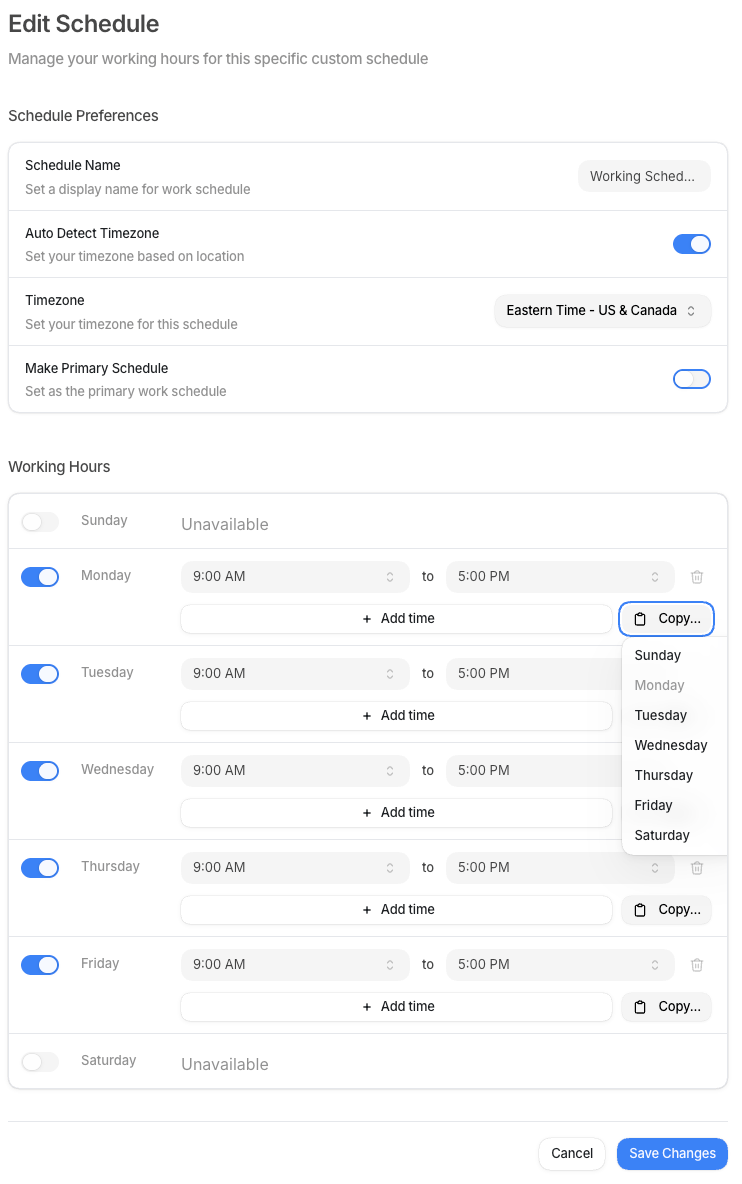
Selecting **Add New Schedule** or any existing schedule opens the schedule editor. The editor
has three sections: **Schedule Preferences**, **Working Hours**, and (for existing schedules)
**Danger Zone**.
Fill in the details for this schedule:
| Field | What it is | How to set it |
| ------------------------- | ----------------------------------------------------------------- | ----------------------------------------------------------------------------------------------------- |
| **Schedule Name** | A display name for this schedule. Required, up to 100 characters. | Type a name, such as `Standard Hours` or `East Coast`. |
| **Auto Detect Timezone** | Automatically sets the timezone based on your current location. | Toggle on to use your device's local timezone. Toggle off to pick a timezone manually. On by default. |
| **Timezone** | The timezone this schedule runs in. | When **Auto Detect Timezone** is off, select a timezone from the picker. |
| **Make Primary Schedule** | Marks this schedule as the primary one that the slot engine uses. | Toggle on. Only one schedule can be primary at a time. |
The **Working Hours** section shows a row for each day of the week. For each day, you can
toggle it on or off and set one or more time ranges. For example, set Monday through Friday
to `9:00 AM – 5:00 PM` and leave Saturday and Sunday off. You can add multiple time ranges
per day if your schedule has a midday break.
Select **Save Changes** to save. Select **Cancel** to discard and go back to the list.
 ## Delete a schedule
To delete an existing schedule, open it and scroll to the **Danger Zone** section at the
bottom. Select **Delete Schedule**. Deleting a schedule removes it from the slot engine's
consideration. If it was your primary schedule, make sure you have another one marked
primary so your availability is still readable.
## Delete a schedule
To delete an existing schedule, open it and scroll to the **Danger Zone** section at the
bottom. Select **Delete Schedule**. Deleting a schedule removes it from the slot engine's
consideration. If it was your primary schedule, make sure you have another one marked
primary so your availability is still readable.