> ## Documentation Index
> Fetch the complete documentation index at: https://docs.os.default.com/llms.txt
> Use this file to discover all available pages before exploring further.
# My Calendar
> Control when you can be booked: set meeting buffers, a notice period, and your primary calendar.
**My Calendar** is where you control Default's view of your availability. You set the
scheduling preferences that apply to every event you host, choose which calendar your booked
meetings write to, and manage the work schedules and out-of-office time that decide when you
can be booked.
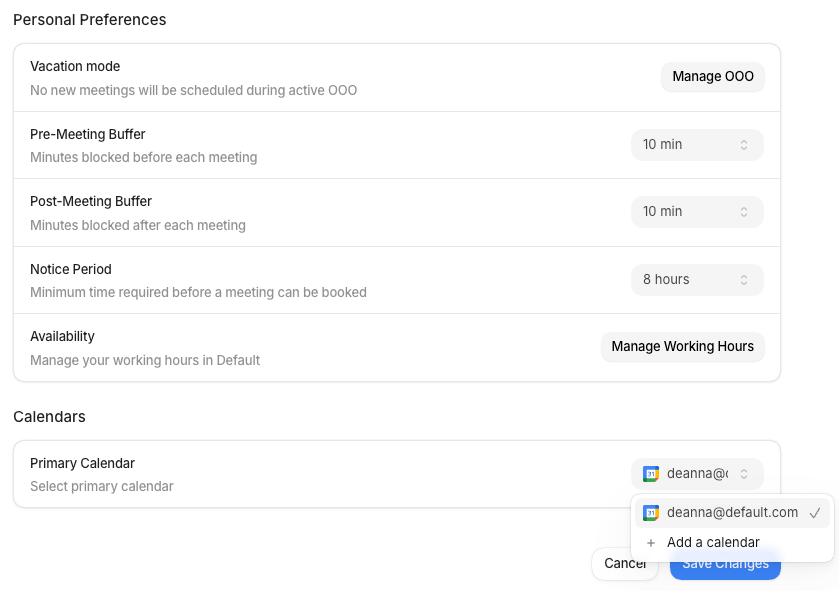
Open **Settings** from the **Dock** (the app bar at the bottom of the screen), then select
**My Calendar** under **My Profile**. The page has two sections: **Personal Preferences**
and **Calendars**. Select **Save Changes** when you're done, or **Cancel** to discard
edits.
 ## Personal preferences
**Personal Preferences** holds the scheduling controls that apply across your events, plus a
shortcut to your work hours.
| Field | What it is | How to set it |
| --------------------------------- | ------------------------------------------------------------------------------------------------------------------------------------------------------------------- | ------------------------------------------------------------------------------------------------------------------------------------------------------------------------ |
| **Vacation mode** | Pauses new bookings while you have an active out-of-office block. When you have an OOO block on your calendar, no new meetings can be scheduled during that period. | Select **Manage** to open [Out of Office](/settings/availability/ooo) and add a block. Vacation mode is active automatically whenever a block covers the requested time. |
| **Add buffer events to calendar** | Creates a real event on your connected calendar for each pre- and post-meeting buffer, instead of only blocking the time inside Default. | Toggle it on. Turning it off also turns off **Allow buffer overlap**. |
| **Allow buffer overlap** | Lets the pre- and post-meeting buffers from back-to-back meetings overlap, instead of each buffer blocking its own separate time. | Toggle it on. This control only appears while **Add buffer events to calendar** is on. |
| **Pre-Meeting Buffer** | Minutes blocked before each meeting so you have time to prepare. | Choose a duration from the dropdown. Options run from `0 min` to `60 min` in steps. Default is `15 min`. |
| **Post-Meeting Buffer** | Minutes blocked after each meeting so you have time to wrap up before the next one. | Choose a duration from the same options. Default is `15 min`. |
| **Notice Period** | The minimum lead time before a slot can be booked. Prevents last-minute bookings. | Choose from **No notice**, **15 minutes**, **30 minutes**, **1 hour**, **2 hours**, **4 hours**, **8 hours**, **1 day**, or **2 days**. Default is `1 hour`. |
| **Work Hours** | A shortcut to your work schedules. | Select **Manage** to open [Work Hours](/settings/availability/working-hours). |
Buffers and the notice period apply across all events you host. If you need different
settings for a specific event type, those can be configured on the event itself in
Scheduling.
## Calendars
**Calendars** sets which connected calendar receives your new meeting invites.
| Field | What it is | How to set it |
| -------------------- | ----------------------------------------------------------------- | -------------------------------------------------------------------------------------------------------------------------------------------------------------------------------------------------------------------------------------- |
| **Primary Calendar** | The connected calendar that Default writes new meeting events to. | Select a calendar from the dropdown. The list shows every calendar you've connected under Integrations, identified by its account email. To add one, select **Add a calendar** from the same dropdown. This takes you to Integrations. |
## Work hours and out of office
Two linked pages manage the schedule behind your availability:
* **[Work Hours](/settings/availability/working-hours)**: set the days and times you're open
for bookings. Default uses your primary schedule to generate the open slots on your events.
* **[Out of Office](/settings/availability/ooo)**: block date ranges when you're away. While
a block is active, Vacation mode pauses new bookings for those dates.
## Personal preferences
**Personal Preferences** holds the scheduling controls that apply across your events, plus a
shortcut to your work hours.
| Field | What it is | How to set it |
| --------------------------------- | ------------------------------------------------------------------------------------------------------------------------------------------------------------------- | ------------------------------------------------------------------------------------------------------------------------------------------------------------------------ |
| **Vacation mode** | Pauses new bookings while you have an active out-of-office block. When you have an OOO block on your calendar, no new meetings can be scheduled during that period. | Select **Manage** to open [Out of Office](/settings/availability/ooo) and add a block. Vacation mode is active automatically whenever a block covers the requested time. |
| **Add buffer events to calendar** | Creates a real event on your connected calendar for each pre- and post-meeting buffer, instead of only blocking the time inside Default. | Toggle it on. Turning it off also turns off **Allow buffer overlap**. |
| **Allow buffer overlap** | Lets the pre- and post-meeting buffers from back-to-back meetings overlap, instead of each buffer blocking its own separate time. | Toggle it on. This control only appears while **Add buffer events to calendar** is on. |
| **Pre-Meeting Buffer** | Minutes blocked before each meeting so you have time to prepare. | Choose a duration from the dropdown. Options run from `0 min` to `60 min` in steps. Default is `15 min`. |
| **Post-Meeting Buffer** | Minutes blocked after each meeting so you have time to wrap up before the next one. | Choose a duration from the same options. Default is `15 min`. |
| **Notice Period** | The minimum lead time before a slot can be booked. Prevents last-minute bookings. | Choose from **No notice**, **15 minutes**, **30 minutes**, **1 hour**, **2 hours**, **4 hours**, **8 hours**, **1 day**, or **2 days**. Default is `1 hour`. |
| **Work Hours** | A shortcut to your work schedules. | Select **Manage** to open [Work Hours](/settings/availability/working-hours). |
Buffers and the notice period apply across all events you host. If you need different
settings for a specific event type, those can be configured on the event itself in
Scheduling.
## Calendars
**Calendars** sets which connected calendar receives your new meeting invites.
| Field | What it is | How to set it |
| -------------------- | ----------------------------------------------------------------- | -------------------------------------------------------------------------------------------------------------------------------------------------------------------------------------------------------------------------------------- |
| **Primary Calendar** | The connected calendar that Default writes new meeting events to. | Select a calendar from the dropdown. The list shows every calendar you've connected under Integrations, identified by its account email. To add one, select **Add a calendar** from the same dropdown. This takes you to Integrations. |
## Work hours and out of office
Two linked pages manage the schedule behind your availability:
* **[Work Hours](/settings/availability/working-hours)**: set the days and times you're open
for bookings. Default uses your primary schedule to generate the open slots on your events.
* **[Out of Office](/settings/availability/ooo)**: block date ranges when you're away. While
a block is active, Vacation mode pauses new bookings for those dates.