> ## Documentation Index
> Fetch the complete documentation index at: https://docs.os.default.com/llms.txt
> Use this file to discover all available pages before exploring further.
# Events
> Create bookable meeting types with hosts, availability, booking forms, and messages.
An event is a meeting type you configure once - its name, duration, hosts, availability,
booking questions, and messages - to create a public booking page. When someone books,
Default creates the meeting and writes it to the host's calendar.
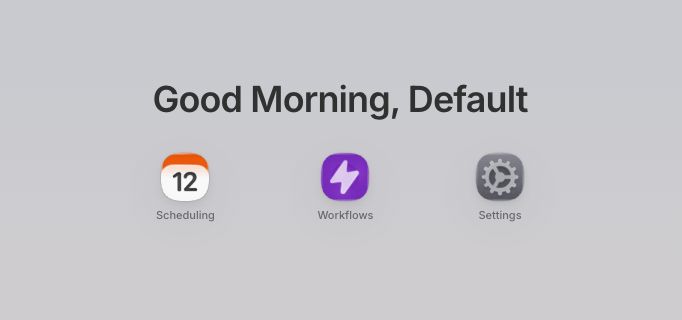
Open the **Scheduling** app from the **Dock**, then select an event type under **Events**
in the Scheduling sidebar.
 ## The events list
The sidebar's **Events** group splits the list by event type, plus a **Favorites** tab.
The table shows each event's name, **Status**, **Event type**, **Duration**, **Location**,
**Last edited**, **Notice**, **Pre buffer**, **Post buffer**, and **Intervals**. Select a
column header to sort by it.
* The **Status** switch turns an event on or off without opening it. Turning an event off
shows an **Event deactivated** toast with an **Undo** action.
* Hover over an event's name for a **Copy Link** button (see
[Copy booking links](#copy-booking-links)).
* Each row's menu has **Duplicate** and **Delete**. Deleting asks you to confirm, since
booking links for the event stop working; if the event is used by workflows, Default
lists the workflows you must update before it can be deleted.
* The toolbar has a **Search events** box and filters for **Status**, **Location**,
**Duration**, and **Notice Period**.
## Create an event
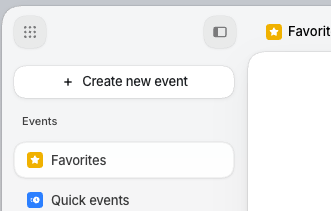
Select **Create new event**, enter an **Event name**, choose the event type, then select
**Create new event** again. The name is required before the event can be created.
## The events list
The sidebar's **Events** group splits the list by event type, plus a **Favorites** tab.
The table shows each event's name, **Status**, **Event type**, **Duration**, **Location**,
**Last edited**, **Notice**, **Pre buffer**, **Post buffer**, and **Intervals**. Select a
column header to sort by it.
* The **Status** switch turns an event on or off without opening it. Turning an event off
shows an **Event deactivated** toast with an **Undo** action.
* Hover over an event's name for a **Copy Link** button (see
[Copy booking links](#copy-booking-links)).
* Each row's menu has **Duplicate** and **Delete**. Deleting asks you to confirm, since
booking links for the event stop working; if the event is used by workflows, Default
lists the workflows you must update before it can be deleted.
* The toolbar has a **Search events** box and filters for **Status**, **Location**,
**Duration**, and **Notice Period**.
## Create an event
Select **Create new event**, enter an **Event name**, choose the event type, then select
**Create new event** again. The name is required before the event can be created.
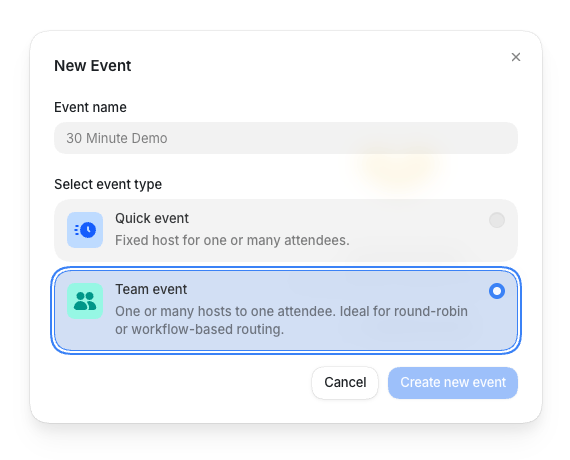 Two event types are available today, with webinar events on the way:
| Type | What it is | Use it for |
| ----------------- | --------------------------------------------------- | --------------------------------------------------------- |
| **Quick event** | One fixed member hosts the meeting. | A personal demo or intro-call link. |
| **Team event** | One or more members or queues can host the meeting. | Round-robin inbound meetings or workflow-routed bookings. |
| **Webinar event** | Coming soon. Not available to create yet. | Many hosts to many attendees, such as group office hours. |
Any member can create a **Quick event**. **Team events** require permission to create shared
events. If you cannot select **Team event**, ask an admin for Scheduling event access.
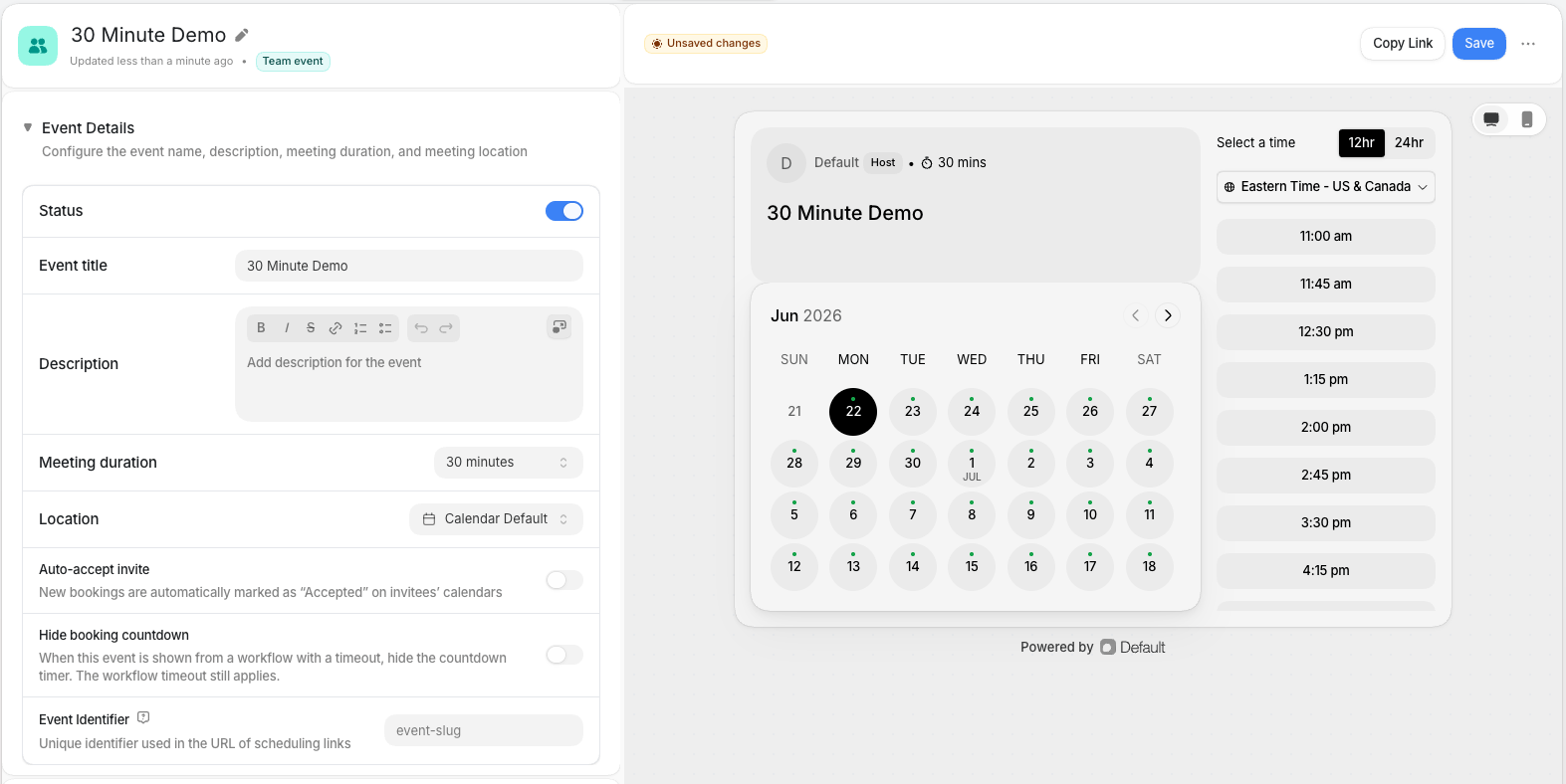
After the event is created, Default opens the event editor. Work through its setting sections
from top to bottom; the live preview on the right updates as you go. The editor header shows
**Unsaved changes** until you select **Save**, then **Published**. If someone else edits the
same event while you have it open, Default asks whether to **Keep my edits** or **Refresh**.
Two event types are available today, with webinar events on the way:
| Type | What it is | Use it for |
| ----------------- | --------------------------------------------------- | --------------------------------------------------------- |
| **Quick event** | One fixed member hosts the meeting. | A personal demo or intro-call link. |
| **Team event** | One or more members or queues can host the meeting. | Round-robin inbound meetings or workflow-routed bookings. |
| **Webinar event** | Coming soon. Not available to create yet. | Many hosts to many attendees, such as group office hours. |
Any member can create a **Quick event**. **Team events** require permission to create shared
events. If you cannot select **Team event**, ask an admin for Scheduling event access.
After the event is created, Default opens the event editor. Work through its setting sections
from top to bottom; the live preview on the right updates as you go. The editor header shows
**Unsaved changes** until you select **Save**, then **Published**. If someone else edits the
same event while you have it open, Default asks whether to **Keep my edits** or **Refresh**.
 ## Event details
Use **Event Details** to control the public booking page basics and a few booking-page
behaviors.
## Event details
Use **Event Details** to control the public booking page basics and a few booking-page
behaviors.
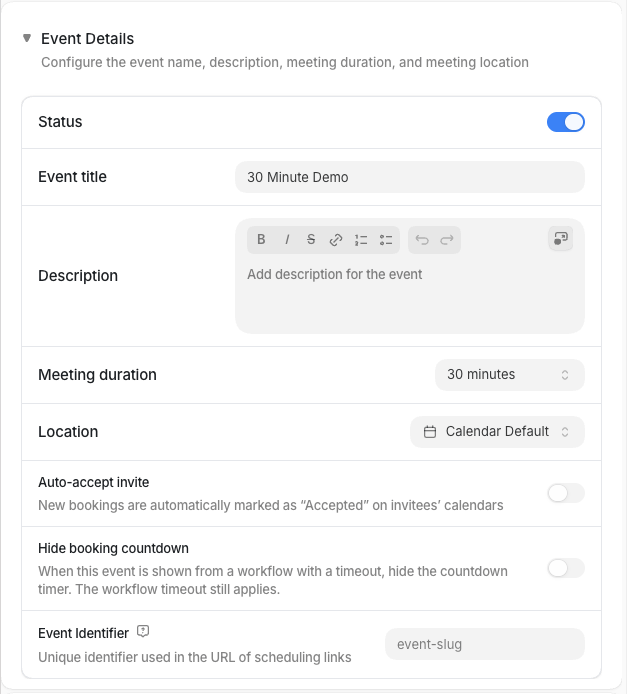 | Setting | What it does |
| -------------------------- | ---------------------------------------------------------------------------------------------------------------------------------------------------------------------------- |
| **Status** | Turns the event on or off. Turn it off to stop new bookings without deleting the event. |
| **Event title** | Sets the title people see on the booking page. |
| **Description** | Adds rich-text booking-page copy. You can insert scheduling variables. |
| **Meeting duration** | Sets the meeting length in minutes. |
| **Location** | Sets where the meeting happens: calendar default conferencing, Zoom, Zoom personal, or in person. |
| **Auto-accept invite** | Automatically accepts the host's calendar invite after a booking. |
| **Scheduler appearance** | Switches the booking page between the **Full** layout and a **Compact** layout, wherever this event's scheduler appears (booking links and workflows). Defaults to **Full**. |
| **Hide booking countdown** | Hides the countdown timer when the event is shown from a workflow with a timeout. The workflow timeout still applies. |
| **Hide close button** | Hides close buttons when the scheduler is embedded in a form. Programmatic dismiss still works. |
| **Event Identifier** | Sets the booking-page URL slug. Use a short, lowercase, dash-separated slug such as `product-demo`. |
The **Location** setting decides how the meeting is hosted. Choose your calendar's default
conferencing, Zoom, Zoom Personal, or In Person.
| Setting | What it does |
| -------------------------- | ---------------------------------------------------------------------------------------------------------------------------------------------------------------------------- |
| **Status** | Turns the event on or off. Turn it off to stop new bookings without deleting the event. |
| **Event title** | Sets the title people see on the booking page. |
| **Description** | Adds rich-text booking-page copy. You can insert scheduling variables. |
| **Meeting duration** | Sets the meeting length in minutes. |
| **Location** | Sets where the meeting happens: calendar default conferencing, Zoom, Zoom personal, or in person. |
| **Auto-accept invite** | Automatically accepts the host's calendar invite after a booking. |
| **Scheduler appearance** | Switches the booking page between the **Full** layout and a **Compact** layout, wherever this event's scheduler appears (booking links and workflows). Defaults to **Full**. |
| **Hide booking countdown** | Hides the countdown timer when the event is shown from a workflow with a timeout. The workflow timeout still applies. |
| **Hide close button** | Hides close buttons when the scheduler is embedded in a form. Programmatic dismiss still works. |
| **Event Identifier** | Sets the booking-page URL slug. Use a short, lowercase, dash-separated slug such as `product-demo`. |
The **Location** setting decides how the meeting is hosted. Choose your calendar's default
conferencing, Zoom, Zoom Personal, or In Person.
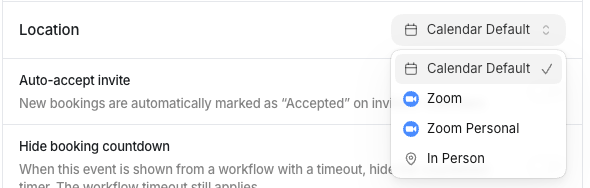 Conferencing options depend on connected integrations. Calendar Default uses the host's calendar
provider settings, while Zoom options require Zoom to be connected.
## Hosts and attendees
Use **Hosts and Attendees** to decide who runs the meeting and who else can join.
Conferencing options depend on connected integrations. Calendar Default uses the host's calendar
provider settings, while Zoom options require Zoom to be connected.
## Hosts and attendees
Use **Hosts and Attendees** to decide who runs the meeting and who else can join.
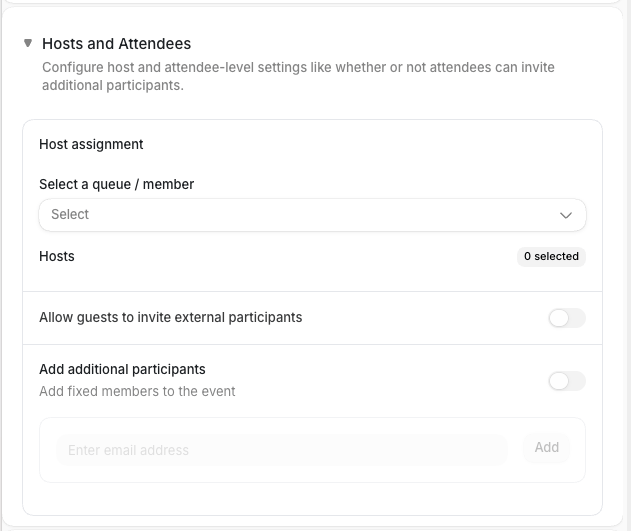 **Quick events** use a single member picker. Choose the member who should host the meeting.
**Team events** use the host selector. Add members or queues, then choose which host is primary
and whether each host is required or optional. Queue hosts let Routing pick a member when
someone books. See [Queues](/queues) for how queue routing works.
| Setting | What it does |
| ------------------------------------------------ | ------------------------------------------------------------------------------------------- |
| **Host assignment** | Sets the member, members, or queues that can host the meeting. |
| **Primary host** | Marks the organizer for the meeting. |
| **Required / optional host** | Controls whether a selected host must be available for a slot to appear. |
| **Allow guests to invite external participants** | Lets the booker add guests while booking. |
| **Add additional participants** | Adds fixed email invitees to every booking. Each fixed invitee can be optional or required. |
## Scheduling and availability
Use **Scheduling and Availability** to control when people can book and which hours are
available.
**Quick events** use a single member picker. Choose the member who should host the meeting.
**Team events** use the host selector. Add members or queues, then choose which host is primary
and whether each host is required or optional. Queue hosts let Routing pick a member when
someone books. See [Queues](/queues) for how queue routing works.
| Setting | What it does |
| ------------------------------------------------ | ------------------------------------------------------------------------------------------- |
| **Host assignment** | Sets the member, members, or queues that can host the meeting. |
| **Primary host** | Marks the organizer for the meeting. |
| **Required / optional host** | Controls whether a selected host must be available for a slot to appear. |
| **Allow guests to invite external participants** | Lets the booker add guests while booking. |
| **Add additional participants** | Adds fixed email invitees to every booking. Each fixed invitee can be optional or required. |
## Scheduling and availability
Use **Scheduling and Availability** to control when people can book and which hours are
available.
 ### Scheduling settings
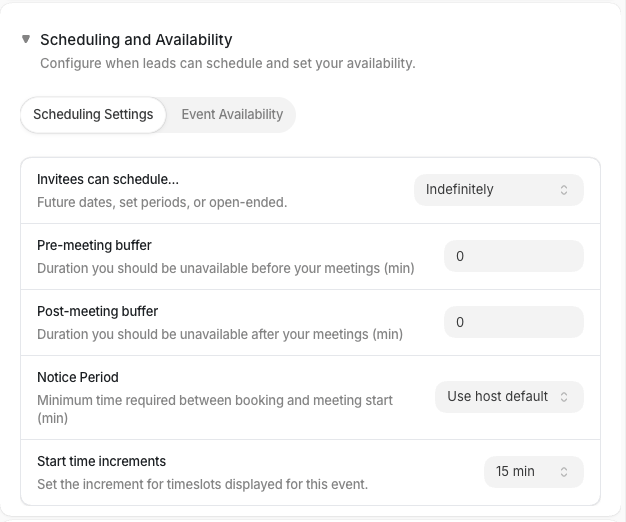
The **Scheduling Settings** tab controls booking windows, buffers, notice, and slot
increments.
| Setting | What it does |
| ---------------------------- | ------------------------------------------------------------------------------------------------------------------------- |
| **Invitees can schedule...** | Sets the booking window: **Days into the future**, **Date range**, or **Indefinitely**. |
| **Number of days** | Appears for **Days into the future**. Pick a preset or enter a custom positive number. |
| **Start date / End date** | Appears for **Date range**. People can only book inside that range. |
| **Pre-meeting buffer** | Blocks time before each meeting. |
| **Post-meeting buffer** | Blocks time after each meeting. |
| **Notice Period** | Sets minimum lead time before a meeting can be booked. Choose **Use host default** or a preset from 30 minutes to 2 days. |
| **Start time increments** | Sets the slot granularity people see: 5, 15, 30, or 60 minutes. |
### Event availability
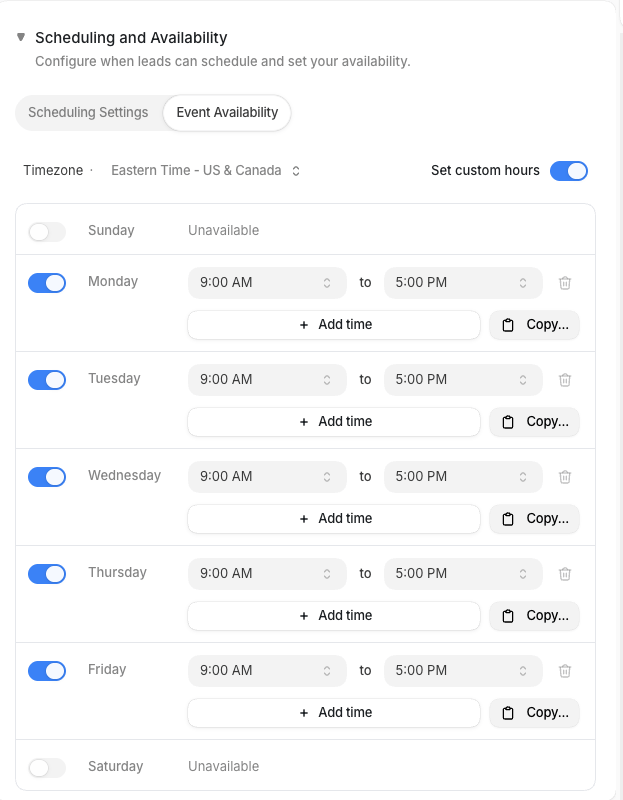
By default, the event uses each host's working hours from their availability settings. Turn
on **Set custom hours** to override that schedule for this event.
### Scheduling settings
The **Scheduling Settings** tab controls booking windows, buffers, notice, and slot
increments.
| Setting | What it does |
| ---------------------------- | ------------------------------------------------------------------------------------------------------------------------- |
| **Invitees can schedule...** | Sets the booking window: **Days into the future**, **Date range**, or **Indefinitely**. |
| **Number of days** | Appears for **Days into the future**. Pick a preset or enter a custom positive number. |
| **Start date / End date** | Appears for **Date range**. People can only book inside that range. |
| **Pre-meeting buffer** | Blocks time before each meeting. |
| **Post-meeting buffer** | Blocks time after each meeting. |
| **Notice Period** | Sets minimum lead time before a meeting can be booked. Choose **Use host default** or a preset from 30 minutes to 2 days. |
| **Start time increments** | Sets the slot granularity people see: 5, 15, 30, or 60 minutes. |
### Event availability
By default, the event uses each host's working hours from their availability settings. Turn
on **Set custom hours** to override that schedule for this event.
 | Setting | What it does |
| ------------------------- | ------------------------------------------------------------------------------ |
| **Set custom hours** | Replaces host working hours with this event's custom schedule. |
| **Timezone** | Sets the timezone for the custom hours. |
| Available hours (per day) | A day-by-day grid where you toggle each day on or off and set its time ranges. |
## Booking form questions
Use **Booking Form Questions** to decide what the booker must answer before confirming a
meeting. Email is added automatically, and is always required to process an event booking.
| Setting | What it does |
| ------------------------- | ------------------------------------------------------------------------------ |
| **Set custom hours** | Replaces host working hours with this event's custom schedule. |
| **Timezone** | Sets the timezone for the custom hours. |
| Available hours (per day) | A day-by-day grid where you toggle each day on or off and set its time ranges. |
## Booking form questions
Use **Booking Form Questions** to decide what the booker must answer before confirming a
meeting. Email is added automatically, and is always required to process an event booking.
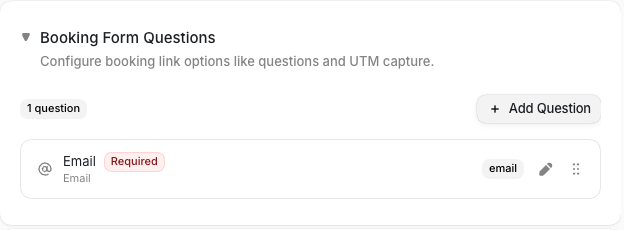 Select **Add Question**, then choose a person or company field. You can search fields or
filter by **All**, **Person fields**, and **Company fields**. After choosing a field,
configure the question:
| Setting | What it does |
| ------------------------ | --------------------------------------------------------------------------------------------------------------------- |
| **Question title** | Sets the label shown on the booking form. |
| **Question description** | Adds helper text below the question. |
| **Question placeholder** | Adds placeholder text inside the input. |
| **Question options** | Appears for single-select and multi-select fields. Add the choices bookers can pick from. |
| **Required** | Makes the question mandatory before booking. |
| **Require work email** | Appears only for the Email question. When on, rejects free or personal addresses, so bookers must enter a work email. |
Questions can collect email, phone, URL, number, text, textarea, single-select, and
multi-select answers, depending on the field you choose. Drag questions to reorder them.
### Phone collection and SMS consent for leads
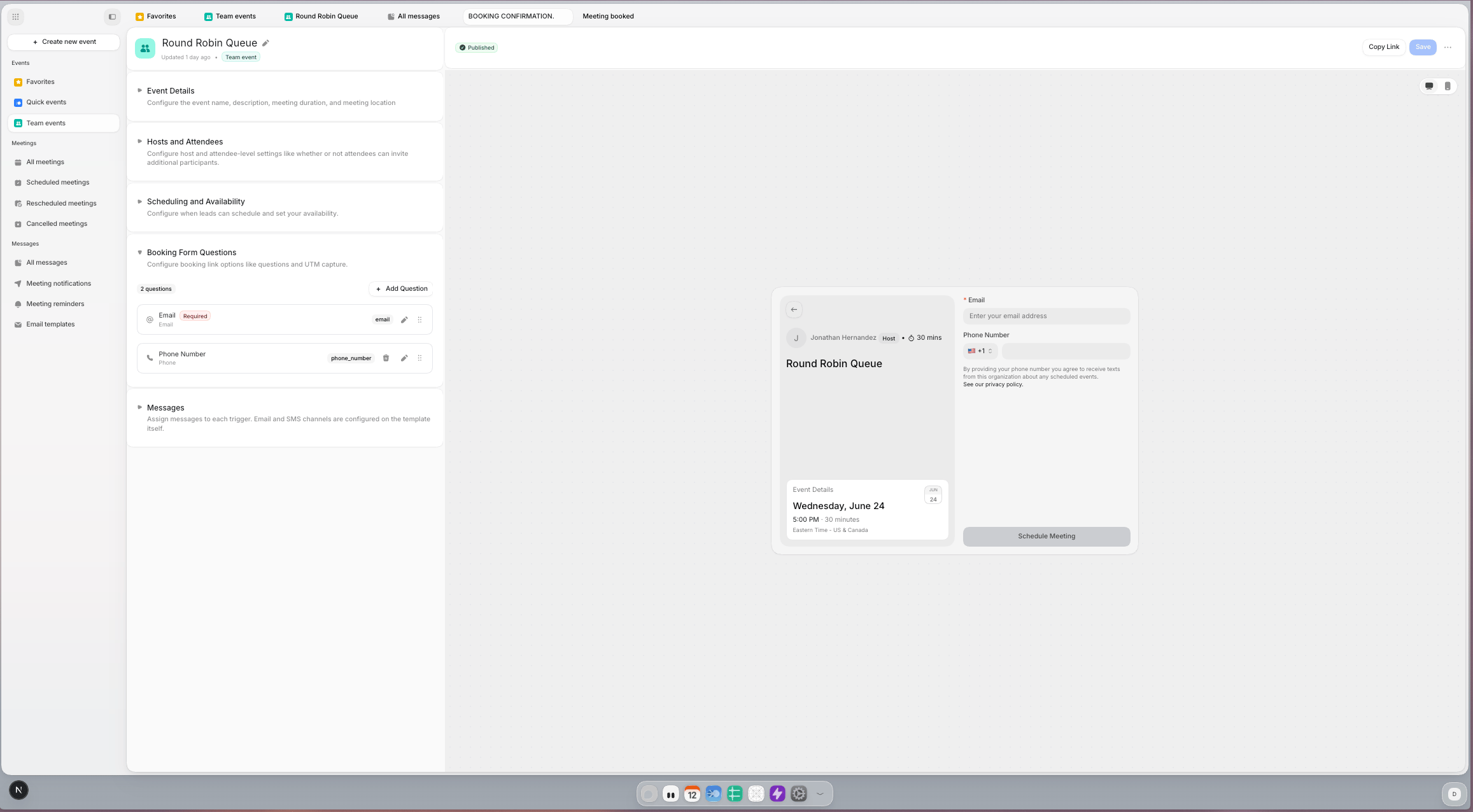
Use a **Phone Number** question when you want to collect a lead phone number during booking.
If guest SMS notifications are enabled for the event, the booking form shows SMS consent helper
text directly below the phone field:
Guest SMS is on when a guest-facing message assigned in the event's **Messages** section (for
example the booking confirmation or a guest reminder) uses a template with the **SMS** channel
enabled. Channels are configured on the template itself, in the workspace
[Messages library](/scheduling-messages).
* "By providing your phone number you agree to receive texts from this organization about any scheduled events."
* "See our privacy policy."
This means lead consent is collected as part of booking form submission when the phone field is present.
For each booking-related SMS notification sent to that lead, Default also sends a second compliance
text that explains why they received the message and how to opt out (`Text STOP`).
Select **Add Question**, then choose a person or company field. You can search fields or
filter by **All**, **Person fields**, and **Company fields**. After choosing a field,
configure the question:
| Setting | What it does |
| ------------------------ | --------------------------------------------------------------------------------------------------------------------- |
| **Question title** | Sets the label shown on the booking form. |
| **Question description** | Adds helper text below the question. |
| **Question placeholder** | Adds placeholder text inside the input. |
| **Question options** | Appears for single-select and multi-select fields. Add the choices bookers can pick from. |
| **Required** | Makes the question mandatory before booking. |
| **Require work email** | Appears only for the Email question. When on, rejects free or personal addresses, so bookers must enter a work email. |
Questions can collect email, phone, URL, number, text, textarea, single-select, and
multi-select answers, depending on the field you choose. Drag questions to reorder them.
### Phone collection and SMS consent for leads
Use a **Phone Number** question when you want to collect a lead phone number during booking.
If guest SMS notifications are enabled for the event, the booking form shows SMS consent helper
text directly below the phone field:
Guest SMS is on when a guest-facing message assigned in the event's **Messages** section (for
example the booking confirmation or a guest reminder) uses a template with the **SMS** channel
enabled. Channels are configured on the template itself, in the workspace
[Messages library](/scheduling-messages).
* "By providing your phone number you agree to receive texts from this organization about any scheduled events."
* "See our privacy policy."
This means lead consent is collected as part of booking form submission when the phone field is present.
For each booking-related SMS notification sent to that lead, Default also sends a second compliance
text that explains why they received the message and how to opt out (`Text STOP`).
 ## Messages
Use **Messages** to control what Default sends around this event's meetings. You assign a
message to each trigger; the email and SMS channels themselves are configured on the message
template, in the workspace [Messages library](/scheduling-messages). The section has three
tabs: **Calendar invite**, **Notifications**, and **Reminders**.
### Calendar invite
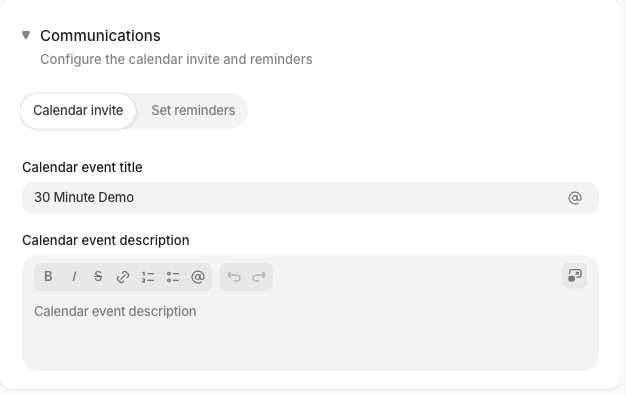
Set the **Calendar event title** and **Calendar event description**. These values are used
on the calendar event created after booking and can be different from the public booking
page title and description. Both fields support scheduling variables.
Turn on **Include calendar links in footer** to add reschedule and cancel links below the
calendar description, so invitees can change the meeting straight from the invite.
## Messages
Use **Messages** to control what Default sends around this event's meetings. You assign a
message to each trigger; the email and SMS channels themselves are configured on the message
template, in the workspace [Messages library](/scheduling-messages). The section has three
tabs: **Calendar invite**, **Notifications**, and **Reminders**.
### Calendar invite
Set the **Calendar event title** and **Calendar event description**. These values are used
on the calendar event created after booking and can be different from the public booking
page title and description. Both fields support scheduling variables.
Turn on **Include calendar links in footer** to add reschedule and cancel links below the
calendar description, so invitees can change the meeting straight from the invite.
 ### Notifications
Notifications are lifecycle messages sent when something happens to a booking. Select
**Add notification**, choose a **Trigger** (**On booking**, **On cancel**, **On reschedule**,
or **On no-show**) and a **Recipient** (**Guest** or **Host**), then pick the message
template to send. For example, send a booking confirmation to the guest on booking and a
Slack ping to the host on cancel.
Each notification row has a switch to turn it on or off, and shows icons for the channels
its template sends on (email, SMS, Slack).
### Reminders
Turn on **Enable reminders**, then select **Add reminder** and pick a reminder **Template**
from your workspace's library (or keep the **Org default**). Reminder rules only fire while
**Enable reminders** is on.
Each rule shows who it goes to (**Guest** or **Host**) and when it sends, both of which come
from the template. To change the timing for this event only, set **Override minutes** and a
**Direction** (**Before meeting** or **After meeting**). Add multiple rules when you want
more than one reminder, such as 1 day before and 15 minutes before the meeting.
### SMS booking messages and compliance follow-up
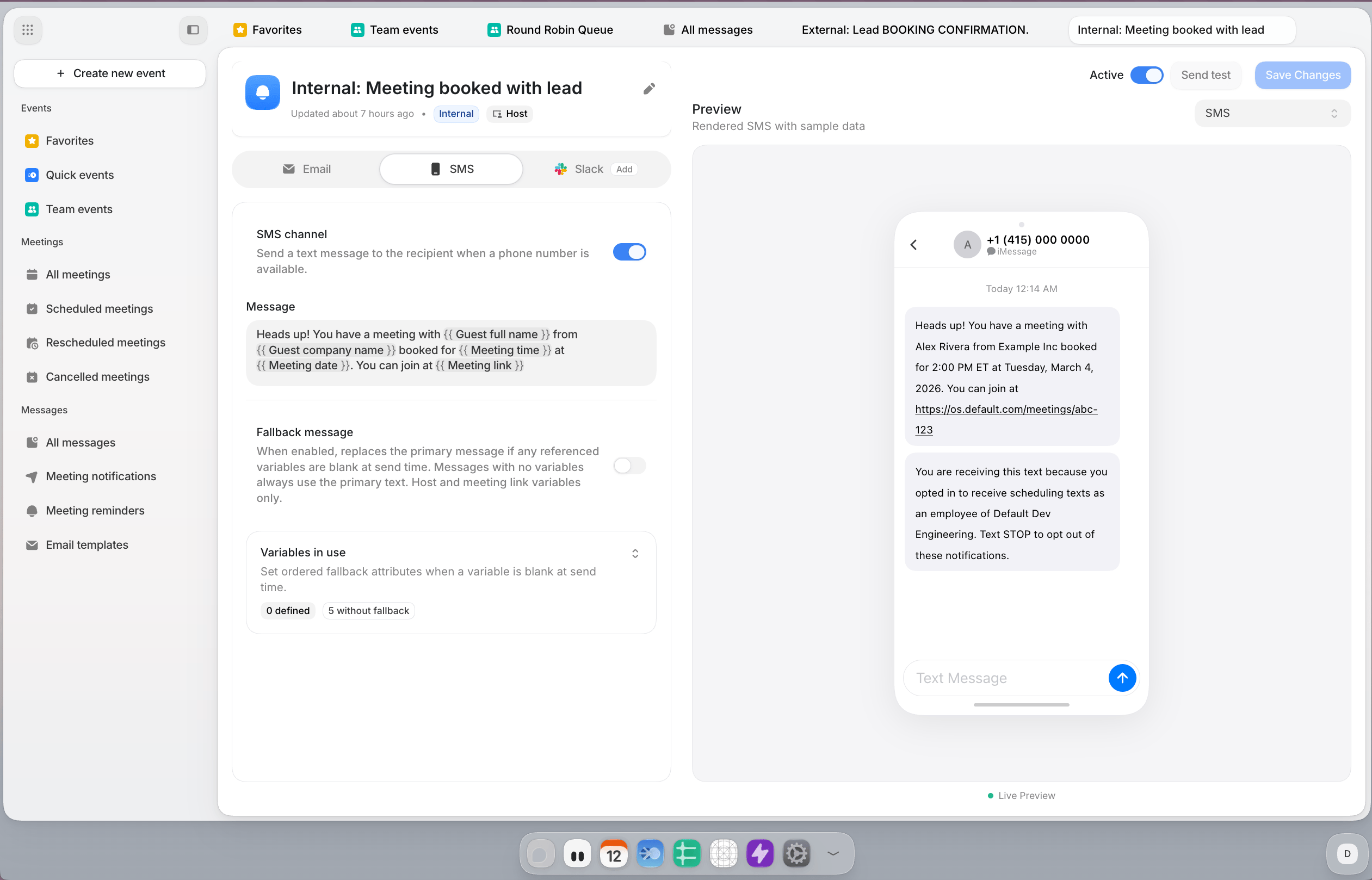
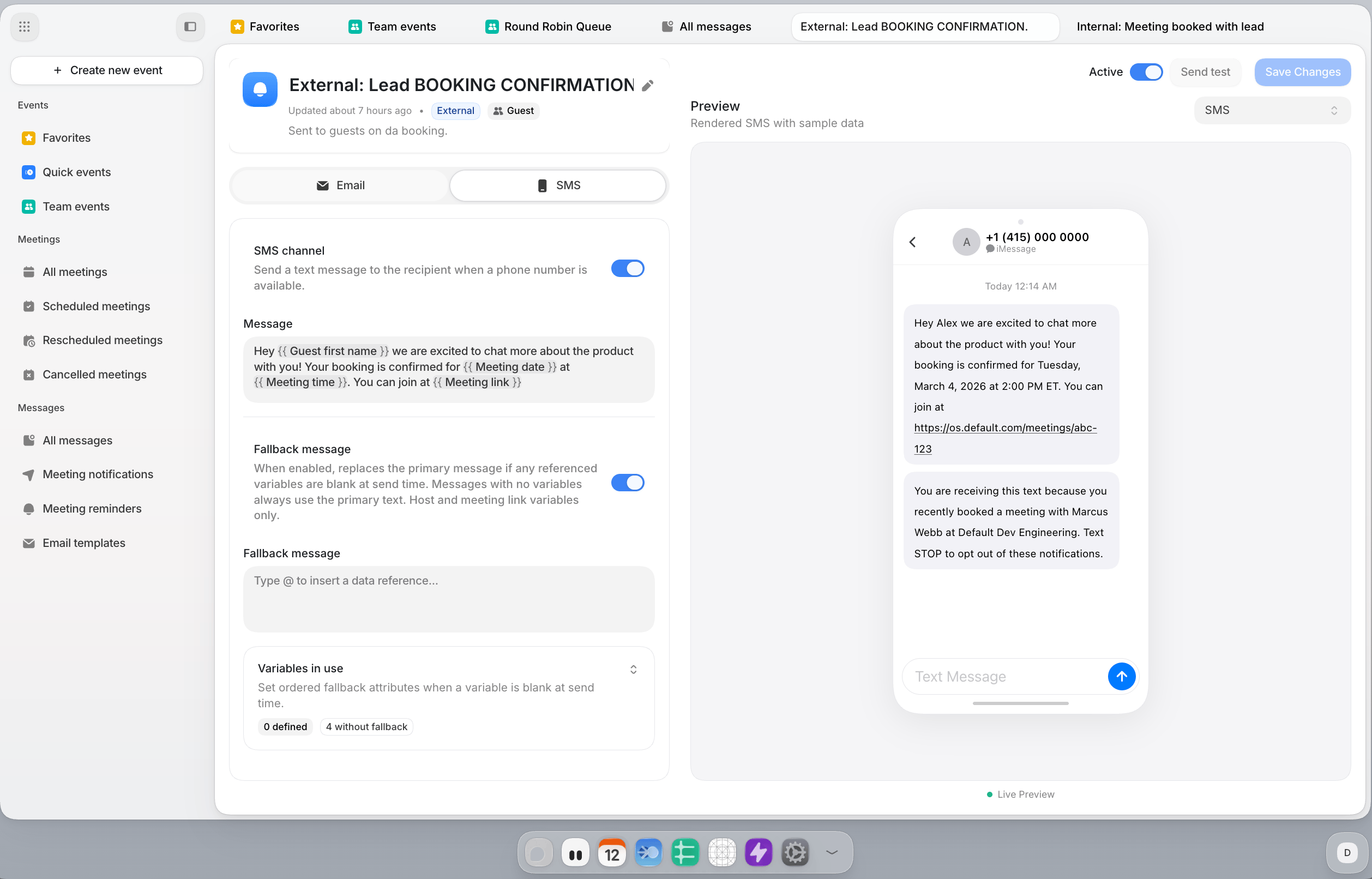
Default can send SMS meeting messages to both recipients:
* **Internal user (host):** message templates sent to employees for scheduling updates.
* **External lead:** message templates sent to bookers for booking lifecycle updates.
When an SMS message is sent, Default also sends a compliance follow-up message explaining why
the recipient received the text and how to opt out (`Text STOP`).
Internal and external follow-up copy differs:
* **Host copy:** confirms they opted in as an employee of the organization.
* **Lead copy:** confirms they recently booked a meeting with the host at the organization.
### Notifications
Notifications are lifecycle messages sent when something happens to a booking. Select
**Add notification**, choose a **Trigger** (**On booking**, **On cancel**, **On reschedule**,
or **On no-show**) and a **Recipient** (**Guest** or **Host**), then pick the message
template to send. For example, send a booking confirmation to the guest on booking and a
Slack ping to the host on cancel.
Each notification row has a switch to turn it on or off, and shows icons for the channels
its template sends on (email, SMS, Slack).
### Reminders
Turn on **Enable reminders**, then select **Add reminder** and pick a reminder **Template**
from your workspace's library (or keep the **Org default**). Reminder rules only fire while
**Enable reminders** is on.
Each rule shows who it goes to (**Guest** or **Host**) and when it sends, both of which come
from the template. To change the timing for this event only, set **Override minutes** and a
**Direction** (**Before meeting** or **After meeting**). Add multiple rules when you want
more than one reminder, such as 1 day before and 15 minutes before the meeting.
### SMS booking messages and compliance follow-up
Default can send SMS meeting messages to both recipients:
* **Internal user (host):** message templates sent to employees for scheduling updates.
* **External lead:** message templates sent to bookers for booking lifecycle updates.
When an SMS message is sent, Default also sends a compliance follow-up message explaining why
the recipient received the text and how to opt out (`Text STOP`).
Internal and external follow-up copy differs:
* **Host copy:** confirms they opted in as an employee of the organization.
* **Lead copy:** confirms they recently booked a meeting with the host at the organization.
 ## Copy booking links
Use **Copy Link** from the Events list (hover over the event's name) or from the event
editor's header when you are ready to share an event.
## Copy booking links
Use **Copy Link** from the Events list (hover over the event's name) or from the event
editor's header when you are ready to share an event.
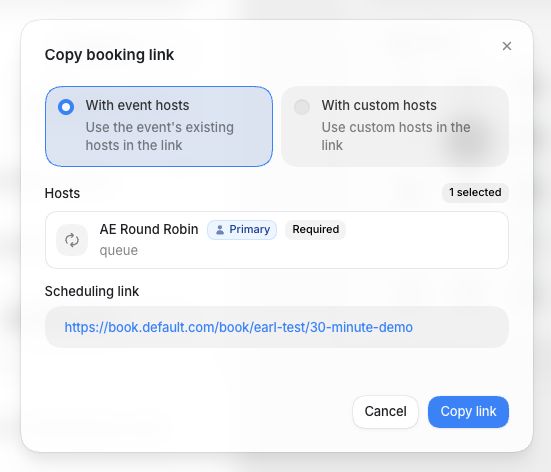 ### With event hosts
If the event already has hosts, you will be able to choose **With event hosts** to share the
event's standard booking link. This uses the hosts configured on the event. When a host has a
**Scheduling username** set (for a queue host, its identifier), the link includes that
shorthand so it opens pinned to that host; without one, the link falls back to the plain
event link.
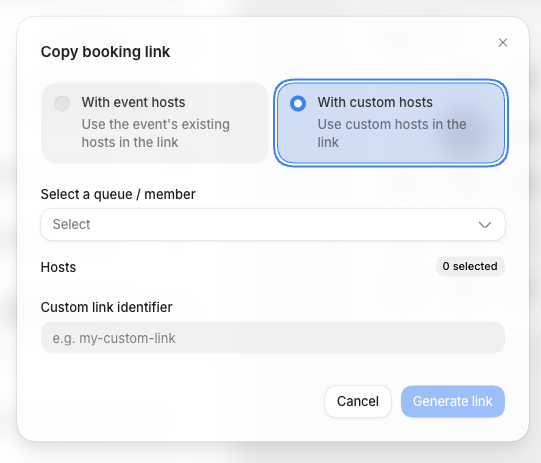
### With custom hosts
Choose **With custom hosts** when you need a separate link for a different set of hosts. Add
members or queues, optionally set a **Custom link identifier**, then select **Generate link**.
After the link is generated, copy it from the dialog. If a recent link already exists with
the same hosts and identifier, the dialog shows that link and offers **Copy link** instead
of creating a duplicate.
Recent links are grouped into two tabs:
* **Permanent** links keep working until you delete them.
* **Expiring** links stop working after a set number of days. Before you generate one, set
**Expire after days** (from 1 to 365); the dialog shows the date the link will expire.
Hover a recent link to delete it. Deleting asks you to confirm first: meetings already booked
through the link are not affected, and a custom identifier on that link is freed for reuse.
### With event hosts
If the event already has hosts, you will be able to choose **With event hosts** to share the
event's standard booking link. This uses the hosts configured on the event. When a host has a
**Scheduling username** set (for a queue host, its identifier), the link includes that
shorthand so it opens pinned to that host; without one, the link falls back to the plain
event link.
### With custom hosts
Choose **With custom hosts** when you need a separate link for a different set of hosts. Add
members or queues, optionally set a **Custom link identifier**, then select **Generate link**.
After the link is generated, copy it from the dialog. If a recent link already exists with
the same hosts and identifier, the dialog shows that link and offers **Copy link** instead
of creating a duplicate.
Recent links are grouped into two tabs:
* **Permanent** links keep working until you delete them.
* **Expiring** links stop working after a set number of days. Before you generate one, set
**Expire after days** (from 1 to 365); the dialog shows the date the link will expire.
Hover a recent link to delete it. Deleting asks you to confirm first: meetings already booked
through the link are not affected, and a custom identifier on that link is freed for reuse.
 ## After publishing
When an event is active, its booking page is available at the event slug. Copy and share the
booking link from the Events list or from the copy link dialog.
Bookings appear under [Meetings](/meetings), where you can review them, mark no-shows, and
cancel them. Events can also be used in [Workflows](/workflows) to show a booking page during
an automated flow.
To style public booking pages, use [Settings -> Scheduling](/settings/scheduler). To style
the emails Default sends about meetings, use the
[Email templates tab of Messages](/scheduling-messages#email-templates).
## After publishing
When an event is active, its booking page is available at the event slug. Copy and share the
booking link from the Events list or from the copy link dialog.
Bookings appear under [Meetings](/meetings), where you can review them, mark no-shows, and
cancel them. Events can also be used in [Workflows](/workflows) to show a booking page during
an automated flow.
To style public booking pages, use [Settings -> Scheduling](/settings/scheduler). To style
the emails Default sends about meetings, use the
[Email templates tab of Messages](/scheduling-messages#email-templates).